GPSMAP 640 Owner’s Manual 17
Marine Mode: Navigating
5. Touch Done to complete creating the route and to set the
course, or touch Cancel Route to delete the route.
Complete Route
Saving a Created Route (Route To)
You can save up to 50 routes, with up to 250 turns in each route.
1. After you create a route, touch Menu > Stop Navigation.
2. Touch Yes to save your current active route.
Following a Route (Route To) on the
Navigation Chart, Perspective 3D Screen, or
Mariner’s Eye 3D Screen
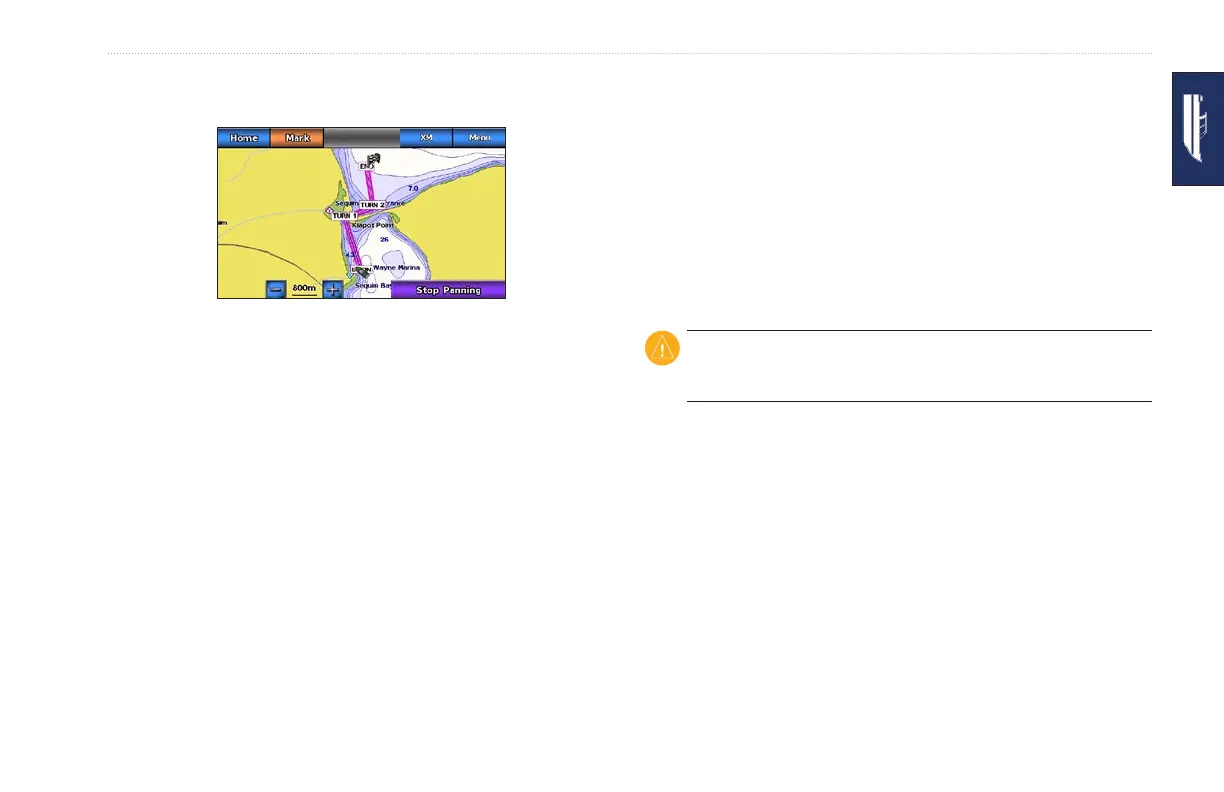
After you create a route using Route To or choose a saved route
from the Where To? menu, a magenta and purple line appears
between the start point and the rst turning point, then continues
on to each subsequent turning point. This magenta and purple line
represents the route leg (from turning point to turning point), and
does not move, even when you are off course.
CAUTION: Even when you carefully create a route, legs may pass
over land or shallow water. Use visual sightings and steer to avoid
land, shallow water, and other dangerous objects.
When you are off course, an orange arrow appears to help steer you
back onto the route leg to the next turning point. This orange arrow
represents the Course to Steer.
1. After you create a route using Route To or choose a saved
route from the Where To? menu, from the Home screen, touch
Charts and then touch Navigation Chart, Perspective 3D, or
Mariner’s Eye 3D.












 To Next Page