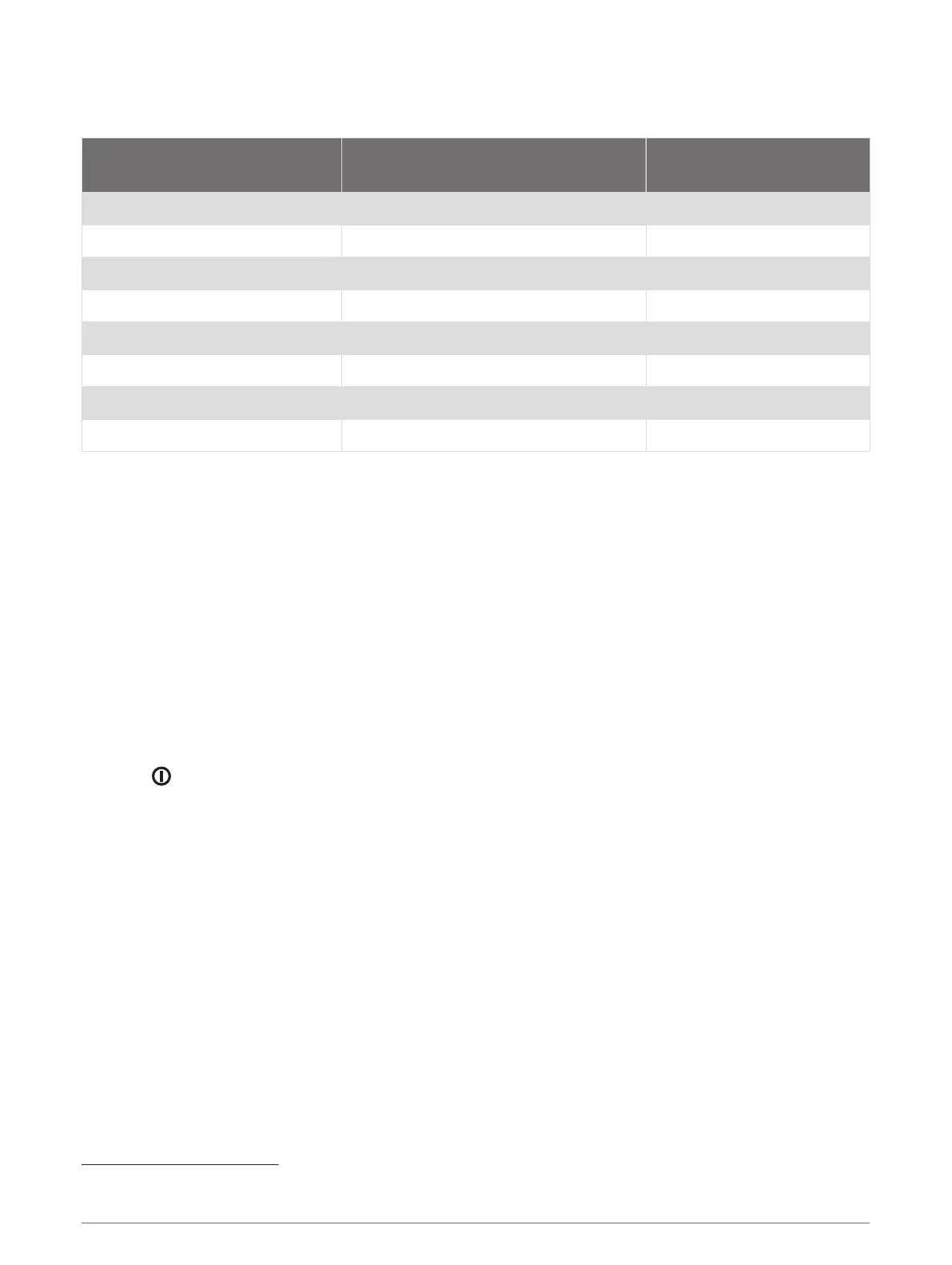
Connected Feature Requirements
Some features require a smartphone and a specific app on your smartphone.
Feature
Connected to a Paired Smartphone with
the Garmin Connect App
Connected to a Wi‑Fi Network
Activity uploads to Garmin Connect Yes Yes
Software updates Yes Yes
EPO downloads Yes Yes
Live geocache data Yes Yes
Weather Yes Yes
Phone notifications Yes
1
No
Connect IQ Yes No
BirdsEye Direct imagery No Yes
Pairing a Smartphone with Your Device
1 Bring your compatible smartphone within 10 m (33 ft.) of your device.
2 From the main menu on your device, select Setup > Bluetooth.
3 On your compatible smartphone, enable Bluetooth technology, and open Garmin Connect or Garmin Explore.
4 Follow the on-screen instructions in Garmin Connect or Garmin Explore to pair your device.
Phone Notifications
This feature is not available for all device models.
Phone notifications require a compatible smartphone to be in range and paired with the device. When your
phone receives messages, it sends notifications to your device.
Viewing Phone Notifications
Before you can view notifications, you must pair your device with your compatible smartphone.
1 Select > Notifications.
2 Select a notification.
Hiding Notifications
By default, notifications appear on the device screen when they are received. You can hide notifications to
prevent them from appearing.
Select Setup > Bluetooth > Notifications > Hide.
Managing Notifications
You can use your compatible smartphone to manage notifications that appear on your GPSMAP 86 device.
Select an option:
• If you are using an iPhone
®
device, go to the iOS notifications settings to select the items to show on the
device.
• If you are using an Android smartphone, from the Garmin Connect app, select Settings > Smart
Notifications.
1
The device receives phone notifications from a paired iOS
®
phone directly, and through the Garmin Connect app on an Android
™
phone.
Connected Features 15





 To Next Page