48
MARK
Marking Present Position
Some applications of the MARK feature include aerial photog-
raphy (mark the location in your car and navigate to it by air)
and saving locations while fl ying that you wish to return to by car
(such as a promising fi shing spot or a golf course).
In addition to its use for data entry, the ENTER key serves a secondary function which allows you
to capture your present position and save it as a user-created waypoint. In order to use this feature, your
GPSMAP 196 must be receiving a suffi cient number of satellites to have a valid position fi x.
To mark your present position and save as a user waypoint:
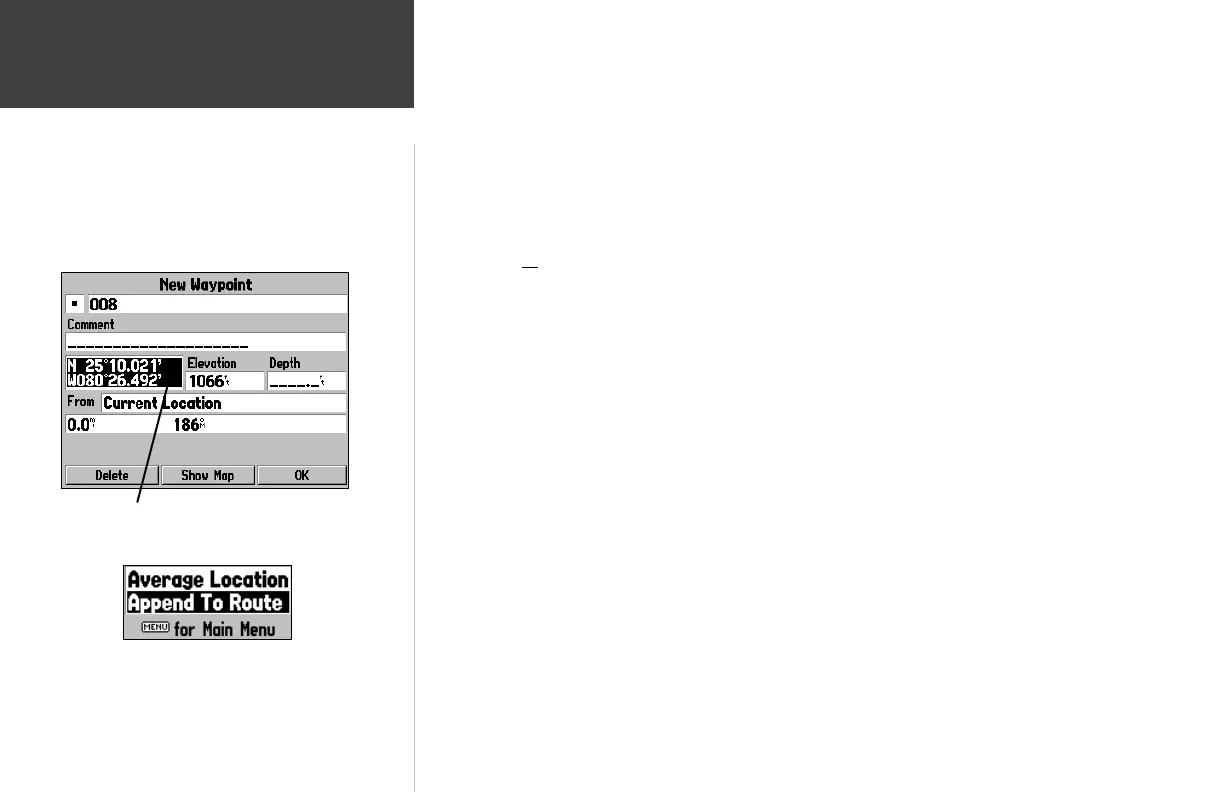
1. Press and hold the ENTER key for approximately two seconds. A New Waypoint Page will appear with
a pre-assigned name, symbol, position and elevation for the new waypoint.
2. The GPSMAP 196 will automatically assign a three-digit number as the waypoint name, but you may
select any name you want, up to ten characters in length. To change the name, highlight the identifi er
fi eld, press ENTER and use the ARROW KEYPAD to enter the desired waypoint name. Press ENTER
once all characters for the waypoint name have been entered.
3. To select a different waypoint symbol, which will appear on the map: Highlight the symbol fi eld and
press ENTER. A list of available symbols will appear. Use the ARROW KEYPAD to select the desired
symbol and press ENTER.
4. To save the new waypoint, highlight the on-screen ‘OK’ button and press ENTER.
Highlight the position fi eld and use the ARROW KEYPAD
to enter the desired position coordinates.
From the New Waypoint Page, press MENU to display New
Waypoint options. You can average positions to improve accuracy
or add the new waypoint to a saved route.
190-00283-00Backup.indd 48 12/8/2002, 8:09:15 PM



 To Next Page