8 MapSource User’s Manual
INSTALLING MAPSOURCE > CONNECTING YOUR GPS UNIT TO A COMPUTER
Connecting Your GPS Unit to a
Computer
Install your MapSource software or run the installation
disk for your product before you connect your GPS
unit to your computer. If your MapSource product
came with a setup guide, follow those instructions to
learn how and when to connect your GPS unit to your
computer. You can also find this information in your
GPS unit owner’s manual.
To connect your GPS unit to your computer:
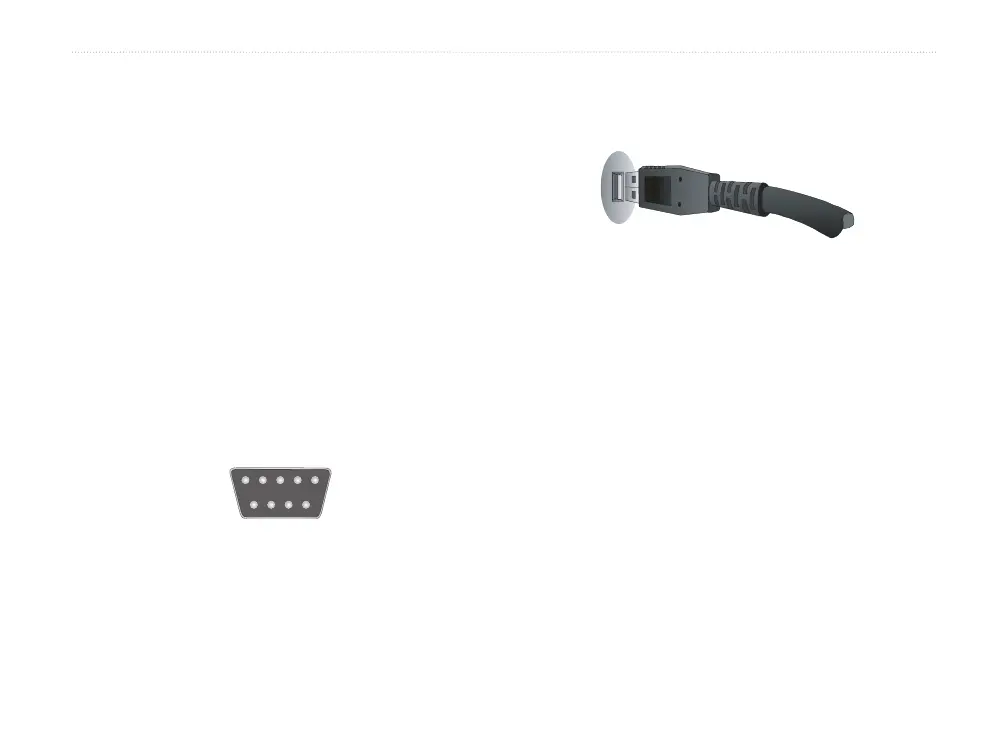
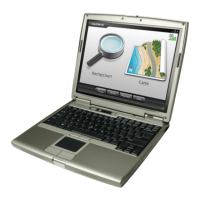
1. If your GPS unit came with a PC Interface
Cable, connect your GPS to a serial
communications port on your computer (see
illustration below).
Serial Communications Port
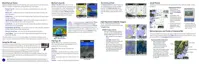
If your GPS unit came with a USB data
cable, connect your GPS to an available USB
data port.
USB Data Port
2. Verify that your GPS is turned on and the Serial
Data Format is set to Garmin, if possible.
To verify proper connection to the
computer:
1. In MapSource, click Utilities > Get Unit ID.
2. Verify that the name of your GPS unit appears
in the Device field. If not, your GPS unit may
not be connected properly. Verify that the unit is
turned on, check the connection, and then click
Find Device.



 To Next Page