MapSource User’s Manual 19
USING MAPSOURCE > FINDING PLACES
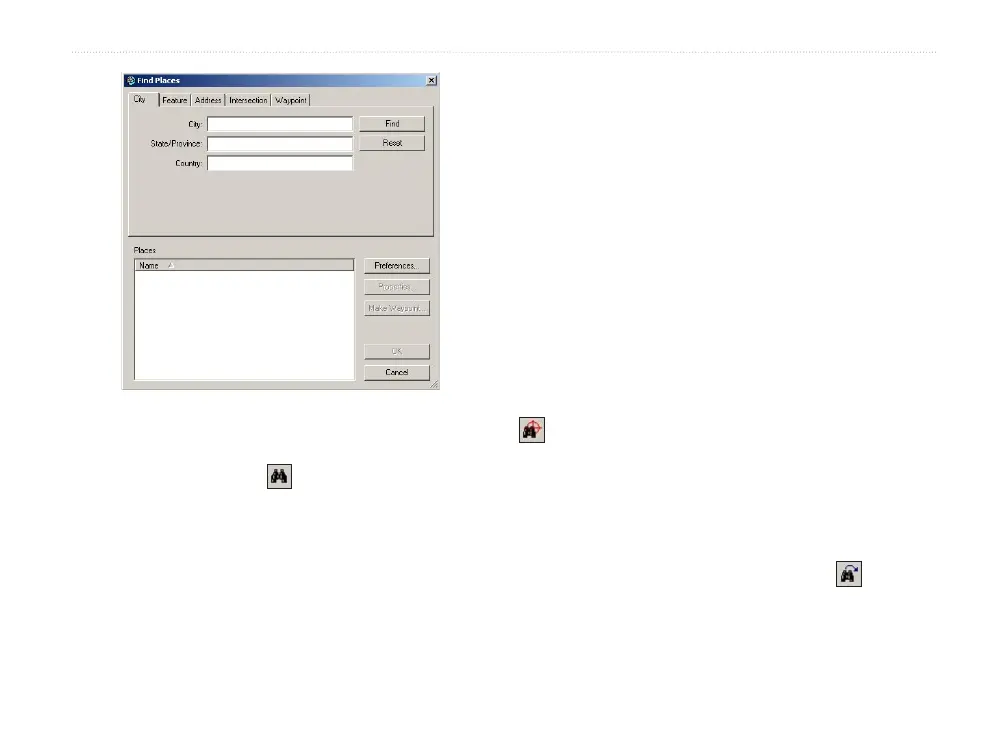
Find Places dialog box
To find a place:
1. Click Find Places or click View > Find
Places.
2. Click one of the following tabs: City, Feature,
Address, or Intersection.
3. Start typing or selecting the search criteria.
4. Click
Find to show a list of matches in the
Places list. If you see the message “No items
found,” try using more general search criteria.
5. Click to highlight the correct place from the list.
The place appears on the Graphic Map.
6. Click Make Waypoint if you want to save the
place as a waypoint. Click OK to close the
Find Places dialog box. Click Cancel to close
and return to the part of the map you were
previously viewing.
Finding Nearest Places and Recently
Found Places
In MapSource, click the Find Nearest Places button
to open the Find Nearest Places dialog box where
you can search for map features and other places near
a specific location on the Graphic Map. You can find
places near a waypoint, any map location, or the center
of the Graphic Map.
Click the Recently Found Places button to open
the Recently Found Places dialog box where you can
view a list of places you have searched for recently.



 To Next Page