MapSource User’s Manual 3
INSTALLING MAPSOURCE > UNLOCKING MAPS
4. Select whether you are a new customer or an
existing customer. Click Next. If you are an
existing customer, enter your Garmin Customer
Code and click Next.
5. To continue, you need either your GPS unit’s
internal Unit ID or Serial Number.
To get the Unit ID, follow the appropriate steps
in the UnlockWizard. To enter the unit’s Serial
Number, find the number on the back of the
unit’s casing and enter it in the space provided.
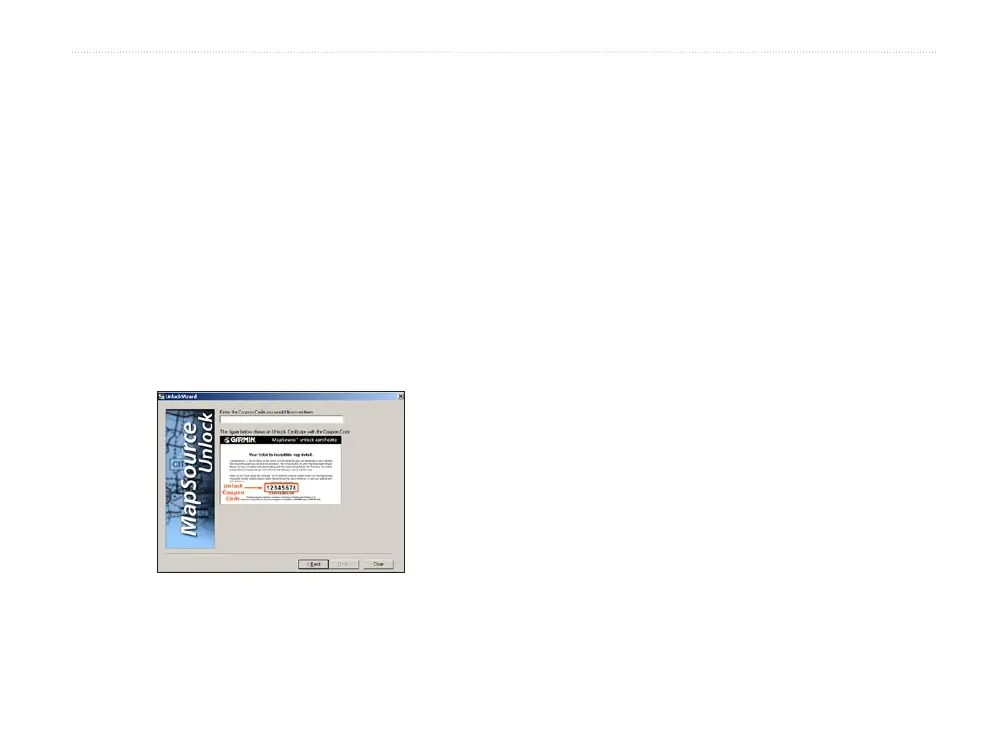
6. Enter the 8-character Coupon Code found on
your Unlock Certificate. Click Next.
Enter your Coupon Code.
7. Select and verify the region that you would like
to unlock. After checking the box to agree to
the terms, click Next to complete the unlock
process. You can now close the UnlockWizard
and use MapSource.
Saving and Viewing Unlock Codes
If you ever need to view your Unlock Code, you can
do so using the UnlockWizard. You may also want to
back up your Unlock Codes to a safe location on your
computer in case you need to reinstall MapSource.
If you registered your MapSource product, you can
retrieve your Unlock Code from Garmin.
To
view your installed Unlock Codes:
1. In MapSource, click Utilities > Unlock Maps.
Then click Next.
2. Click View my installed unlock codes. Then
click Next.



 To Next Page