5
Back
www.gateway.com
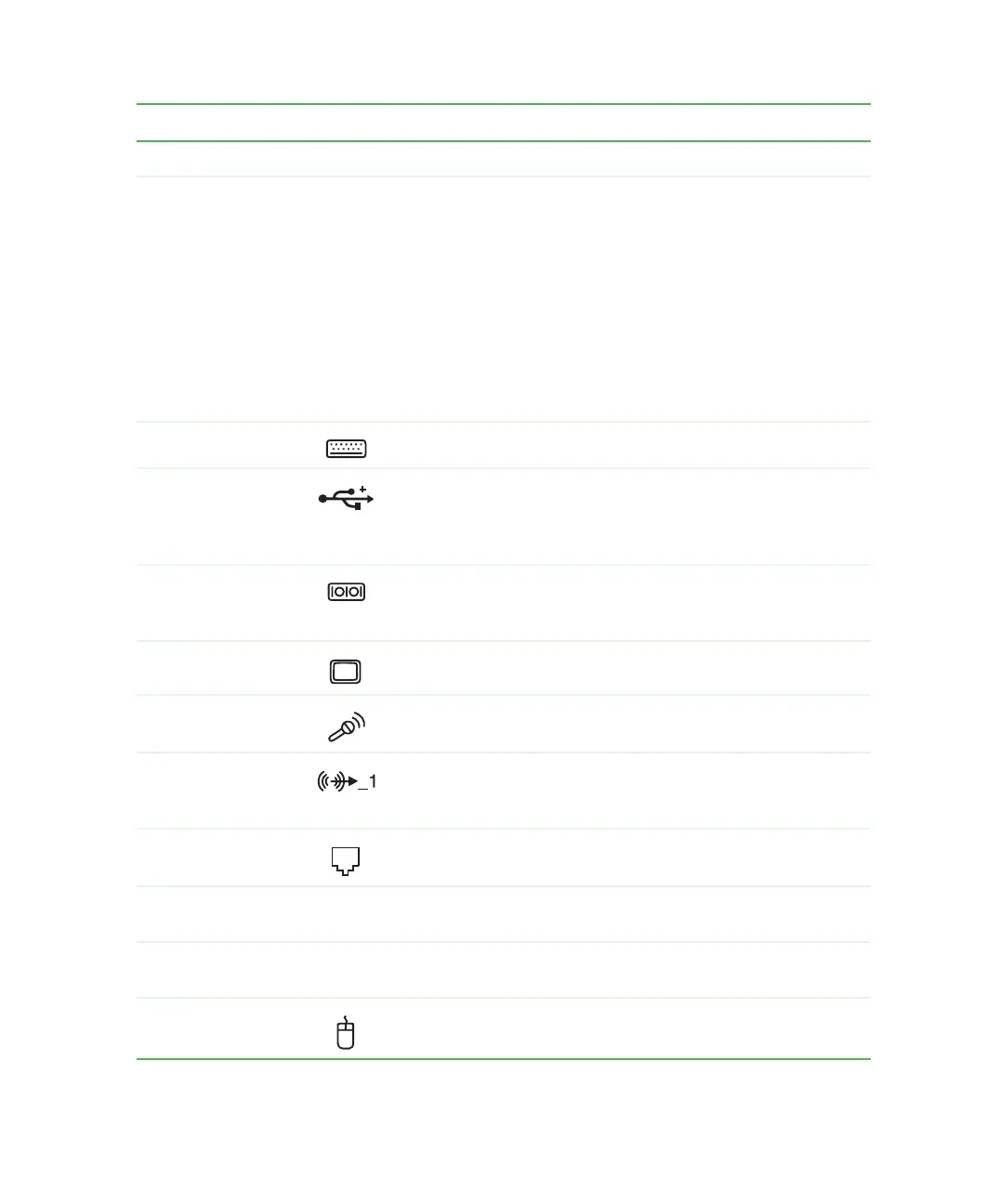
Component Icon Description
Power connector Plug the power cable into this connector.
Voltage switch Before turning on your computer, make sure that this switch is
in the correct position for the correct power available. The
switch is preset at the factory with the correct voltage for your
area.
In the United States, the utility power is supplied at a nominal
115 volts at 60 Hz. The power supply should always be set to
this when your computer is operating in the United States. In
other areas of the world, such as Europe, the utility power is
supplied at 230 volts at 50 Hz. If your computer is operating
in an environment such as this, the voltage switch should be
moved to 230.
PS/2 keyboard port Plug a PS/2 keyboard into this port.
USB ports Plug USB (Universal Serial Bus) devices (such as a USB
Iomega™ Zip™ drive, printer, scanner, camera, keyboard, or
mouse) into these ports. For more information, see “Installing
a printer, scanner, or other peripheral device” on page 23.
Serial port Plug a serial device (such as a digital camera) into this port.
For more information, see “Installing a printer, scanner, or other
peripheral device” on page 23.
Monitor port Plug a monitor into this port.
Microphone jack Plug a microphone into this jack. This jack is color-coded red
or pink.
Headphone/analog
speakers
(Line out 1) jack
Plug powered, analog front speakers, an external amplifier, or
headphones into this jack. This jack is color-coded lime green.
Modem jack Plug a modem cable into this jack.
Case cover
thumbscrew
Remove this screw before opening the case.
Gateway serial
number
Provides your computer’s serial number. For more information,
see “Gateway serial number” on page 7.
PS/2 mouse port Plug a Personal System/2
®
(PS/2) mouse into this port.



 To Next Page