40 Replacing and Adding System Components
Adding an additional hard drive
The mid tower hard drive cage can hold up to three 3.5-inch hard drives.
To add an additional hard drive:
1 Turn off the computer, disconnect the power cord, modem cord (if
installed), and all external peripheral devices.
2 Remove the right panel. (See “Removing the side panels” on page 19 and
observe the “Static electricity precautions” on page 17.)
3 Choose the bay in the drive cage where you want to install the additional
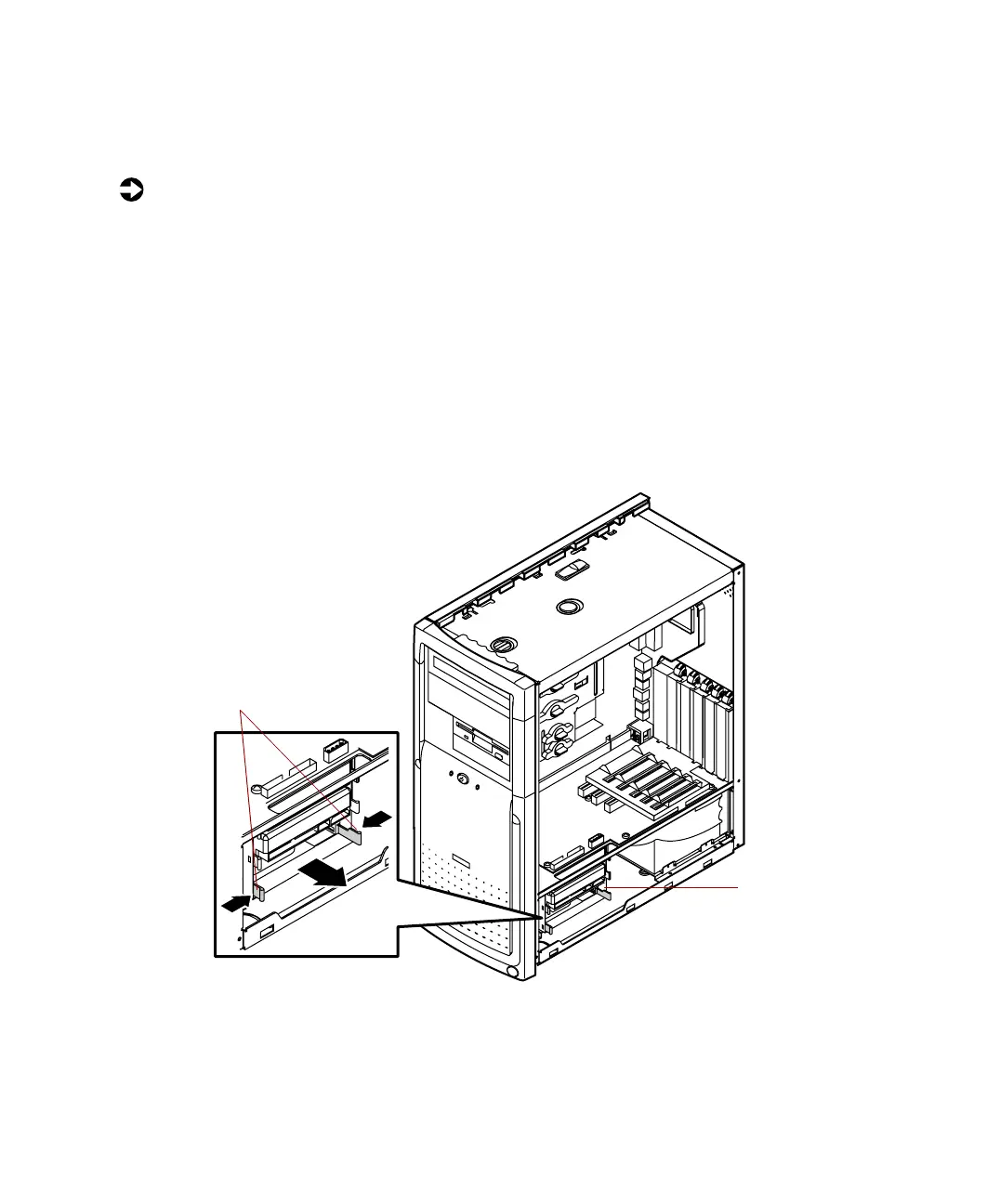
hard drive. The metal tray that will hold the hard drive is secured by a
set of hard drive tray release tabs.
4 Remove the tray by squeezing both release tabs inward, then slide the
hard drive tray out of the drive cage.
5 Set any jumpers on the new drive. (See the drive documentation for more
information.)
Drive tray release tabs
Hard drive
cage
05957.book Page 40 Monday, May 8, 2000 10:09 AM



 To Next Page