26
Adding More Video Content to the Playlist
Running only one selection of video content may not always be what you want to
do. The Hi-Def Digital Signage Media Player is capable of playing several pieces
of video content. Here’s how to add more than one le to the playlist:
1. Safely eject and remove the USB drive from the Media Player, then plus the
USB drive into an available USB port on your computer.
2. Open theplaylist.gpl le, located in the /playlist directory.
3. Create an additional <media> tag below the rst set of <media> tags, and
specify the next piece of video content:
<media>
<FileName>/media/my_movie.mp4</FileName>
</media>
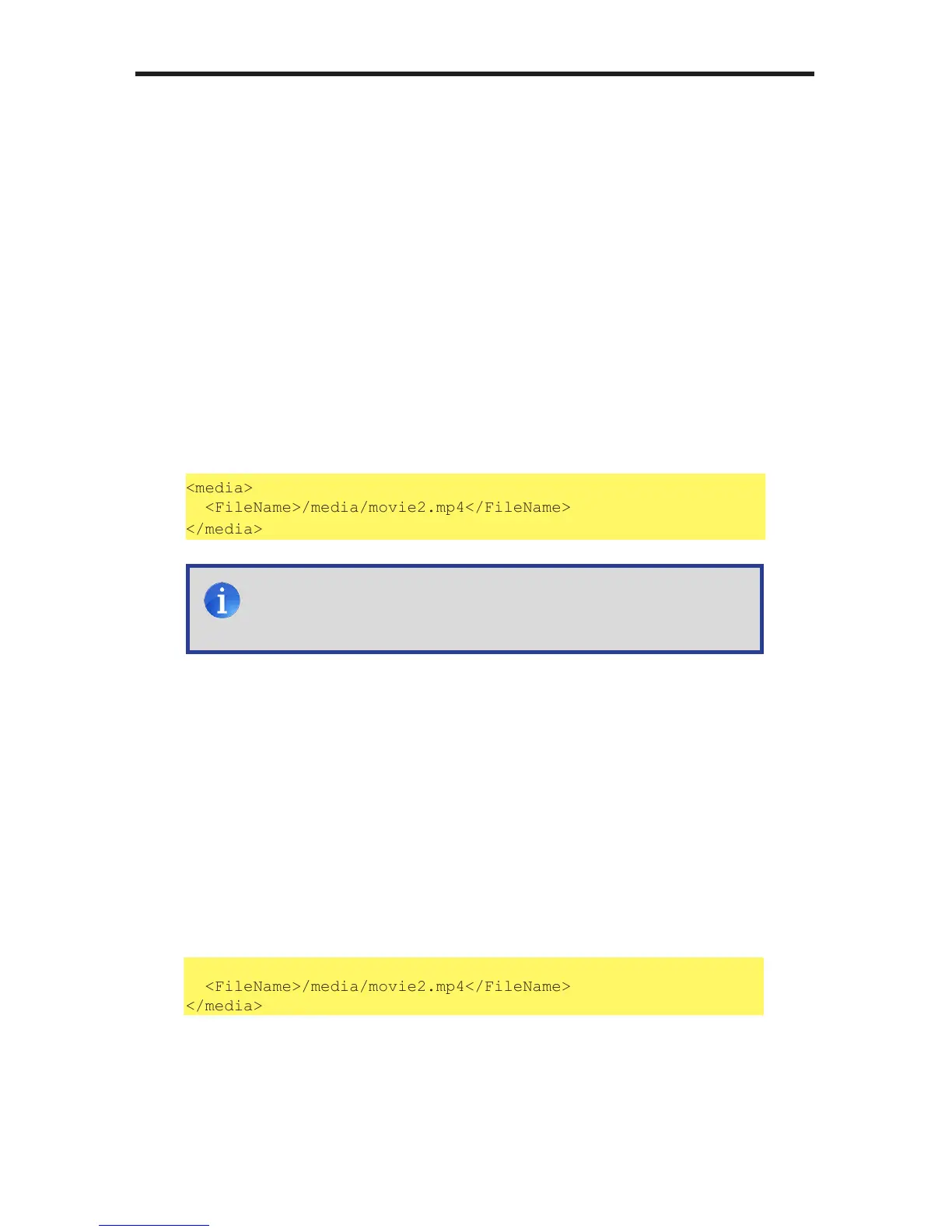
<media>
<FileName>/media/movie2.mp4</FileName>
</media>
4. Save the playlist.gpl le to the /playlists directory.
Changing the Playlist Order
When the playlist.gpl le is read by the Hi-Def Digital Signage Media
Player, the le is read from top to bottom. So, in the example above,
movie2.mp4 will be played after my_movie.mp4. If you want to play
movie2.mp4 before my_movie.mp4, edit the playlist.gpl le so it
appears like this:
<media>
<FileName>/media/movie2.mp4</FileName>
</media>
<media>
<FileName>/media/my_movie.mp4</FileName>
</media>
STAND-ALONE MODE
NOTE: Always create a separate <media> tag for each media le to
be played. Only one media le can be specied within the <media>
and </media> tags.


 To Next Page