Controller Operation
Installing the Language Files the DSE
Configuration Suite
• Ensure DSE Configuration Suite PC Software is in-
stalled on the PC and is not currently running
• Click the Windows™ Start Button
• Select Documents
• Double-click Deep Sea Electronics
• Double-click Language Files
• Copy the language file into this folder
• Start DSE Configuration Suite PC Software
• Select Tools and then Languages
• Select the language you require
• Close and then reopen the DSE Configuration
Suite to use it in the newly selected language
Installing the Language Files for DSE
Modules
• Ensure DSE Configuration Suite PC Software is in-
stalled on the PC and is not currently running
• Click the Windows™ Start Button
• Select Computer
• Double-click Local Disk
• Double-click ProgramData
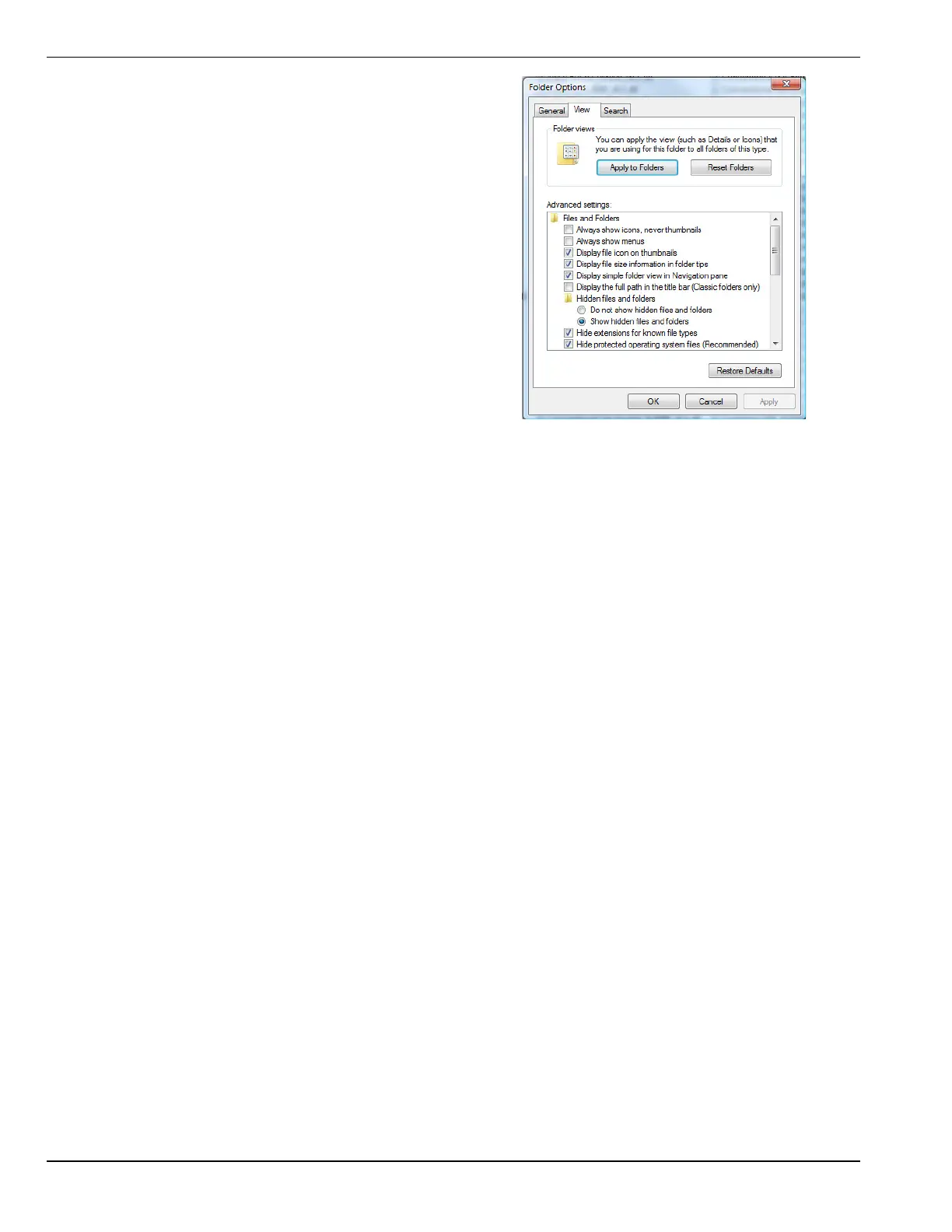
NOTE: To see the ‘ProgramData’ folder, the option for
‘Show hidden files and folders’ must be selected. This is
achieved by going to Tools | Folder Options | View.
• Double-click Deep Sea Electronics.
• Double-click DSE Configuration Suite.
• Double-click Language Files.
• Copy the language file into this folder.
• Start DSE Configuration Suite PC Software.
• Connect the DSE module to the PC.
• Languages with file extension “.lang” are uploaded
to the controller using DSE Configuration Suite
Tools | Language Editor
• Languages with file extension “. lan” are uploaded
to the controller using DSE Configuration Suite
SCADA | Languages page
Figure3-5.
Figure 3-5. Data Folder
24 Deep Sea Electronics® G8601 Controller Owner’s Manual


 To Next Page