SmartObserver User Manual
SmartObserver Data Logger
Problem Possible solutions
The instrument
does not connect
to the PC
application over
RS-232 connection.
1. Check power supply
Make sure that the power is being supplied to the instrument through the BAT line.
2. Check RS-232 connector
Make sure that the RS232-1 line (and not the RS232-2 line) is used to connect the
data logger to the PC.
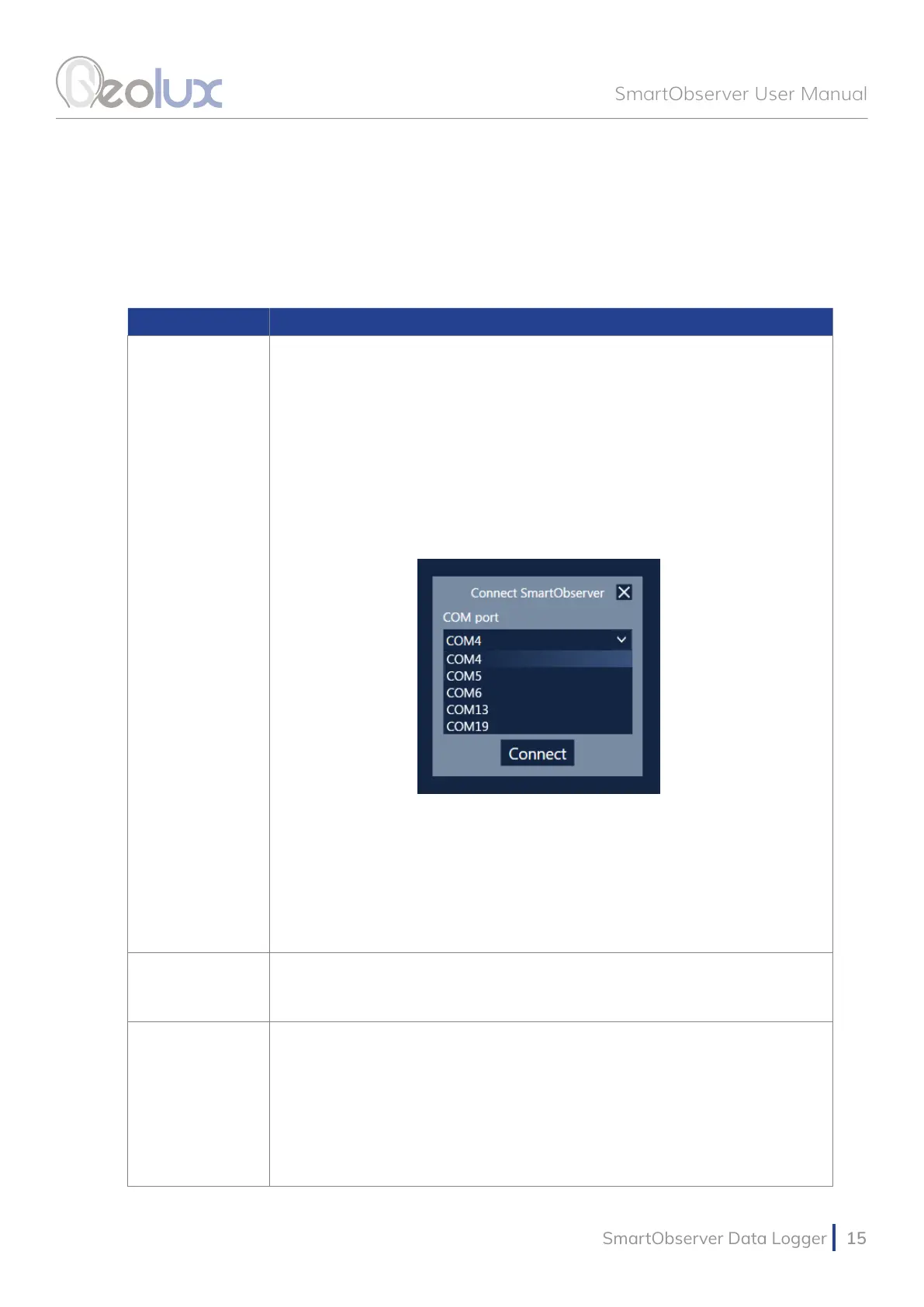
4. Make sure that you are using the correct COM port
If there are multiple COM ports available on your computer, make sure that you are
selecting the correct COM port in the PC application. If you are not certain which
COM port number is assigned to the COM port that is being used to establish a
connection with the instrument, try setting up the connection with each COM port
available in the system, until the connection is established.
5. Make sure that the COM port is not already open
Only one application may use a single COM port in the system. Make sure that no
other open application uses the same COM port that you are trying to open.
6. Try restarting the application and/or the computer
Close and reopen the congurator application and try to establish the connection
again. Restart your computer and try to establish the connection to the instrument
again.
Modem signal
progress bar
showing no signal.
1. Check GPRS connectivity
Make sure that the GPRS antenna is attached and the SIM card is correctly
inserted into the SIM card slot.
There is no
conrmation
from the camera
connected to the
data logger.
1. Check power supply
Make sure that the power is being supplied to the camera by connecting the white
and brown wires from the camera’s cable to one of the SmartObserver’s output
power lines, PWR1, PWR2 or PWR3.
2. Check RS-232 connector
Make sure that the camera is connected to the SmartObserver’s RS232-2 line by
connecting the green wire from the camera’s cable to the RS232-RXD2 pin, the
yellow wire to the RS232-TXD2 pin and the grey wire to the GND pin.
8
Troubleshooting



 To Next Page