Start-up and installation
10
11.2020/V 2.3
2.2.2 Connecting to a network
You require a network distributor and network cable to integrate the Gira HomeServer into
an existing local network (LAN). Please observe that the network distributor and network
cable are not included in the scope of delivery.
A start-up PC can also be connected directly to a Gira HomeServer using a so-called cross-
over network cable. The cable is not included in the scope of delivery.
The Gira HomeServer supports 10/100/1000 MBit network connections.
2.2.3 Connecting to the KNX
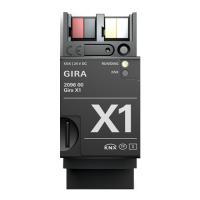
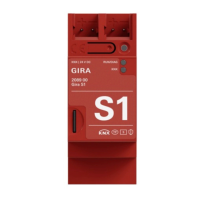
The Gira HomeServer can be connected to the KNX system using the following KNX devices
(not included in the scope of delivery):
– via LAN with KNX IP router (order no. 2167 00)
– USB data interface (order no. 1080 00)
– USB data interface (order no. 1070 00)
The Gira HomeServer requires no start-up by the ETS. Any necessary physical address is set
using the Expert and must correspond to the physical address of the interface used.
2.3 Connection test
After you have connected the device to your LAN, you can switch on the device. In the state
of delivery, IP address issuance occurs via DHCP. Should the device not receive an address
using this method, the IP address 192.168.0.11 with the net mask 255.255.0.0 is used after
a certain waiting time.
To find the device in your LAN, open the “Network” section in the Windows Explorer of your
PC. To do this, first switch on the network detection in the Network and Sharing Centre in
the Windows system settings.
The Gira HomeServer should now be visible in the “Network” area of Windows Explorer.
A double-click now opens the index page of the Gira HomeServer.
The following login data is configured on delivery:
User: admin
Password: admin
i
Comment
The address assignment by a DHCP server only takes place on start-up. A change in the
DHCP server requires a restart of the device.
i
Assigning a static IP address
A static IP address can also be assigned via the HS Expert start-up software. “IP address”,
“IP subnet mask” and “IP standard gateway” can be set here.


 To Next Page