- 30 -- 29 -
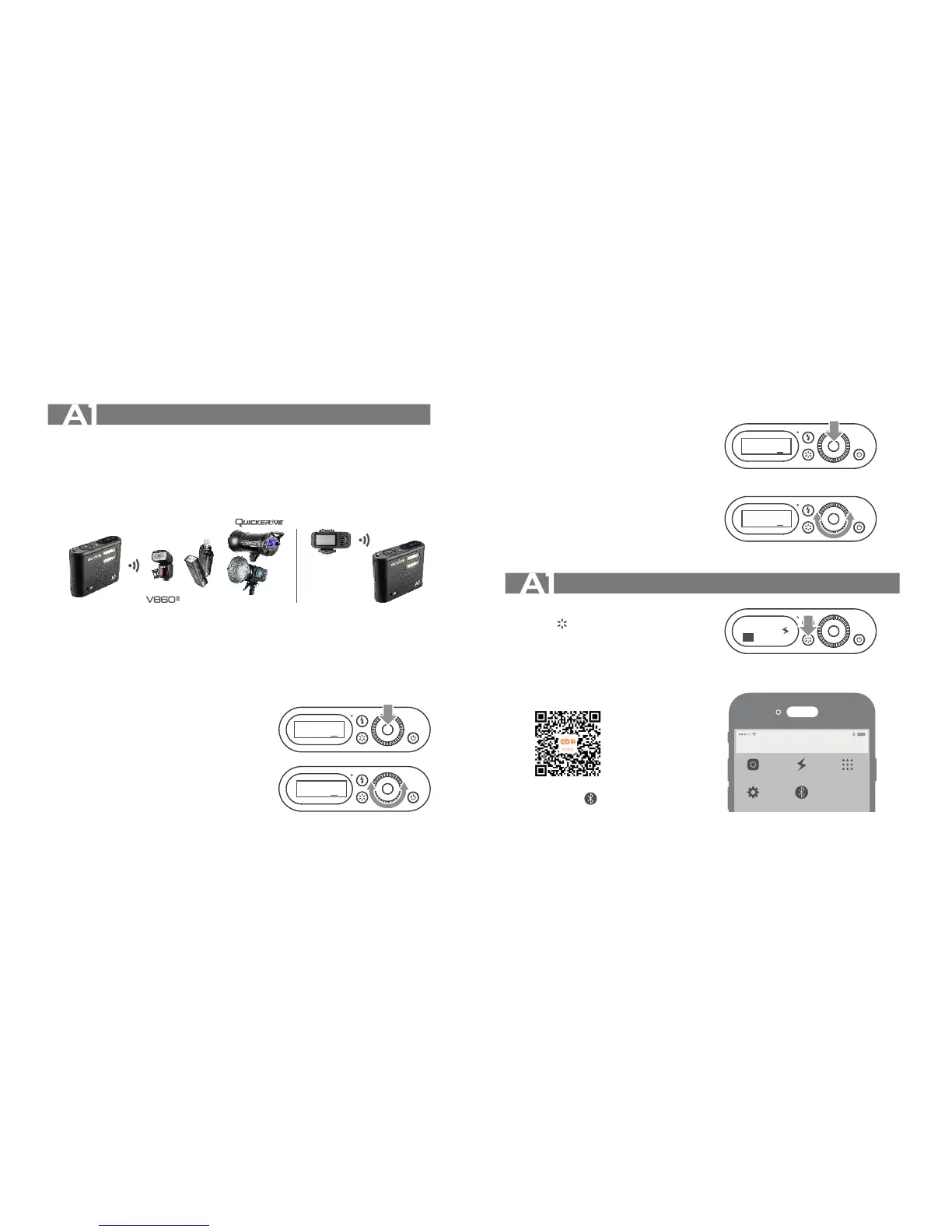
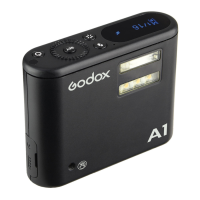
A1 flash adopts Godox 2.4G wireless X system, which has good compatibility with other
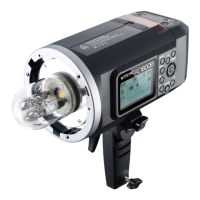
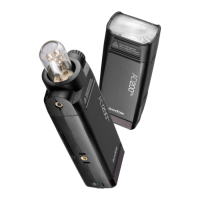
products of our company. As a master unit, A1 flash can control the flashes and LED
video lights of our company and adjust their parameters by operating mobile phone APP.
If the APP cannot be operated, A1 can only trigger the flashes in the same channels. As a
slave unit, A1 can receive the signals of X1 series to fire flashes as well as adjusting
parameters.
1. Setting the Communication Channel
If there are other wireless flash systems nearby,
you can change the channel IDs to prevent signal
interference. The channel IDs of the master unit
and the slave unit(s) must be set to the same.
1.1 Long press the <SET> Button for 2 seconds to
enter setting interface. Turn the Select Dial once
to enter the second page of the setting interface
and the <CH> is displayed.
1.2 Short press the <SET> Button and the cursor
is blinking.
1.3 Turn the Select Dial to choose a channel ID
from 1 to 32.
1.4 Press the <SET> button to confirm.
1.5 Long press the <SET> Button for 2 seconds
to back to the main interface.
Wireless Flash Shooting:Radio Transmission
2. Setting the Communication Group
2.1 Long press the <SET> Button for 2 seconds
to enter setting interface. Turn the
Select Dial twice to enter the third page of
the setting interface and the <GR> is
displayed.
2.2 Short press the <SET> Button and the
cursor is blinking.
2.3. Turn the Select Dial to choose a group ID
from 0 to F.
2.4. Press the <SET> button to confirm.
2.5. Long press the <SET> Button for 2
seconds to back to the main interface.
A1 Flash Connects with Smartphone
1. Turn on the A1 flash.Long press
the < > button and the Bluetooth ID
will be displayed for 3 seconds.
2. Search "GodoxPhoto" in iPhone's APP
Store and download the app. Or install
the APP by scanning the QR Code with
your smartphone.
3. Open the APP on the phone
and choose .
AD600AD200
As a master unit
As a slave unit
SET
CH32
SET
CH1
SET
GRF
SET
GR0
M
1/
16
SET


 To Next Page