20
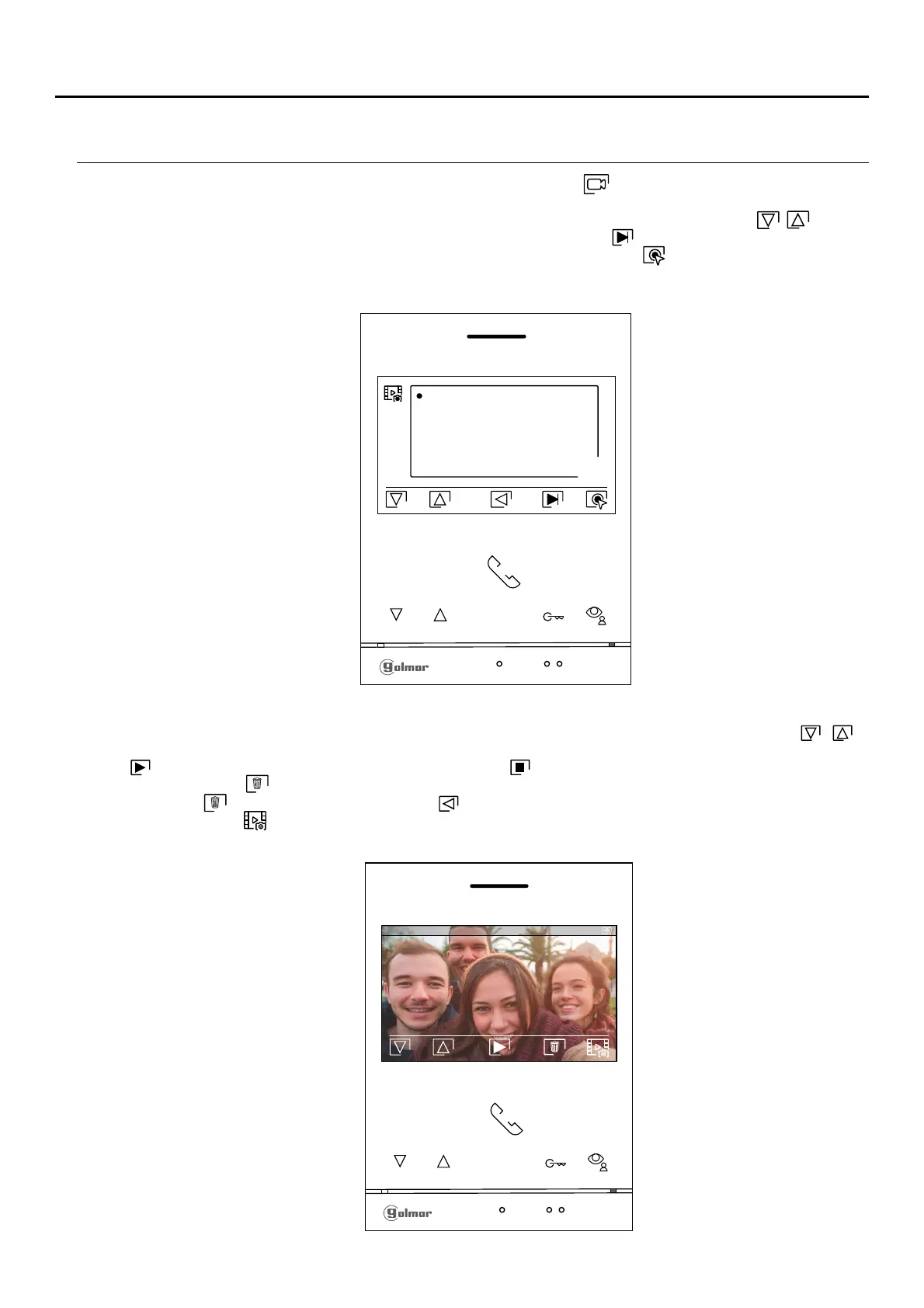
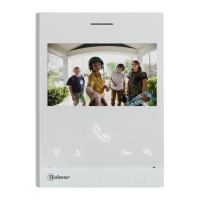
If a MicroSD card is inserted in the monitor, press the button below icon to access the list of videos. In the list of
recorded videos, those that have not been viewed are highlighted in white. There are 10 recordings per page and
the number of pages is shown in the bottom right of the screen. Press the buttons below icons / to scroll
through the videos on the page shown and press the button below icon to go to the next page (in carousel
mode). On the screen containing the list of videos, press the button below icon to display the video selected.
Continued overleaf
Continued from previous page.
0 -0 -29 7 019 0 -0 -29 7 019
0 -0 -29 7 019 0 -0 -29 7 019
0 -0 -29 7 019 0 -0 -28 7 019
0 -0 -28 7 019
0 -0 -28 7 019
0 -0 -27 7 019 0 -0 -27 7 019
1 : :108 21 1 :17: 05 0
1 :1 :1 0 21 1 :1 :100 8
08 23:17: 1 : :108 21
1 :17: 05 0
1 :1 :1 0 21
1 :1 :100 8 08 23:17:
001/003
0 0014 / 020
0 -0 -21 7 019 11:17:10
1
ART 4/G2+MONITOR
RECORDINGS MENU
The video is then displayed in full screen, the number of recordings is indicated in the top left and the recording source
is shown on the right (door panel 1, door panel 2, camera 1 or camera 2). Press the buttons below icons / to
nshow the next or previous recording respectively. To view the video shown on screen, press the button below ico
and, to stop video viewing, press the button below icon . To delete the recording shown on screen, press the
button below icon and then from the 'delete screen' confirm the deletion of the recording by pressing the button
below icon or press the button below icon to exit without deleting. To return to the list of videos, press the
button below icon .




 To Next Page