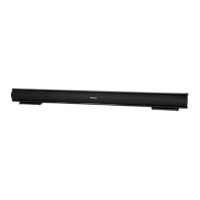
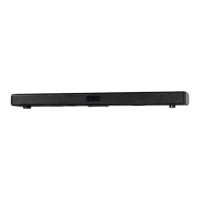
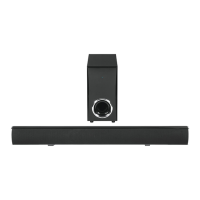
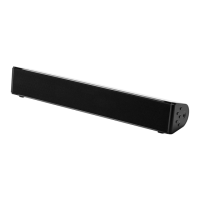
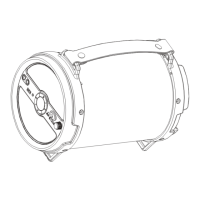
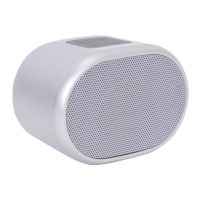
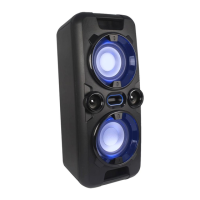
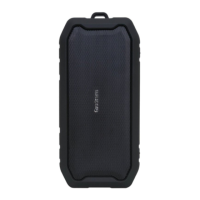
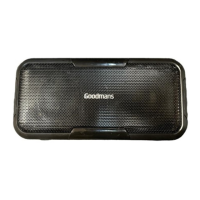
The Goodmans GDBTSPK30 is a desktop Bluetooth speaker designed for home audio entertainment. It offers multiple connectivity options and sound modes, making it a versatile audio solution.
Function Description:
The GDBTSPK30 functions as a stereo Bluetooth speaker, allowing users to stream music wirelessly from Bluetooth-enabled devices such as smartphones, tablets, and computers. In addition to Bluetooth, it supports playback from USB flash drives, TF/Micro SD cards, and external audio sources via a 3.5mm AUX-in connection. The speaker is designed to be user-friendly, with both on-device controls and a remote control for convenient operation. It also includes a headphone socket for private listening or as a 3.5mm audio output.
Important Technical Specifications:
- Model Number: GDBTSPK30
- Power Supply: 90-240V 50~60Hz
- Speaker Output Power: 15W x 2 (total 30W)
- Frequency Range: 50Hz-20KHz
- Max Power Consumption: 45W
- Dimensions: 323mm (W) x 280mm (D) x 160mm (H)
- Connectivity: Bluetooth, USB Player, TF Card, AUX-In (3.5mm)
- LED Indicator: Provides visual feedback on current source mode (Green for AUX IN, Yellow for USB, White for TF card, Blue for Bluetooth).
- Remote Control: Included for comprehensive control over power, mode, volume, track skipping, play/pause, mute, and EQ settings.
- Batteries for Remote Control: 2 x 1.5V AAA batteries (included).
Usage Features:
Power On/Off:
The speaker can be turned on or off using the power button on the top panel or the remote control. It requires connection to a mains power supply (100-240V 50-60Hz) using the provided power adapter.
Source Selection:
Users can switch between different audio sources (Bluetooth, USB, TF Card, AUX-In) by pressing the "M" button on the top of the speaker or the "MODE" button on the remote control. The LED indicator on the top of the speaker changes color to reflect the active source mode:
- Green: AUX IN
- Yellow: USB
- White: TF card
- Blue: Bluetooth
Bluetooth Connectivity:
- Set the source type to Bluetooth. The LED indicator will show blue.
- On your smartphone, tablet, or other Bluetooth-enabled device, go to the Bluetooth settings.
- Search for and select "GDBTSPK30" to connect.
- For NFC-compatible phones, touch the NFC zone (marked "N" on the top right of the speaker) to initiate pairing.
Note: This Bluetooth feature is for streaming music from smart devices and cannot be used to connect to a Smart TV.
AUX-In Mode:
- Connect one end of a 3.5mm audio cable to the headphone output of an external audio device (e.g., phone, laptop) and the other end to the AUX IN input on the GDBTSPK30.
- Set the source type to AUX IN using the "M" button on the speaker or "MODE" button on the remote. The LED indicator will show green.
- Begin playback on the external device.
- Adjust the volume on the external device to about 70-80% to avoid distortion, then fine-tune the listening level using the speaker's volume controls.
USB Player:
- Insert a USB flash drive into the USB socket on the rear of the speaker.
- The player will automatically start playback of MP3/WMA files.
- If autoplay does not start, press "M" on the speaker or "MODE" on the remote until the LED indicator shows yellow (USB mode), then press the play/pause button to start music.
TF Card Player:
- Insert a Micro SD/TF card into the TF card slot on the rear of the speaker.
- The player will automatically start playback of MP3/WMA files.
- If autoplay does not start, press "M" on the speaker or "MODE" on the remote until the LED indicator shows white (TF card mode), then press the play/pause button to start music.
Volume Control:
Volume can be adjusted using the "+" and "-" buttons on the top panel of the speaker or the "VOL+" and "VOL-" buttons on the remote control.
Playback Control (Remote Control):
- Play/Pause: Press the play/pause button.
- Skip Track: Press the "K" button for the previous track or "I" button for the next track (in Bluetooth, USB, or TF card modes).
- Stop: Press the stop button.
- Mute: Press the mute button to silence or unmute the sound.
Sound Modes (EQ - Remote Control):
The remote control includes an "EQ" button to cycle through different sound modes. The red LED on the speaker will flash a specific number of times to indicate the active mode:
- Standard: 1 flash
- Jazz: 2 flashes
- Rock: 3 flashes
- Class: 4 flashes
- Voice: 5 flashes
There is also a "FLAT" button to restore any sound EQ preset to the default flat mode.
Maintenance Features:
The manual provides a troubleshooting section to help users resolve common issues:
No Sound:
- Ensure the speaker is powered on.
- Check that the volume is not at a minimum.
- Verify the speaker is not muted.
- Confirm the correct source mode is selected for the connected input.
- Check if there is content on the TF card or USB stick if those sources are selected.
Distorted Sound:
- Ensure all cable connections (GDBTSPK30 and audio device) are secure.
Remote Control Not Working:
- Replace the batteries (2xAAA).
- Ensure batteries are installed correctly.
- Remove any obstacles obscuring the speaker from the remote's line of sight.
Bluetooth Problems:
- Ensure the speaker is in Bluetooth pairing mode (LED flashes blue).
- Verify Bluetooth is enabled on your device.
- Try connecting with a different Bluetooth device.
- Move your Bluetooth device closer to the speaker (within 33ft/10m) and retry pairing.
- Check if the speaker is paired with other devices; unpair them and retry the pairing procedure.
For further technical or guarantee support, customers are directed to visit www.goodmans.co.uk/support.

 Need help?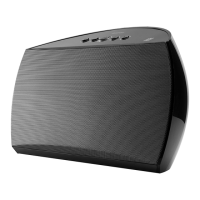

 To Next Page
 General