22 23
You can also use a more traditional method to capture video and photos –
including time lapse video and photos – in which you leave the camera
powered on and capture as needed. With this method, you can use the
touch display to preview your shots and change modes and settings before
capturing. However, unlike QuikCapture, the camera remains on when you
are not capturing, so you must manually power it o to save battery life.
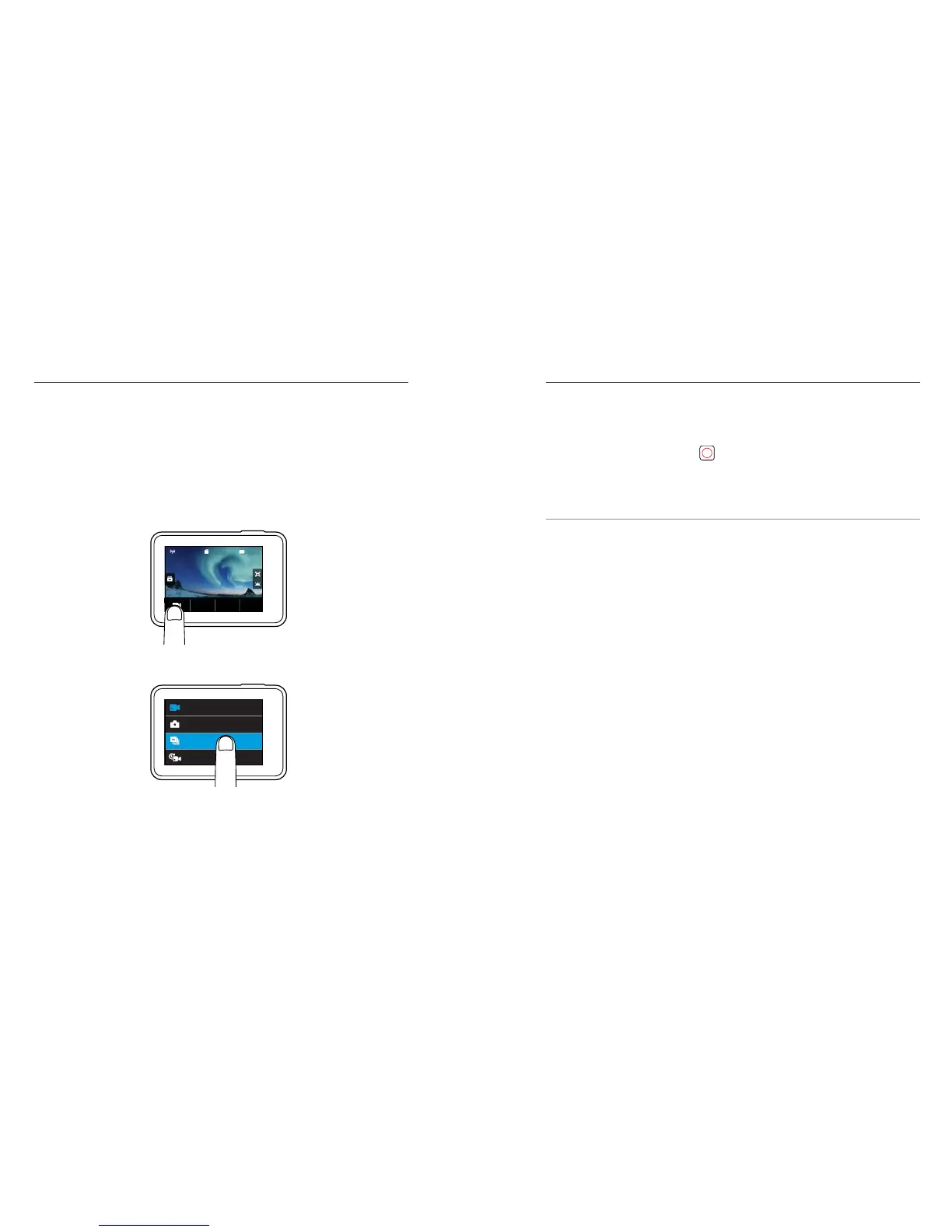
1. If needed, select a dierent mode:
a. Tap the icon in the lower left corner of the touch display.
FOV
100%00:00
b. Tap the capture mode you want.
Time Lapse Video
Photo
Video
Burst
CAPTURING VIDEO AND PHOTOS CAPTURING VIDEO AND PHOTOS
2. If needed, select dierent settings. For details about settings, see
Video Mode (page 37), Photo Mode (page 42), Burst Mode
(page 44) or Time Lapse Modes (page 45).
3. Press the Shutter button [
]. The camera beeps and the camera
status lights ash while the camera is capturing.
4. To stop capturing video or time lapse, press the Shutter button. The
camera beeps and the camera status lights ash quickly.
PRO TIP: You can also capture video and photos using voice commands.
For details, see Controlling Your GoPro with Your Voice (page 25).


 To Next Page