16 17
MODES
Your HERO has ve camera modes: Video, Photo, Burst, Time Lapse Video
and Time Lapse Photo.
Video
For details, see Video Mode (page 37).
Photo
For details, see Photo Mode (page 42).
Burst
For details, see Burst Mode (page 44).
Time Lapse Video
For details, see Time Lapse Modes (page 45).
Time Lapse Photo
For details, see Time Lapse Modes (page 45).
For a visual map of your GoPro’s modes and settings, see Map of Modes
and Settings (page 19).
NAVIGATING YOUR GOPRO
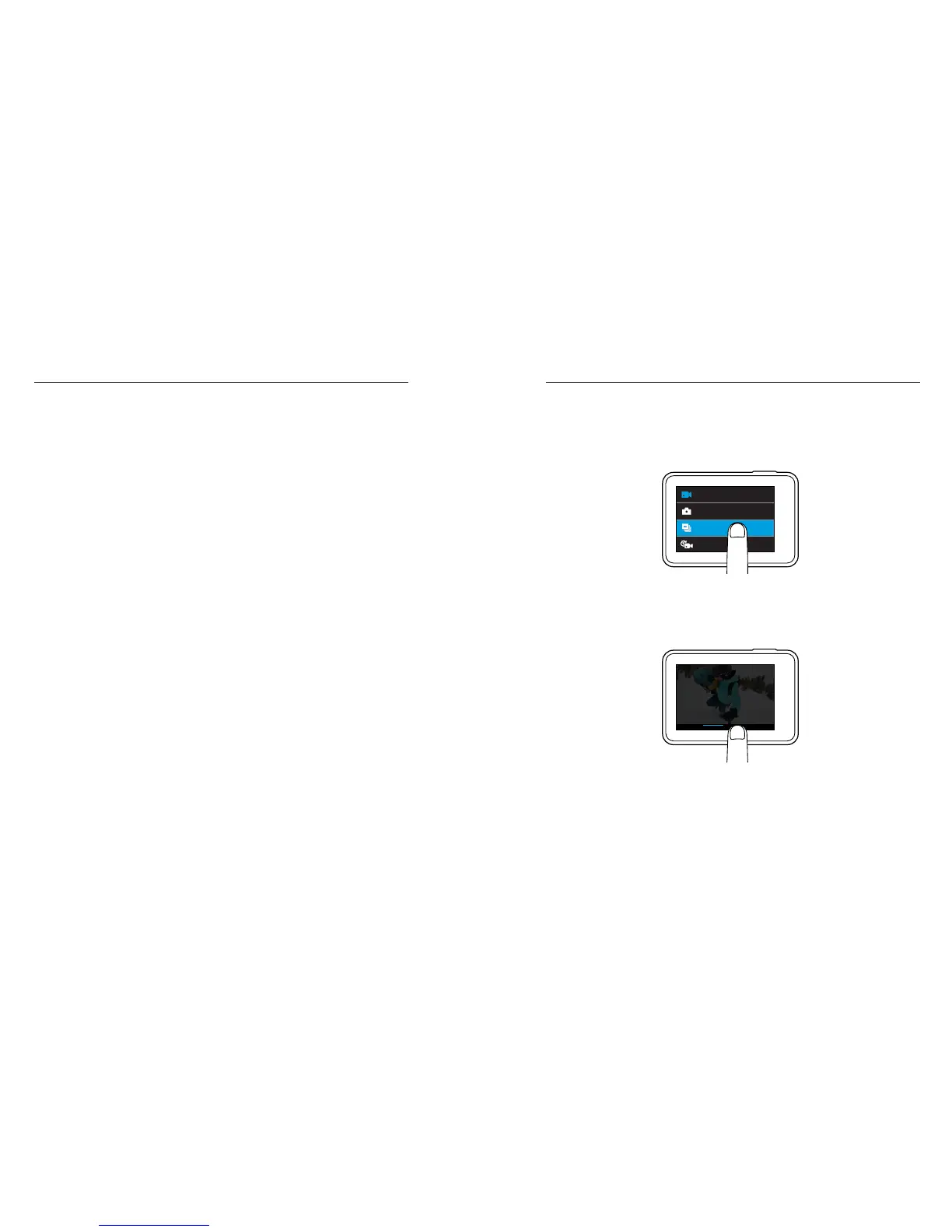
NAVIGATING WITH THE TOUCH DISPLAY
1. From the main screen, tap the icon in the lower left corner.
2. Tap the capture mode you want. Make sure you swipe up to see
the full list.
Time Lapse Video
Photo
Video
Burst
3. On the main screen, tap the setting that you want to change.
4. Tap one of the available options. The camera returns you to the
main screen.
@60 fps
1440
1440 1080
RESOLUTION
5. To change an advanced setting, swipe left.
Note: Not all capture modes have advanced settings.
NAVIGATING YOUR GOPRO


 To Next Page