14 15
GETTING STARTED
TOUCH DISPLAY
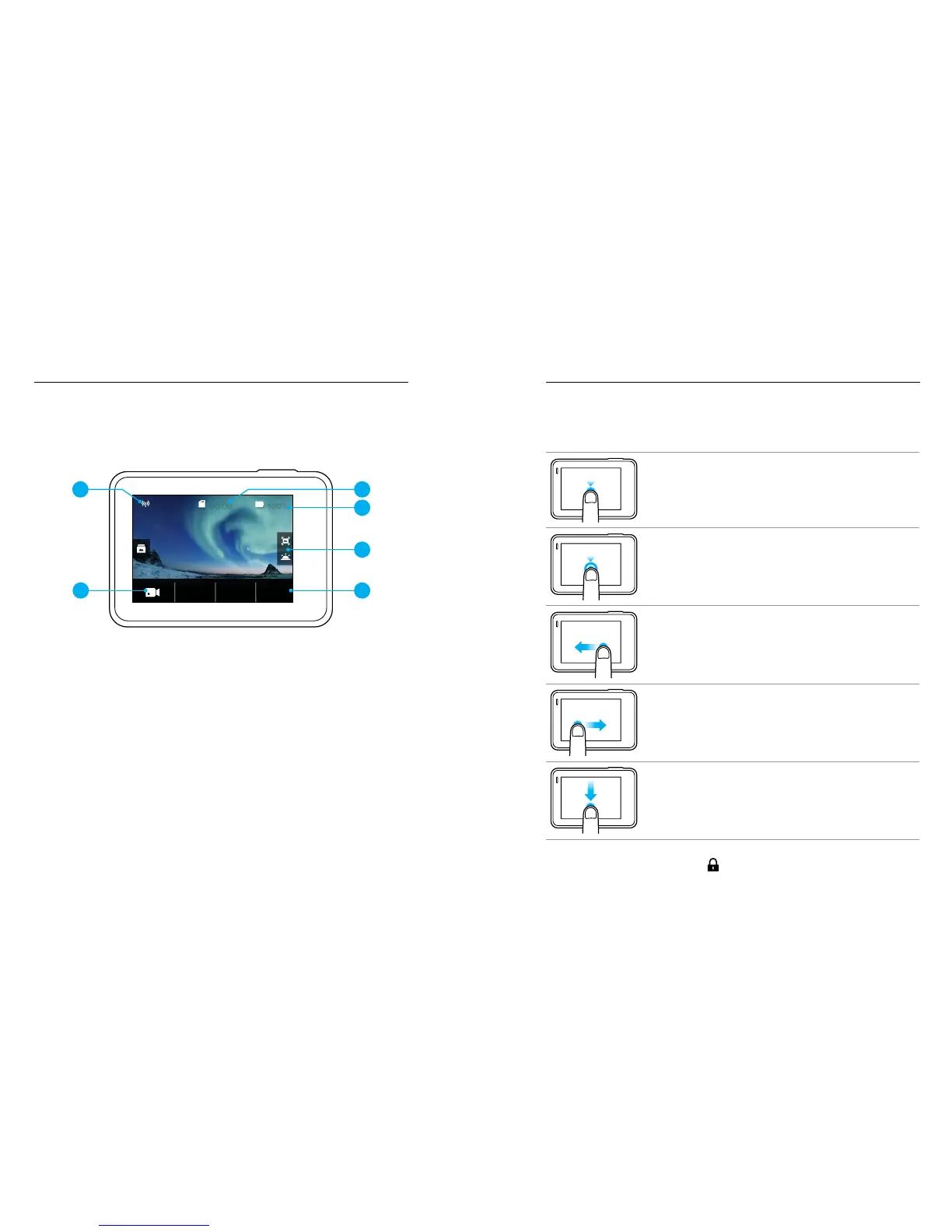
The touch display on the back of the camera contains the following
information about modes and settings on the main screen. The settings
that appear vary by mode.
FOV
100%00:00
1
2
3
5
6
4
1. Wireless Status
2. Time Remaining/Photos Taken
3. Battery Status
4. Camera Mode
5. Settings
6. Advanced Settings (icons)
Note: The touch display does not work under water.
GETTING STARTED
TOUCH DISPLAY GESTURES
Use these gestures to navigate the touch display. When swiping,
swipe from the edge of the screen.
Ta p
Selects an item, turns a setting on/o.
Press and Hold
Accesses Exposure Control setting.
Swipe Left
Accesses advanced settings (if available) for
the current mode.
Swipe Right
Displays your media.
Swipe Down
From the main screen, opens the Connect and
Preferences menus. Otherwise, returns to the
main screen.
PRO TIP: To lock the touch display to prevent accidental input, swipe down
from the main screen, then tap [
]. Tap this icon again to unlock it.


 To Next Page