24 25
ADDING HILIGHT TAGS
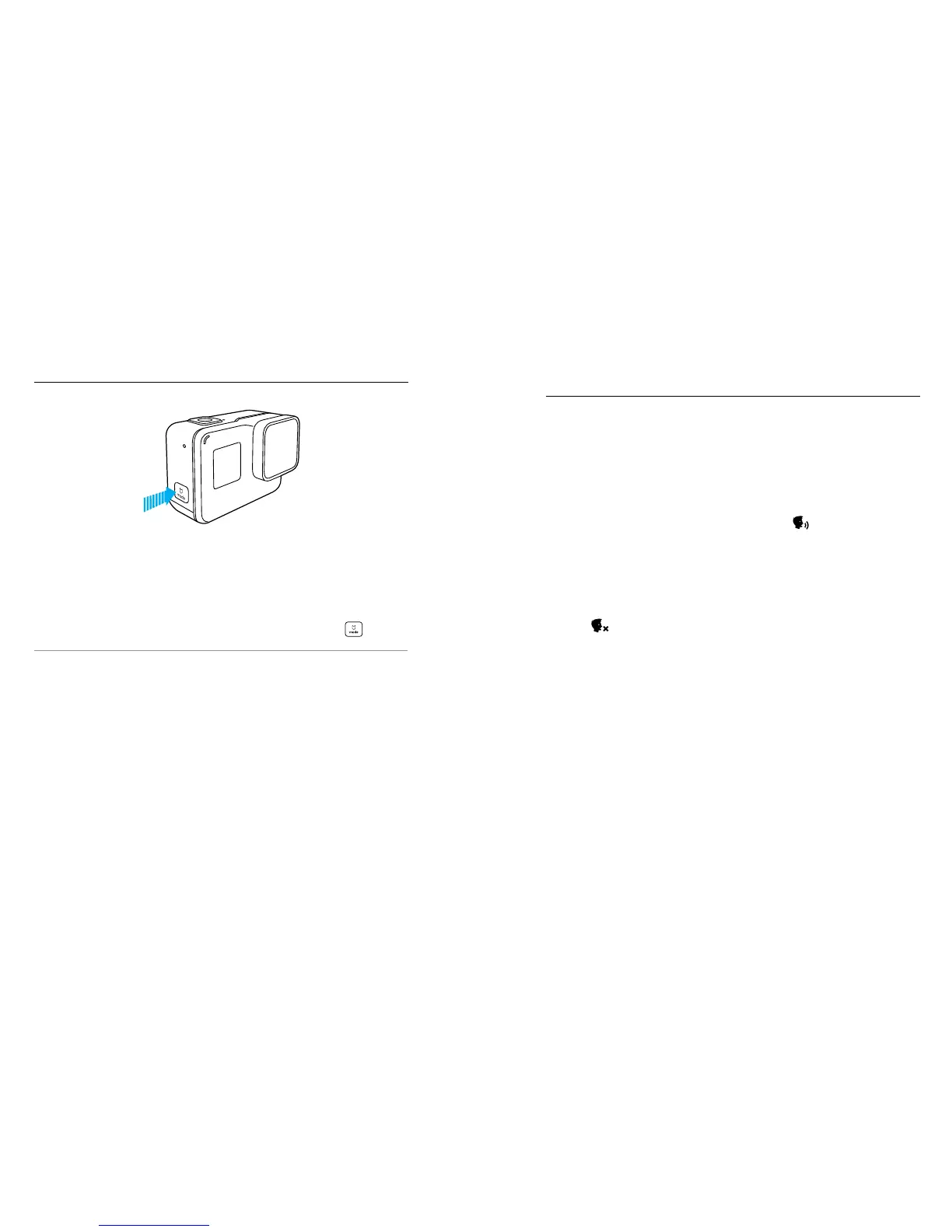
You can mark specic moments in your video during recording or playback
with HiLight Tags. HiLight Tags make it easy to nd the best highlights
to share.
While recording or playing back video, press the Mode button [
].
PRO TIP: You can also add HiLight Tags during recording with the GoPro
App or Voice Control.
CAPTURING VIDEO AND PHOTOS
You can control your HERO with your voice using a set of specic
commands (see list below).
Note: Voice Control performance may be impacted by distance, wind and noisy
conditions. Keep the product clean and clear of debris.
USING VOICE CONTROL
Voice Control works best when you and your GoPro are in close proximity.
1. From the main screen, swipe down, then tap [ ].
Note: You can also turn Voice Control on or o from the Preferences menu. Tap
Preferences > On Camera Voice Control, then select an option.
2. The rst time you turn on Voice Control, you will need to conrm or
change the Voice Control language.
3. Say a command from List of Voice Commands (page 26).
4. To turn o Voice Control manually, swipe down on the main screen, then
tap [ ]. Voice Control also turns o when your camera powers o.
For details, see Auto O (page 51).
CONTROLLING YOUR GOPRO
WITH YOUR VOICE


 To Next Page