13
1
2
3
4
5
6
7.5 Printer Initialization
Printer initialization is used to clear DRAM and restore printer settings to defaults. Please
do the gap sensor sensitivity calibration after the printer initialization.
Please follow the steps below to initialize the printer:
1. Turn off the printer power.
2. Press and hold on the PAUSE button and FEED button, then turn on the printer
power. When the POWER indicator (blue light) lights and ERROR indicator (red light)
dims, release both buttons. The printer DRAM is cleared and printer settings are restored
to defaults.
8. Indicators and Buttons
The printer has two indicators (POWER indicator in blue light and ERROR indicator in red
light) and two buttons (PAUSE and FEED).
8.1 Indicators:
Item
Indicators Status
Descriptions
POWER indicator is ON
ERROR indicator is OFF
Printer is powered on and in normal print mode.
POWER indicator flashes slowly (640ms)
ERROR indicator is OFF
Printer is paused.
POWER indicator flashes fast (160ms)
ERROR indicator is OFF
Printed label is peel-off but not taken off.
POWER indicator is OFF
ERROR indicator flashes fast (160ms)
Printer cover is opened.
POWER indicator is OFF
ERROR indicator flashes slowly (640ms)
Paper shortage or gap sensor calibrated error.
POWER indicator flashes fast (160ms)
ERROR indicator flashes fast (160ms)
Printer overheated protection is activated.
After 1 minute, the printer will check
again the temperature of print head. If the
temperature gets right, printer resumes
working.
1
2
3
8.2 Buttons
Item
Functions
Descriptions
Feed
Press the FEED button when POWER indicator is on and
ERROR indicator is off. It feeds the label to the beginning of
the next label
Pause
Press the feed button during printing and the printing job is
suspended.
Self-test
1. Turn off the printer power.
2. Make sure the paper roll is installed correctly and the printer
top cover is closed.
3. Press the FEED button and turning on the printer power
simultaneously. When the self-test paper comes out, release
the FEED button.
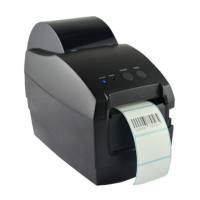
Thermal Barcode Printer


 To Next Page