GpsGate VehicleTracker User Guide
Version: 1.3.2 - Rev: A.
6 Exporting track data
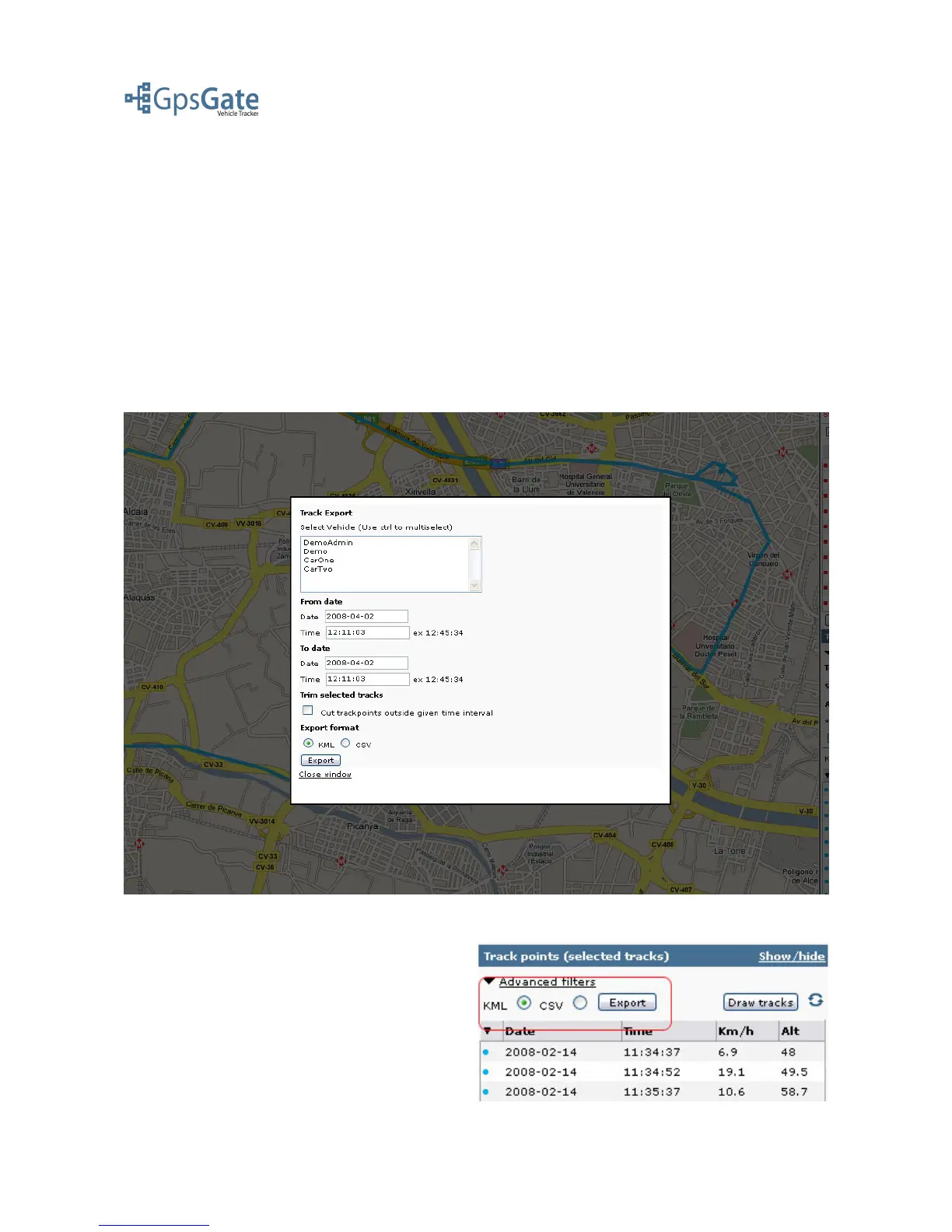
There are two ways to export tracks. The Export-window that you open in the Export-menu, and
the Export button that you find in the Track points panel.
6.1 Using the Export Window
The Export window allows you to choose one or more vehicles that you wish to export tracks for,
the start and stop time stamps, the option to “trim” any tracks that cross a start/stop time stamp, and
whether it should be exported as CSV (Comma Separated Values) for use in, for example, Excel or
Access, or in KML (Keyhole Markup Language) format for Google Earth. Note that all time
stamps are exported in UTC (Universal Time Coordinated) format.
6.2 Exporting from the Map View
Exporting from the map view is done by clicking
on the Export button in the Track points list. You
export the tracks that are listed in the Track points
list (and visible on the map if you have drawn
them). All time stamps are exported in UTC
(Universal Time Coordinated) format.
Date: April 4, 2008 Page 15(17)



 To Next Page