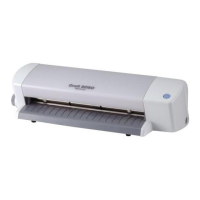
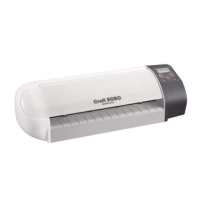
Load the film label sheet from your Media
Tr ial Kit in your printer.
Click the Output to Printer button to
display the Output to Printer window. Check
that your printer is displayed in the printer
box and then click the [OK] button to start
printing.
Output Settings button
ROBO Master window
Preview window
Click
Click
Make sure that this checkbox is checked
11
Click the Preview button to display the Preview window.
Use the Change Display buttons to display the print data and the
cut data separately, or superimposed.
After checking the data displayed, click the Close button to
return to your usual Create Drawing window.
Preview button
Change display
buttons
Close button
Printer output button
Preview of cut data
and print data
Preview of cut data
Preview of print data
Click the Output Settings button to display the
Output Settings window.
Click “Cutting Settings”, and then click the [Cutline
Settings] button to display the [Cut Specifications]
window. Make sure that the Color checkbox for the
Cutline is checked. Click the [OK] button, and then click
the [OK] button in the Output Settings window.
33
Specify the drawn line as a cut line, and then print out the design
1
Specify the cut line
2
Check the Cut line data and the Print data
3
Print the data you have created
Media Trial Kit User Guide
2


 To Next Page
 Loading...