HINT
12
Make sure that the blade adjustment cap is [blue],
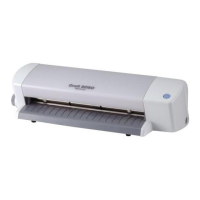
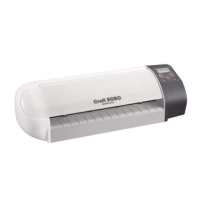
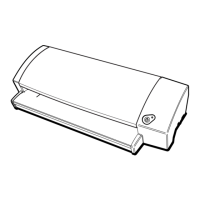
and then mount the cutter in the Craft ROBO.
(For details on how to replace the cap, please refer
to the Quick Start Instruction Sheet).
Click the [Next] button to proceed to the “Design
Orientation” step. Click the [Next] button again to
proceed to the “Media loading” step.
Cutter
Cutter plunger
Blade adjustment cap
Blue : For thin film
Yellow : For thick film, thin paper
Red : For thick paper such as a
postcard
Cutter blade
Click the Output to Craft ROBO button ,
confirm that the driver name reads Graphtec Craft
ROBO, and then click the [OK] button to start the
Craft ROBO Controller.
Click
Output to Craft ROBO button
HINT
If you are using non-Graphtec media,
perform test cutting to make sure that
the media can be cut cleanly. If it is not
cut cleanly, you will need to adjust the
cutting conditions. Please refer to the
Craft ROBO User's Manual (CD-ROM)
for details on how to perform test cutting
and how to adjust the cutting conditions.
Select “Film Label” in the Media Type box.
Click the [Next] button to proceed to the “Blade
cap adjustment” step. Attach the blue cap
displayed on the screen to the cutter plunger tip.
Select “Film Label”
44
1
Specify the cutting conditions
2
Mount the cutter in the Craft ROBO
Media Trial Kit User Guide
2
Make preparations for cutting


 To Next Page
 Loading...