Toughsat Users Manual Ground Control
- 13 -
Accessing The Wireless Router
You can reconfigure the wireless settings, add encryption or security, or even disable the wireless completely from the
router interface at http://192.168.1.1 Leave the username blank and the password is “admin”. Do not change the static IP
settings inside the router unless instructed by Ground Control.
Accessing The Toughsat Web Interface
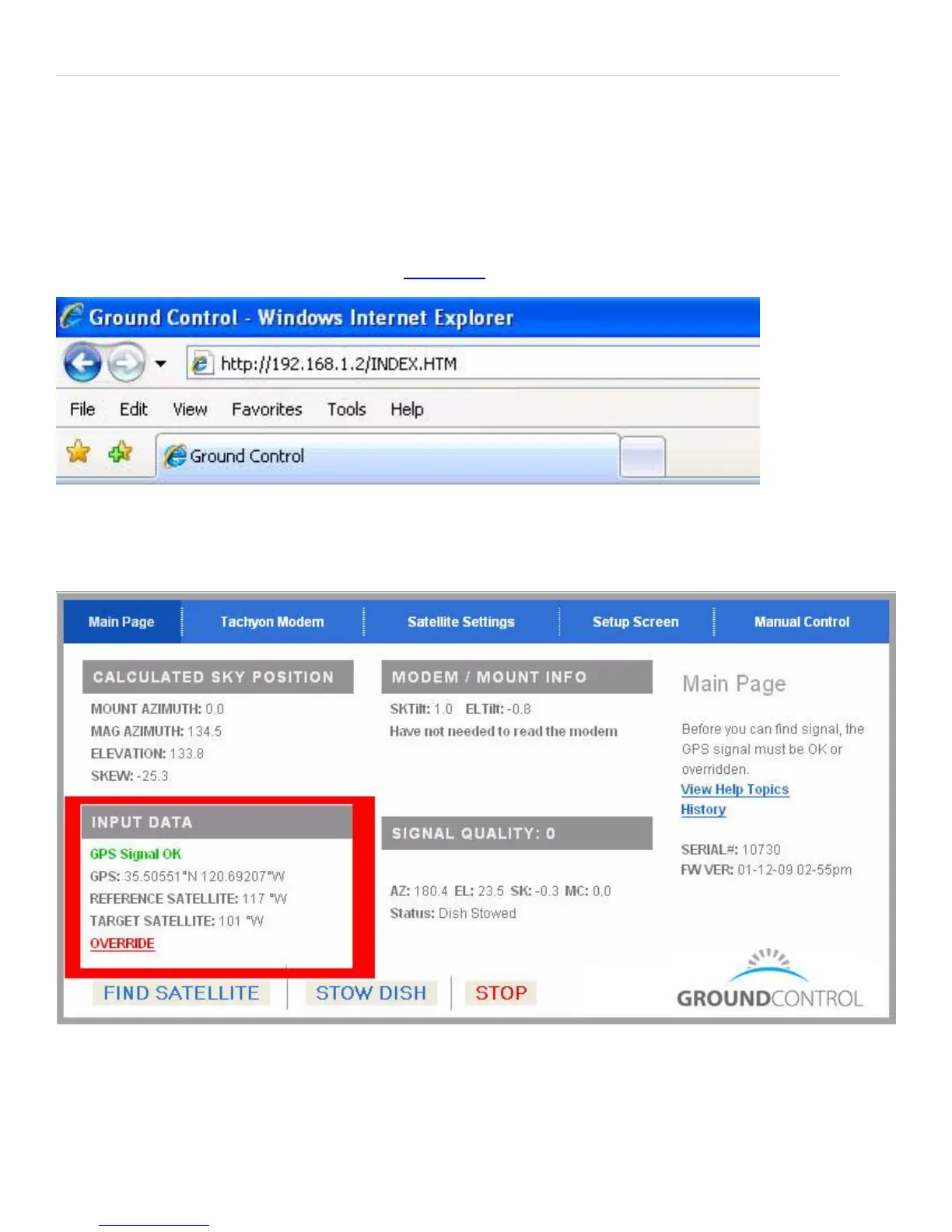
You can view the Toughsat web interface, type in 192.168.1.2 on a connected browser.
There are no logins or passwords for this page, and it contains a large amount of information about your system. Some
menus will even allow you to change configuration settings for your dish. Leave these alone unless instructed or you know
what you are doing. Many of these settings will prevent your dish from working correctly if changed. Contact Ground
Control Technical Support if you have questions about the items on these pages.
First, look to the lower left quadrant of the screen, to the “Input Data” Section: Confirm that it displays “GPS Signal OK”
and has GPS coordinates. Without this information, or if the Toughsat does not display “GPS Signal OK”, it will not
deploy. Once you have confirmed this, look for “Reference Satellite” and make sure it is the same thing as “Target
Satellite”.


 To Next Page