EasyManua.ls Logo

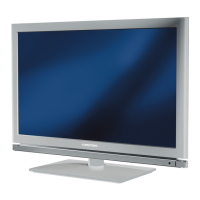
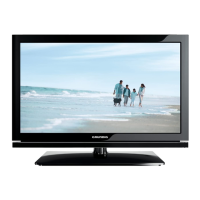
Grundig 22 VLE 2102 C - User Manual

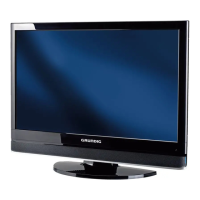
Grundig 22 VLE 2102 C
53 pages
Print Icon
To Next Page IconTo Next Page
Loading...
LCD TV
EN
22 VLE 2102 C

Table of Contents

Questions and Answers

  • D
    Dawn WrightAug 14, 2025
    Why is my Grundig LCD TV remote control not working?
    • H
      hicksjuanAug 14, 2025
      If your Grundig LCD TV remote control isn't working, there might be several reasons. First, ensure there's nothing blocking the path between the remote and the TV; point the remote directly at the television. Next, check the batteries and replace them if needed. Finally, try switching off the television at the mains switch for two minutes.
  • D
    Daniel ValdezAug 17, 2025
    What to do if my Grundig 22 VLE 2102 C has picture but no sound?
    • B
      bryan99Aug 17, 2025
      If your Grundig LCD TV shows a picture but has no sound, the volume might be set too low. Try turning up the volume or ensuring that the volume isn't switched off.
  • A
    Andrea CrawfordAug 21, 2025
    How to fix a Grundig LCD TV with a snowy screen but no channels?
    • E
      Erica KingAug 21, 2025
      If your Grundig LCD TV screen is showing static ('snow') but no channels are visible, it could be due to a couple of things. First, check if the antenna cable is properly connected. If it is, then try starting a channel scan to tune into available channels.
  • K
    Kevin JenningsAug 25, 2025
    Why does my Grundig 22 VLE 2102 C have no color?
    • C
      Chase PowersAug 25, 2025
      If your Grundig LCD TV has no color, there are a few possible causes. First, the color intensity might be set too low; try turning up the color. Also, if available, make sure you've selected the correct color standard in the TV settings. Finally, the issue might be with the broadcast itself, so try changing to a different channel.
  • A
    Anthony LynchAug 27, 2025
    How to improve contrast on a Grundig 22 VLE 2102 C?
    • C
      Christine BlackAug 27, 2025
      If the picture on your Grundig LCD TV lacks sufficient contrast, the picture settings may not be optimal. Try adjusting the brightness, contrast, or color settings. It's also possible that the broadcast itself is the issue, so try switching to another channel to see if the problem persists.
  • S
    Scott LaneAug 31, 2025
    Why is Teletext not working on my Grundig LCD TV?
    • J
      James MasonAug 31, 2025
      If Teletext is impaired or absent on your Grundig LCD TV, the problem could be with the broadcast signal. Try switching to a different channel. It could also be related to the television channel (if it doesn't offer Teletext) or your antenna system; try fine-tuning or using a different channel. Finally, a weak station signal could be the cause, so check your antenna.
  • A
    Alexander MullinsSep 3, 2025
    What causes picture and sound distortion on a Grundig 22 VLE 2102 C?
    • K
      Kyle JacksonSep 3, 2025
      If you're experiencing picture and/or sound distortion on your Grundig LCD TV, it might be due to interference from other devices. Try placing the TV in a different position to minimize potential interference.
  • A
    Alex PhamSep 6, 2025
    How to fix ghosting or reflection on Grundig 22 VLE 2102 C?
    • G
      gmedinaSep 6, 2025
      If you're seeing ghosting or reflections on your Grundig LCD TV screen, it could be related to the channel setting. Try automatic or manual tuning/fine tuning. The issue might also stem from your antenna; have the antenna cable or system checked.
  • H
    harperannetteSep 10, 2025
    Why is the picture too dark on my Grundig 22 VLE 2102 C LCD TV in PC mode?
    • F
      Francis RobertsSep 10, 2025
      If the picture appears too dark on your Grundig LCD TV when in PC mode, it's likely due to incorrect settings for picture resolution and picture frequency on your PC. Try changing the settings on your PC, for example, to a resolution of 1280 x 768 with a refresh rate of 60 Hz.

Summary

Setup and Safety

Setup and Safety Precautions

General precautions for setting up and safely operating the television.

Wall Bracket and Connection Safety

Safety notes regarding wall bracket installation and electrical connections.

General Information

Receiving Digital Channels

Details requirements and methods for receiving digital TV channels (DVB-T, DVB-C).

Connection and Preparation

Connecting Antenna and Power Cord

Step-by-step guide for connecting the antenna and power supply to the TV.

Overview

Remote Control Main Functions

Details the primary buttons on the remote control and their functions.

Settings

Initial Setup and Channel Tuning

Guide for the initial configuration and automatic channel search process.

Language, Country, and Mode Selection

Steps to set the menu language, country, and operational mode (e.g., Home/Shop).

Tuning Terrestrial Channels (DVB-T)

Instructions for scanning and tuning digital terrestrial TV channels.

Tuning Cable Channels (DVB-C)

Instructions for scanning and tuning channels via a cable provider.

Picture Settings

Guide to adjust picture parameters like brightness, contrast, sharpness, and color.

Sound Settings

Options for adjusting volume, balance, AVL, audio type, and stereo width.

Television - Operation

Channel Selection Methods

Methods for changing channels using direct presets, step-by-step, or the channel list.

Picture Format Adjustment

Adjusting the aspect ratio (e.g., 16:9, 4:3, LetterBox) for optimal display.

USB Operation

Connecting External USB Media

Steps for safely connecting and disconnecting USB storage devices.

Basic USB File Playback

How to select, play, pause, and resume playback of files from a USB device.

Teletext Operation

Convenience Functions

Language Settings Management

Changing the menu language, audio language, and subtitle language.

Parental Control Settings

Setting age restrictions and locking specific programs or menus.

Changing the PIN Code

Setting a personal PIN code for parental controls and menu locking.

Locking Individual Channels

Preventing access to specific channels using a PIN code.

Software Update Check

Checking for and installing software updates for digital channels.

Reset to Default Settings

Resetting the TV to factory defaults, erasing custom settings and channel lists.

Operation Using External Devices

DIGI LINK Function Overview

Introduction to the DIGI LINK function for controlling connected CEC-compatible devices.

Searching and Activating External Devices

Steps to find and configure DIGI LINK-enabled devices connected to the TV.

Connecting External Devices

Detailed instructions for connecting devices using HDMI, Component, SCART, and S-Video.

Operation as a PC Monitor

Connecting a PC to the TV

Instructions for connecting a computer to the TV for use as a monitor.

PC Mode Settings

Configuring various picture and display settings when using the TV as a PC monitor.

Special Settings

Automatic Cable Channel Search

Performing an automatic scan for channels from a cable provider.

Manual Cable Channel Tuning

Manually tuning channels via cable by entering frequency details.

Automatic Terrestrial Channel Search

Performing an automatic scan for digital terrestrial TV channels.

Manual Terrestrial Channel Tuning

Manually tuning digital terrestrial channels by channel number.

Tuning Analogue Television Channels

Setting up analogue TV channels, either directly or via scan.

Information

Troubleshooting Common Problems

Common problems and their solutions for the television.

Grundig 22 VLE 2102 C Specifications

General IconGeneral
Smart modesHotel
Display diagonal21.6 \
Display brightness- cd/m²
Display resolution1366 x 768 pixels
Native aspect ratio-
Supported video modes1080p, 540p, 576i, 720p
Display diagonal (metric)54.86 cm
Supported graphics resolutions1366 x 768
3DNo
Headphone connectivity3.5 mm
Tuner typeAnalog & digital
Number of tuners2 tuner(s)
Channels quantity1000 channels
Analog signal format systemNTSC
Digital signal format systemDVB-C, DVB-T
RMS rated power12 W
Number of speakers2
RS-232 ports0
USB 2.0 ports quantity1
Audio formats supportedAAC, MP3, WMA
Image formats supportedBMP, JPG, PNG
Video formats supportedAVI, DAT, DIVX, MKV, MOV, MP4, MPG, TRP, TS, VOB
Product colorBlack
Panel mounting interface75 x 75 mm
Power consumption (standby)0.5 W
Power consumption (typical)32 W
Weight and Dimensions IconWeight and Dimensions
Depth (with stand)160 mm
Height (with stand)380 mm
Depth (without stand)69 mm
Width (without stand)523 mm
Height (without stand)356 mm
Weight (without stand)4300 g

Related product manuals