ADMINISTRATOR MANUAL
27
PAGE
CLICK
HERE
Notifications
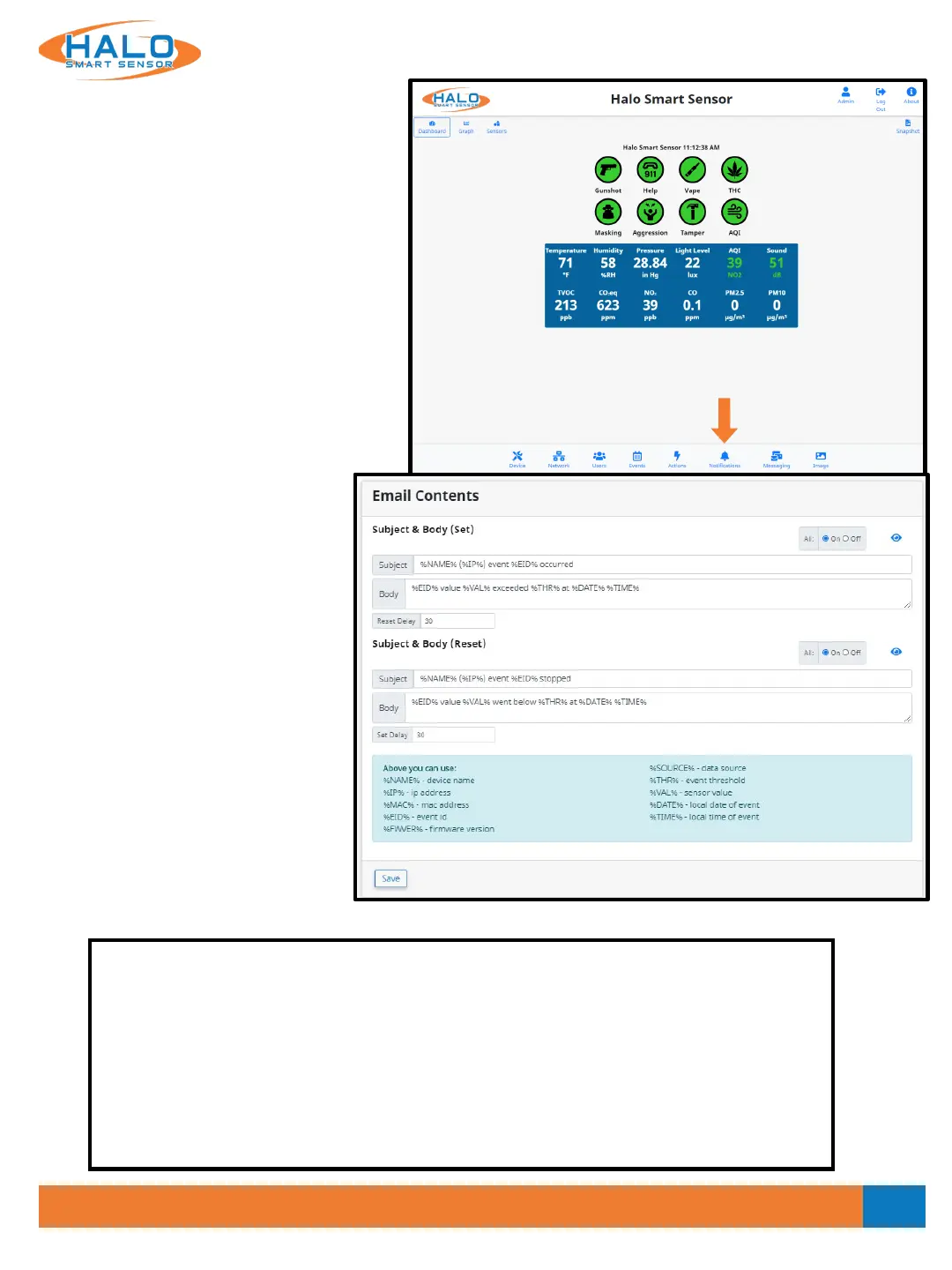
The “Notifications” page has all fields
necessary to edit email contents and
connect to an email account using SMTP.
The Email Contents section dictates what
the notification will look like when sent via
email and email to text. The Subject and
Body fields can be populated with
information to be extracted from the HALO
upon an event and can also include
character for character information. By
placing the specified fields in "%" it will
select them and place the current value in
that position.
The Reset Delay (measured in
seconds) will reduce the possibility of
getting multiple messages around the
same event. The measured values
must recede below the established
threshold for this time period and
then increase above the threshold
again for a 2nd alarm.
The Set Delay works in the exact
opposite process.
The HALO uses SMTP(simple mail
transfer protocol) to send out alarms.
• You can use you own SMTP server.
• If you do not have an internal
SMTP server, you can use a free
Gmail account. We would
V2.2 - 9/09/2020
recommend creating a separate Gmail account for your HALO units.
Setting Up a Free Gmail Account
• You can setup your own SMTP server by creating a Gmail account.
• Got to www.gmail.com. Click create account. Click Next.
• Fill in all info (first name, last name, email address, password). Click Next.
• Only Birthday and Gender need to be filled. Click Next.
• Scroll down Privacy and Terms and click I agree.
• Note: Free Gmail accounts are limited to 500 emails a day.
• Turn on less secure apps on your account. Click the link and turn on.
• https://myaccount.google.com/lesssecureapps


 To Next Page