11
HandyTrac Touch
User Guide
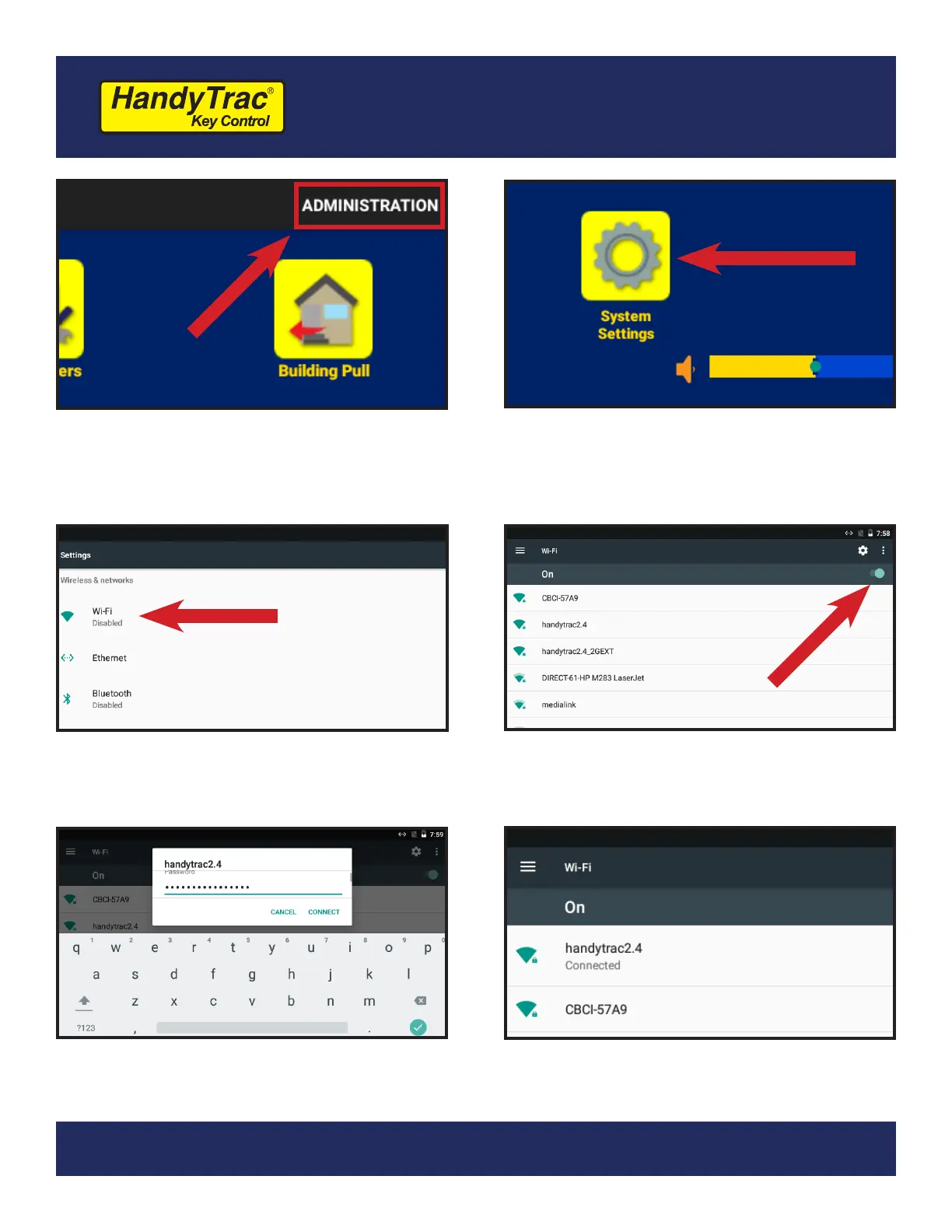
4. Tap “Administration” in the top right-
hand corner of the touch screen.
5. Tap the “System Settings” icon.
6. Select “Wi-Fi” from the settings list.
8. Enter your password when prompted.
Passwords are case-sensitive.
9. The status will change to “Connected”
when successful. “Saved” or
“Authentication Problem” are errors.
7. Make sure the Wi-Fi is toggled “On”
and tap on your network to select it.



 To Next Page