13
HandyTrac Touch
User Guide
1. Once your system is communicating online, please call 888-458-9994 and select Tech
Support from the menu to speak with a HandyTrac Technician. The technician will check
to make sure your system is set up correctly and that all system data is properly loaded
and congured.
2. During this process your website login will be created if required. Website logins can be
congured to provide access to multiple HandyTrac systems for corporate, regional, or
area managers.
3. Visit HandyTrac.com and click Sign In at the top right hand
corner to access your HandyTrac account. HandyTrac.com
is also mobile friendly and can be easily accessed from any
smartphone.
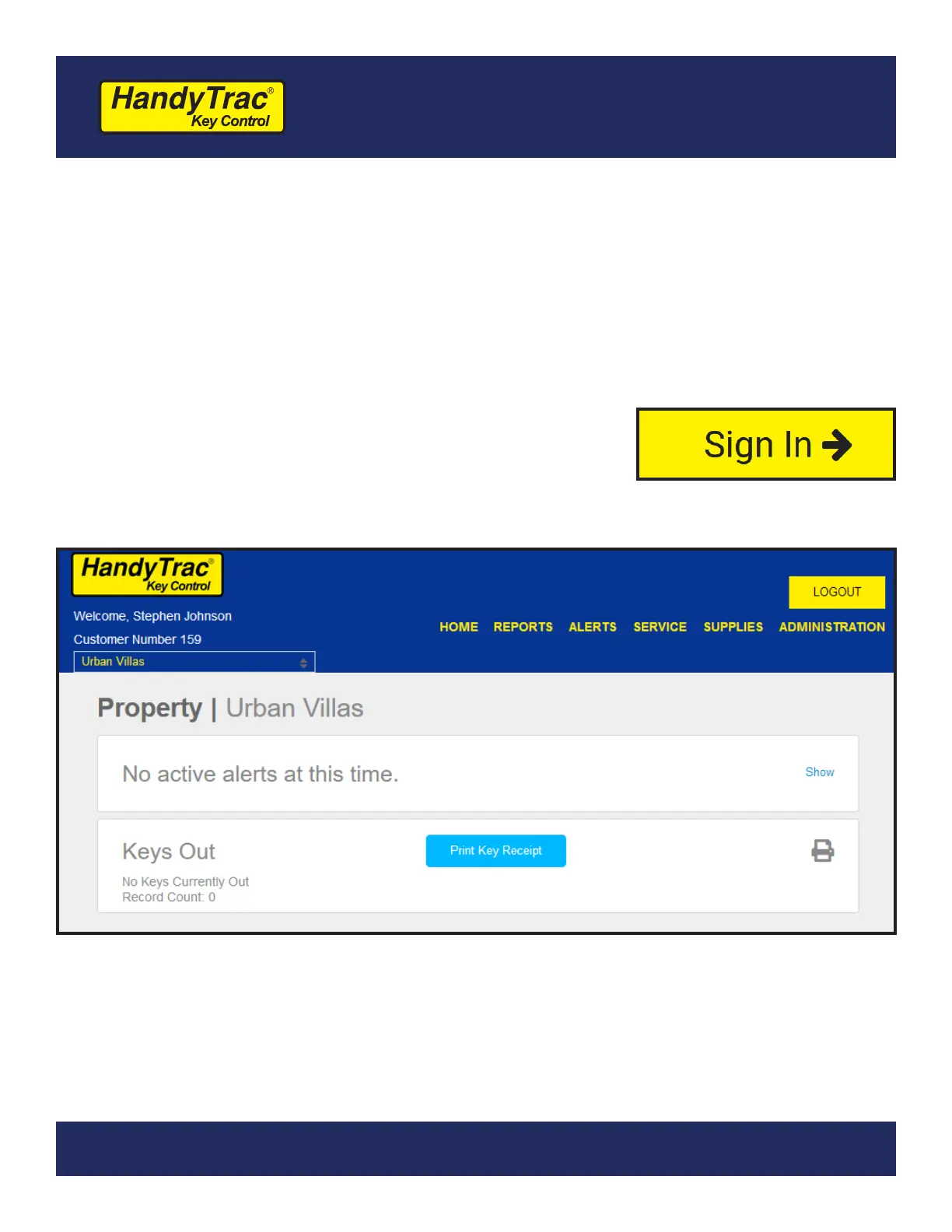
4. Once logged in, you can manage many aspects of your system including reporting,
alerts, employee access, and notications.
Website Access and Initial System Setup
The HandyTrac Home page will display any congured alerts, the full Keys Out Report, and
open Work Orders if applicable.
For the initial setup, only employee information needs to be updated. The website offers
many features that are detailed later in this guide.


 To Next Page