15
HandyTrac Touch
User Guide
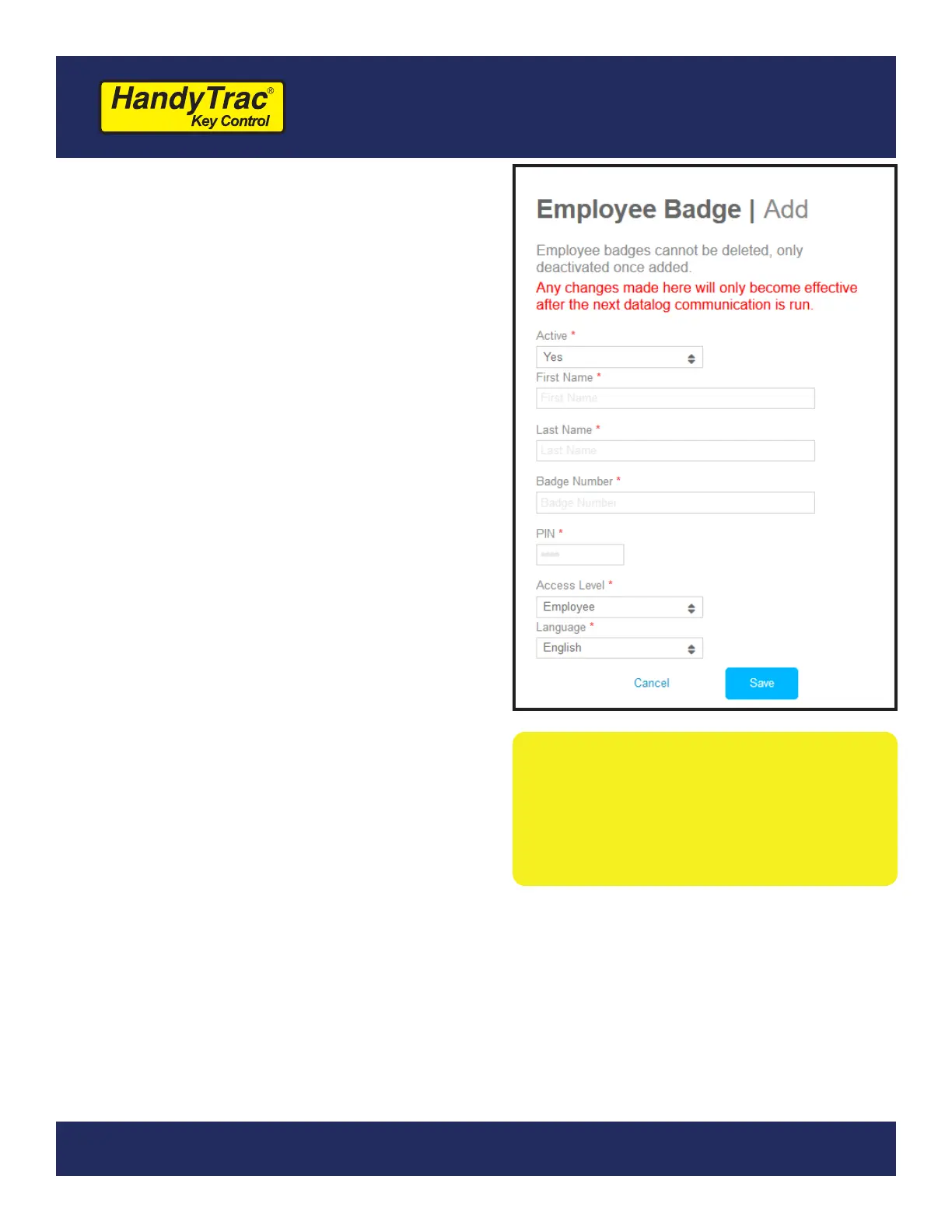
Adding an Employee Badge
Editing or Removing an
Employee Badge
1. Under “Administration”, click on “Add/Edit
Employee Badges” in the Actions panel.
2. Click on the blue Add Employee button.
3. Fill out the elds including name, the six-digit
badge number, and create a four-digit PIN.
4. Choose an access level for the employee.
Most staff will only need Employee Access to
pull keys, but managers and administrators
should have Master Access. Master Access
allows editing units, tags, and ngerprints.
5. Choose a language that is displayed to the
employee when they sign in to the HandyTrac
system.
6. Once all your employees are added
on the website, go to the HandyTrac
system touchpad and tap on the yellow
HandyTrac Logo one time. This will force a
communication and update the system with
all current employees.
1. To edit an employee badge, click “Edit” at the end of the line for the employee from the
Active Employees list.
2. You can edit the Active status, badge number, PIN, access level, or language. You cannot
change the name associated with a badge.
3. To remove an employee badge from the system, simply change the “Active” eld to “No”
and save. This will remove that employee’s access and free up the badge to be re-added
with a new employee.
Note: It is critical that all
employees using the HandyTrac
system have their own badge and
PIN. If badges and PIN numbers are
shared, the audit trail will not be
valid.



 To Next Page