9
HandyTrac Touch
User Guide
Establishing Communications
Wired CAT5(e) Ethernet Network Connection
Note: A wired Ethernet connection is the preferred network connection method
1. A CAT5(e) Ethernet network cable can be
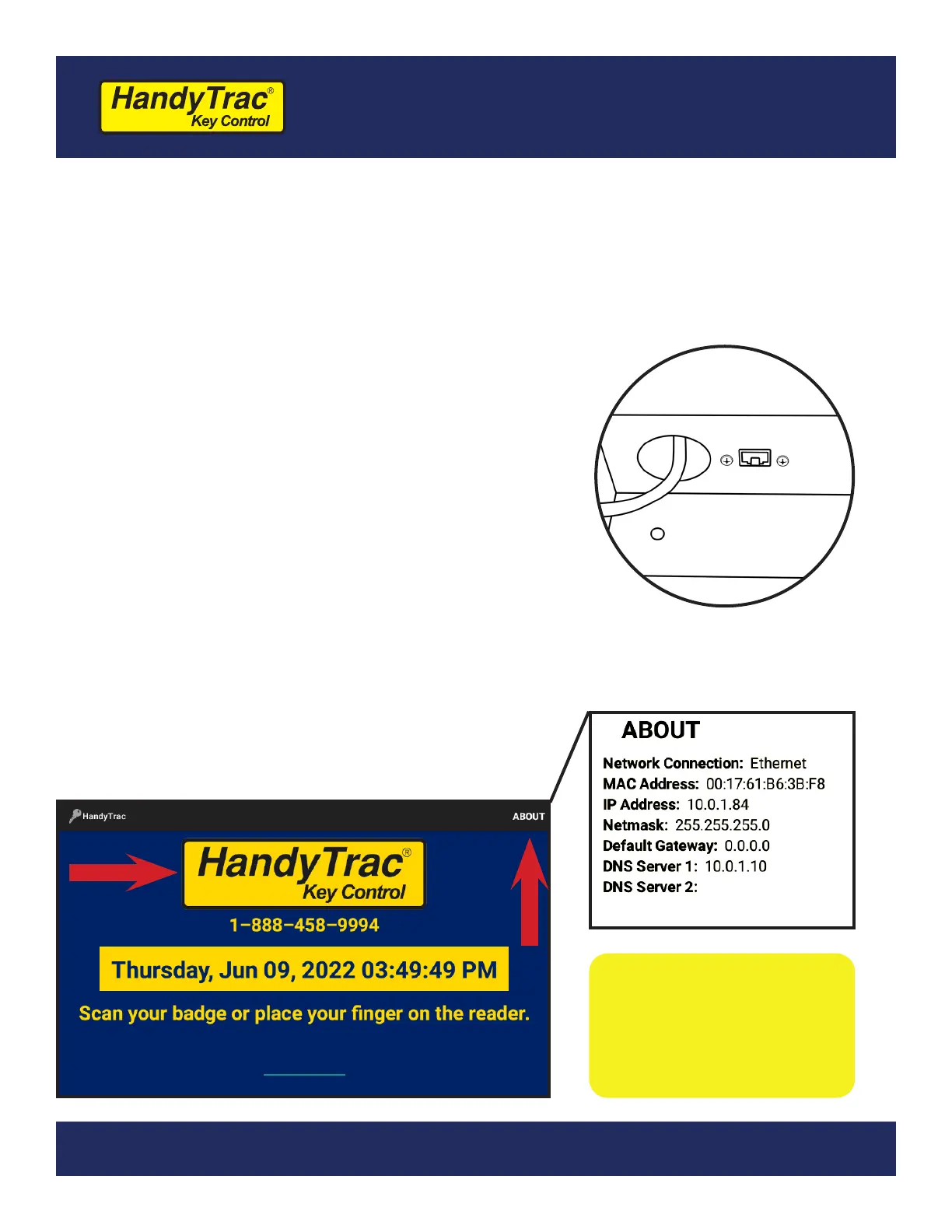
connected to the ethernet network port
located at the bottom-left of the system near
the power cord. An ethernet cable does not
need to be connected if you will be using a
WiFi connection.
2. Once powered on, the system will display the
main HandyTrac Touch system Time and Date
screen. (pictured below)
3. If the wired connection is not active, you will
receive a “No Network” popup notication.
4. If you do not receive a “No Network” popup
notication, you likely have a live connection.
You can test your connection by tapping the
HandyTrac logo on the display one time.
5. You should receive a notication that says
“EOP was Successful.”
Ethernet Network Port
Note: Tapping on
“About” in the top
right corner will list
network connection
information.


 To Next Page