17
HandyTrac Touch
User Guide
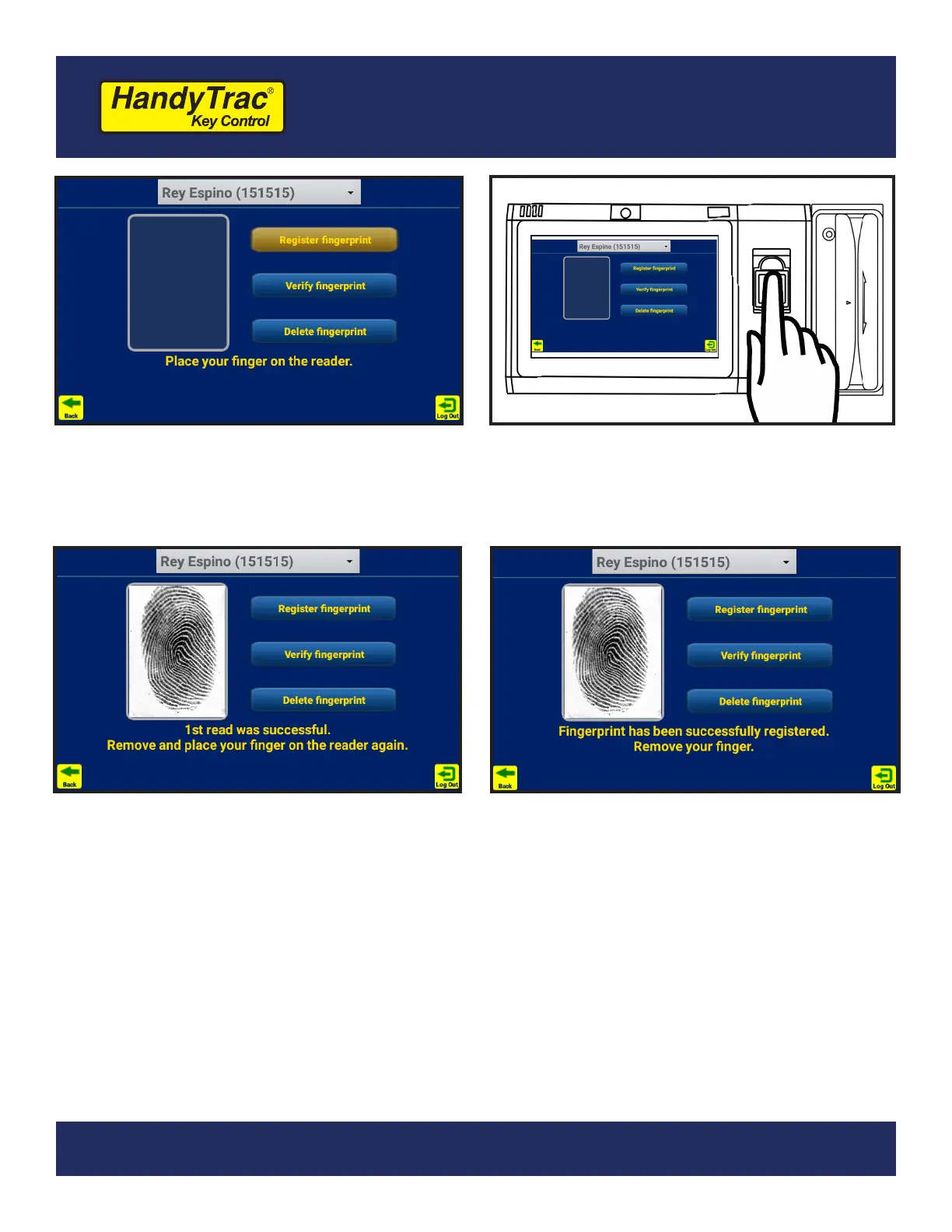
8. Once the appropriate employee is
selected, tap on Register ngerprint.
10. The system will chime and notify of
a successful read and display the
ngerprint image.
11. Repeat until the system says the print is
successfully registered.
9. Remove the protective lm from the
ngerprint reader and place your nger
on the reader.
Notes:
• It is recommend you test your ngerprint access by logging out of the HandyTrac system and signing
back in by placing your nger on the reader.
• Badges and PINs can still be used in the event a nger is cut or no longer reads properly.
• Fingerprints are removed when an employee is deactivated on the website.
This concludes initial system setup. General system usage
and website features are detailed on the following pages.


 To Next Page