EZ-Guide® Plus
Action icons
o select an icon, press A or V, then press o. These action icons can be displayed in the icon bar:
Icon Description
9 Reset guidance
A Set Point A
B Set Point B
8 Start headland
D Final headland
7 Go to main configuration menu
1 Nudge left
3 Nudge right
2 Pause/Resume
4 Change views
5 Zoom
Note — Some action icons may not be available until a field is defined.
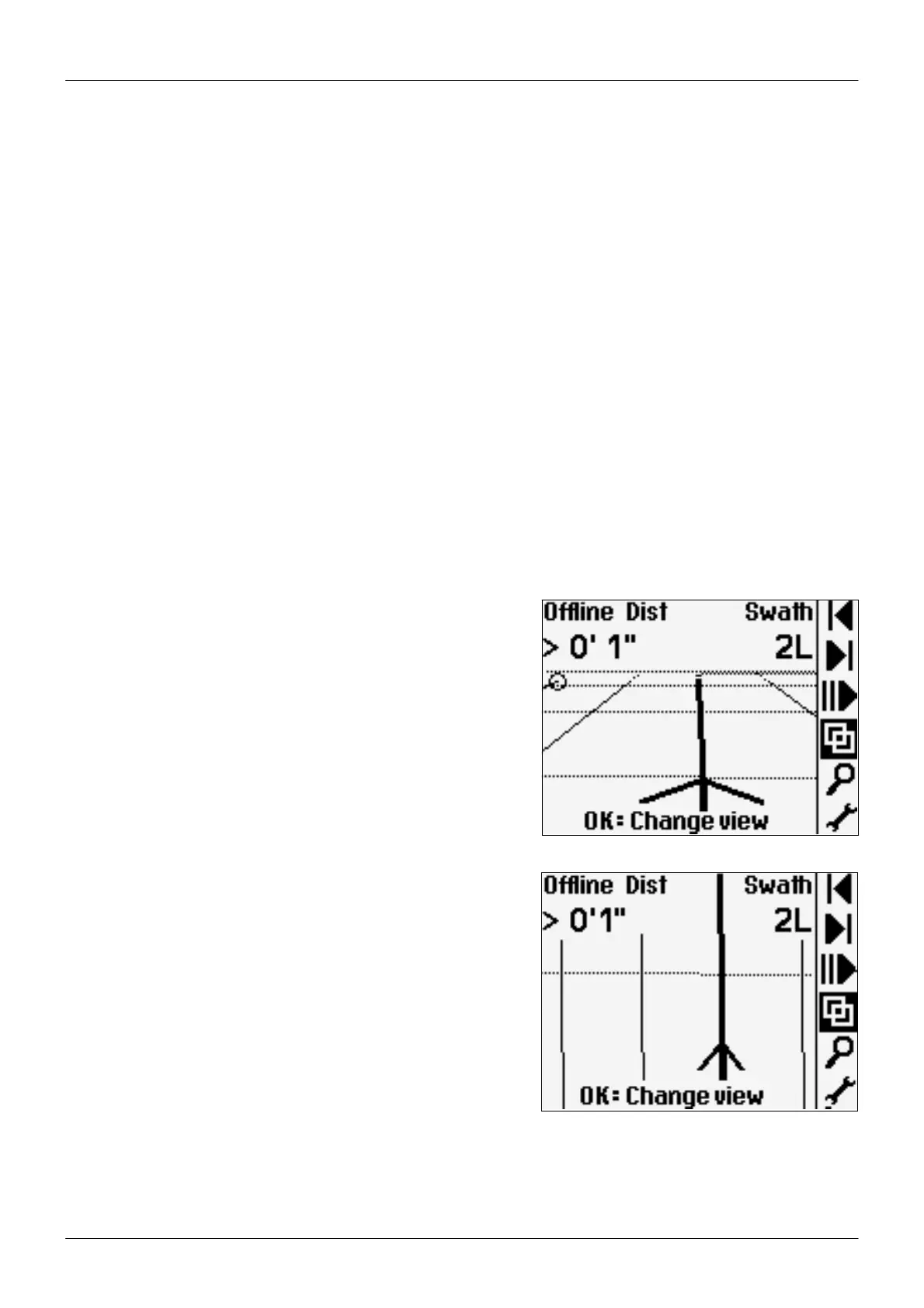
Views
o change between the three views, select
Perspective map
his is the default screen for guidance. It displays two status text
options.
Plan map
his is the default screen when you:
• define the field
• pass the end of the swath
• move offline by more than half a swath
• pause guidance
8


 To Next Page