ANDROID
Note
Some phone and camera related applications might not be compatible on the device.
Hardkernel doesn’t have any responsibility on applications that you download from market or any place.
Home Screen
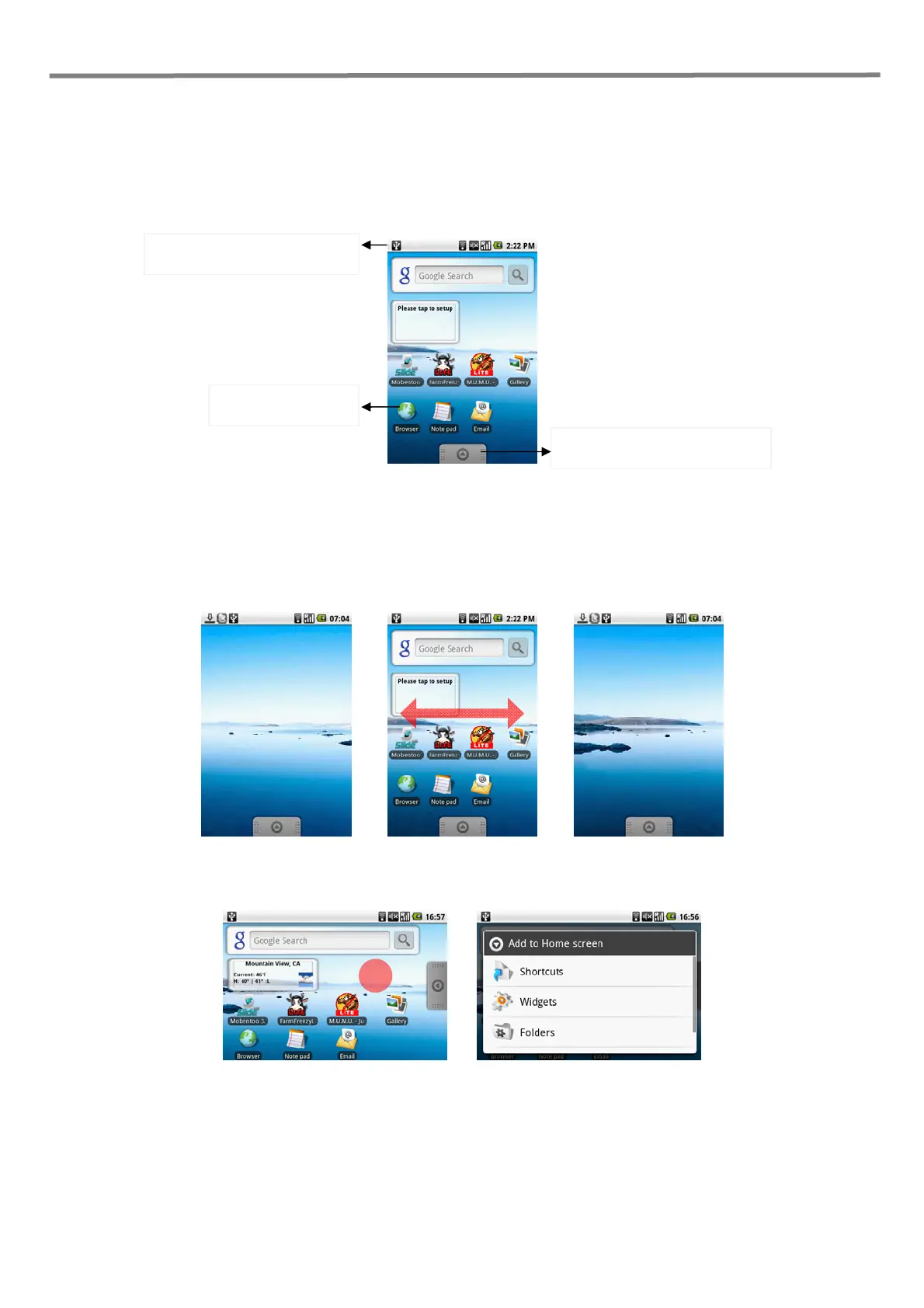
The Home screen is your starting point for using the applications on your device. You can customize the Home screen to display application icons, shortcuts, folders,
and widgets.
Tip
While in any application, press HOME to go back to the Home screen.
Extended Home screen
The Home screen extends beyond the screen width to provide more space for adding icons, widgets, and more. Press HOME, then slide your finger horizontally
across the screen to go to the left or right side of the extended Home screen.
Tip While on an extended Home screen, you can also press HOME to return to the main Home screen.
Customizing the Home screen
To add a Home screen item
Press HOME, then touch and hold an empty area on the screen.
When the Add to Home options menu opens, select the item you want to add to the Home screen:
- Shortcuts: Add shortcuts such as applications, a bookmarked web page, a favorite contact, or a music playlist.
Tip
To quickly add an application shortcut that is on the Applications tab to the Home screen, touch and hold an application icon. When the icon is
magnifies, release the icon on an empty area on the Home screen.
- Widgets: Add a clock, music player, a picture frame, or the Google Search bar that shows upcoming appointments.
- Folders: Add a folder where you can organize Home screen items.
- Wallpapers: Change the Home screen wallpaper.
Applications tab: Touch to open and
select an application.
Notifications and Status panel: Touch
and hold this area to display the data.
Touch an icon to open
the related application



 To Next Page