Connecting Wifi network
To use Wi-Fi on your device, you need access to a wireless access point or “hotspot”.
Note
The availability and range of the Wi-Fi signal depends on the number, infrastructure, and other objects through which the signal passes.
To turn Wi-Fi on and connect to a wireless network
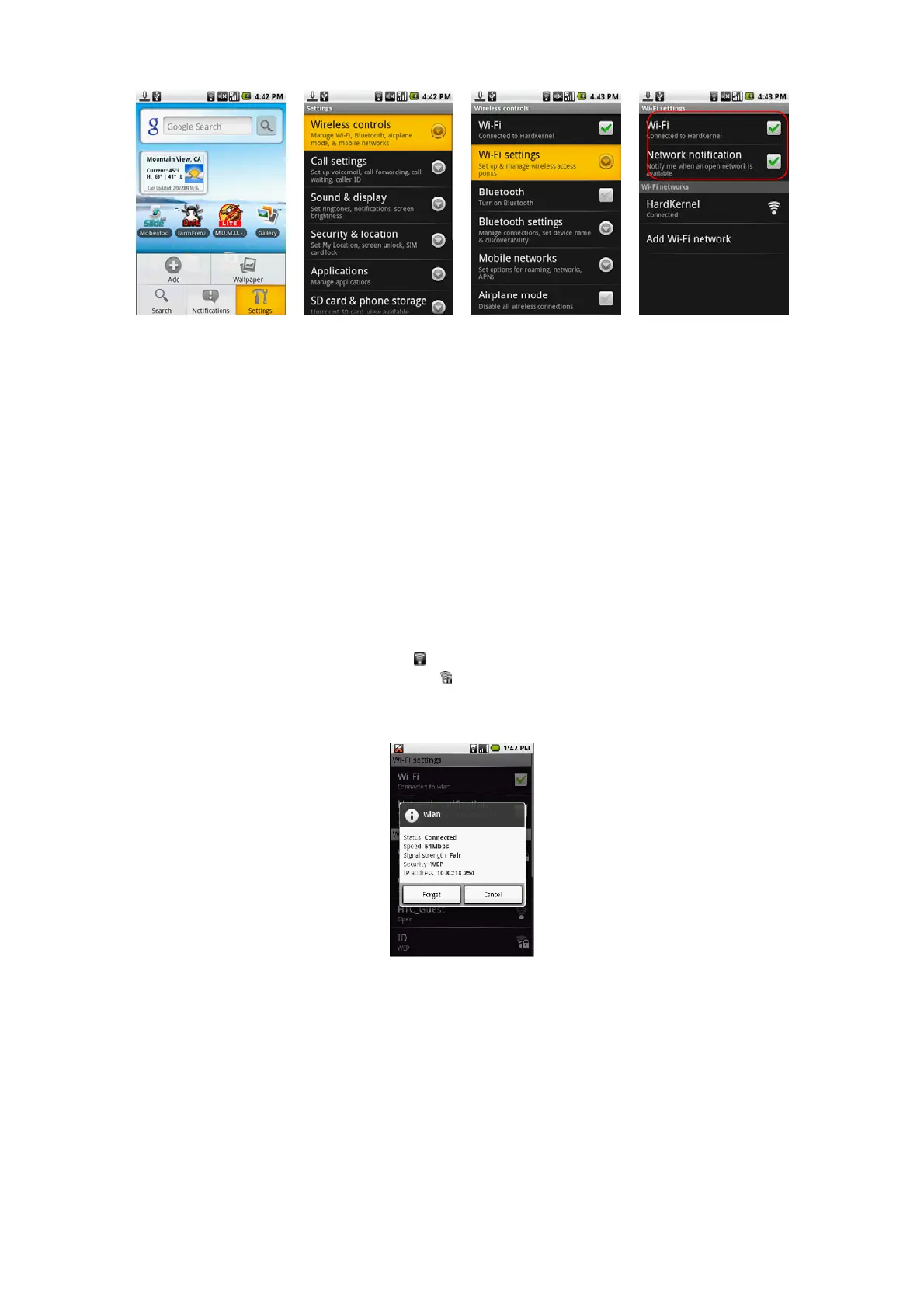
Press HOME > MENU, and then touch Settings > Wireless controls. Select the Wi-Fi check box to turn Wi-Fi on. The device will scan for available wireless
networks. Touch Wi-Fi settings. The network names and security settings (Open network or Secured with WEP) of detected Wi-Fi networks are displayed in the
Wi-Fi networks section. Touch a Wi-Fi network to connect. When you selected an open network, you will be automatically connected to the network. If you
selected a network that is secured with WEP, enter the WEP (security) key and then touch Connect.
Notes
The next time your phone connects to a previously accessed secured wireless network, you will not be prompted to enter the WEP key again, unless you reset your
device to its factory default settings.
Wi-Fi networks are self-discoverable, which means no additional steps are required for your device to connect to a Wi-Fi network. It may be necessary to provide a
username and password for certain closed wireless networks.
To check the wireless network status
You can check the current wireless connection status from the following
: appears in the status bar and tells you the approximate signal strength (number of bands
that light up). If Network notification in Wi-Fi settings is enabled, this icon
appears in the status bar whenever the device detects an available wireless network
within range. Wi-Fi networks On the Wireless controls screen, touch Wi-Fi settings, then touch the wireless network that the device is currently connected to. The
Wi-Fi network name, status, speed, signal strength, security information, and IP address are displayed.
Note
If you want to remove the wireless network settings on your phone, touch Forget on this window. You will need to enter the settings again if you want to connect to
this wireless network.
To connect to another Wi-Fi network
On the Wireless controls screen, touch Wi-Fi settings. Detected Wi-Fi networks are displayed in the Wi-Fi networks section.
Tip
To manually scan for available Wi-Fi networks, on the Wi-Fi settings screen, press MENU and then touch Scan. Touch another Wi-Fi network to connect to it.
Note
If the wireless network you want to connect to is not in the list of detected networks, scroll down the screen, then touch Add Wi-Fi network. Enter the wireless
network settings, then touch Save.



 To Next Page