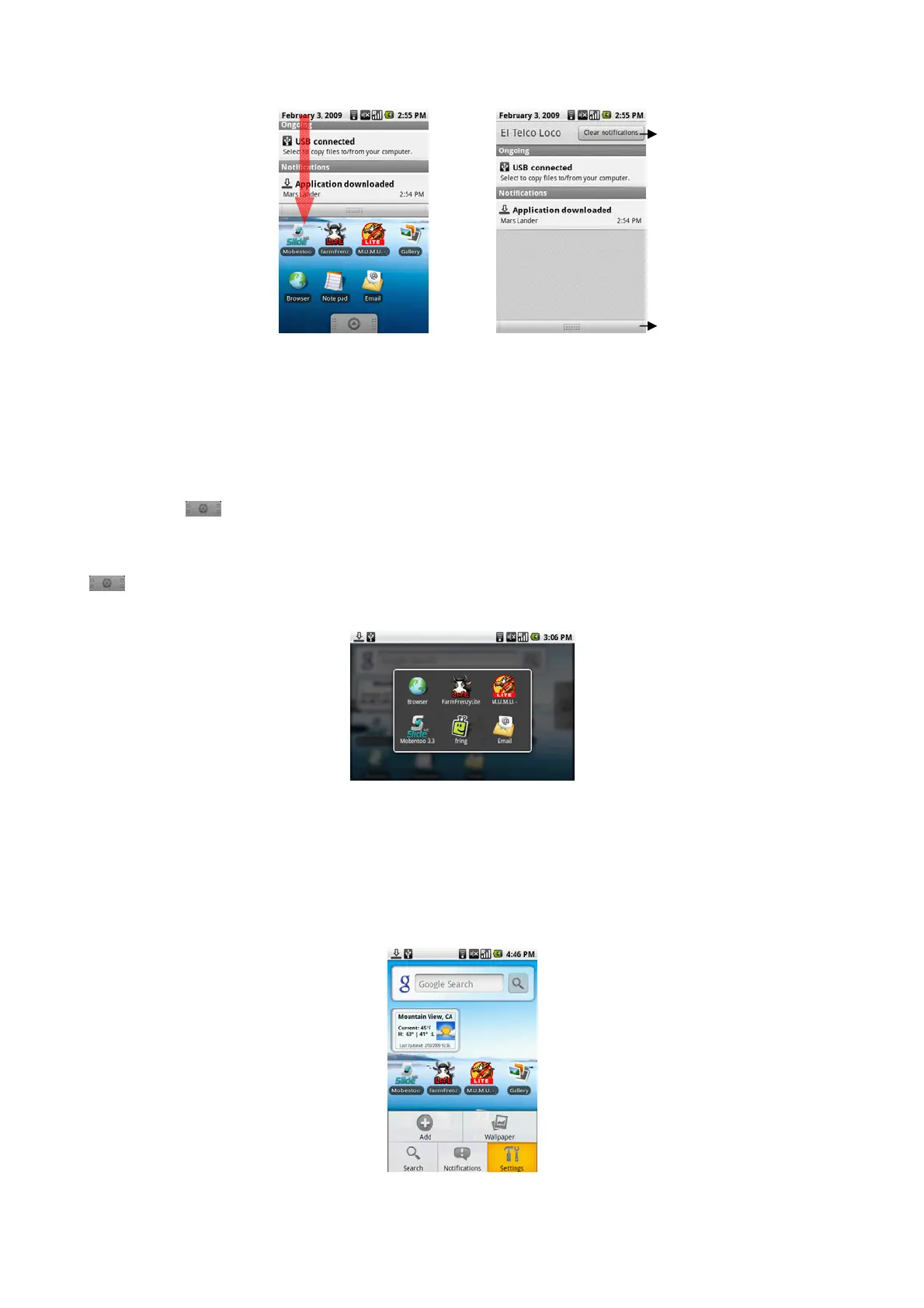
To open the Notifications panel
When a new notification icon displays in the status bar, touch and hold the status bar, then slide your finger downward to open the Notifications panel.
If you have several notifications, you can scroll down the screen to view more notifications.
Tip
You can also open the Notifications panel on the Home screen by pressing MENU and then touching Notifications. To close the Notifications Panel, touch and hold
the bottom bar of the Notifications panel, then slide your finger up the screen or press BACK.
Applications
The Applications tab holds all applications on your device. All applications that you downloaded and installed are also added to the Applications tab.
To open the Applications tab
Press HOME, then touch
You can also touch the Application tab and then drag it up to open it.
Tip
To open applications quickly, you can add the icons of frequently-used applications to the Home screen or to folders which you have created.
To close the Applications tab
Touch
Recently-used applications
To open a recently-used application
Press and hold the HOME button to open the recently-used applications window. The window displays the last six applications you have used.
Touch an icon in the window to open the related application.
Settings
Control and customize device settings on the Settings screen.
To open the Settings screen, do one of the following:
Press HOME, then press MENU, and then touch Settings.
Press HOME, then open the Applications tab, and then touch Settings.
Wireless controls
Configure your device’s wireless connections, such as Wi-Fi and Bluetooth, enable the Airplane mode.
Sound & display
Set the sound, or set the screen brightness and screen timeout.
Touch to clear all
notifications
Touch and hold, then
slide up to close the
Notifications panel



 To Next Page