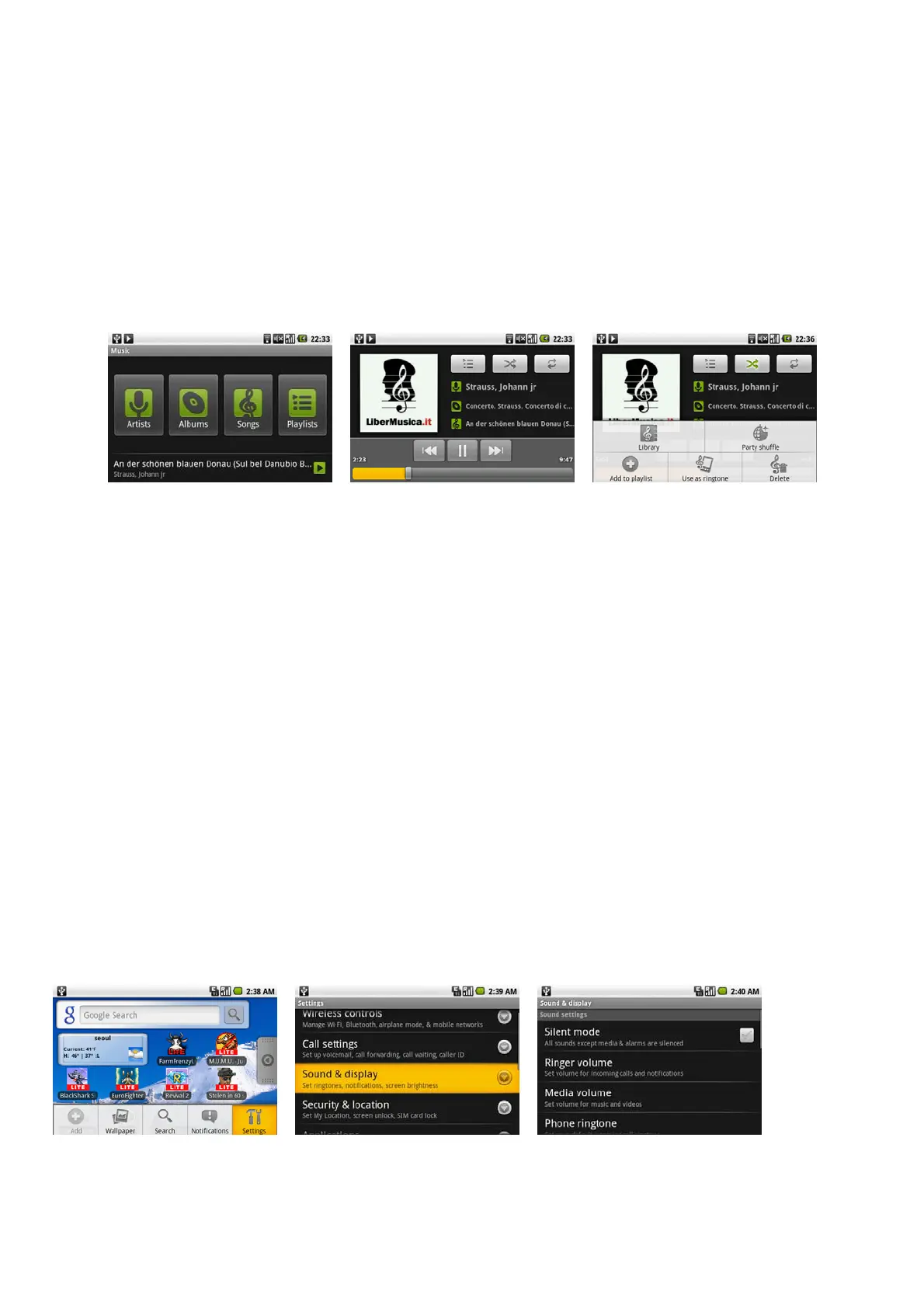
Music
Music plays digital audio files from the phone’s storage card. Since Music only plays audio files saved on the storage card of your device, you must copy your audio
files to the storage card before you open Music.
To copy music into the storage card
Set the device’s storage card as a USB drive. On the computer, navigate to the USB drive and open it. Create a folder on the root folder of the storage card.
Tip
You can also create and use folders to organize your music inside the Music folder you have created. Copy the music into the folder you have created. After copying
music, unmount or eject the drive as required by your computer’s operating system to safely remove the device. Disconnect the device from the computer.
To open Music
Press HOME, touch the Applications tab, and then touch Music. The Music library screen displays.
Music library
Your music is organized into four categories: Artists, Albums, Songs, and Playlists. Touch a category to view the list within each.
When inside a category, keep touching the screen until you reach the music you want to play.
Managing Your Device
Changing Basic Settings
Set the date, time zone, and time
To manually adjust the date, time zone, and time
Press HOME > MENU, and then touch Settings. Scroll down the screen, then touch Date & time. Clear the Automatic check box.
Touch Set date. On the Change date window, touch + - to adjust the date, month, and year, then touch Set when finished.
Touch Set time. On the time window, touch + - to adjust the hour and minute, then touch AM to change to PM or vice versa. Touch Set when finished. Select the
Use 24-hour format check box to toggle between using a 12-hour or a 24-hour format. Touch Select date format then select how you want dates to display on your
device.
Display settings
To adjust the screen brightness
Press HOME > MENU, and then touch Settings. Touch Sound & display, scroll down the screen, then touch Brightness. Drag the brightness slider to the left to
decrease or to the right to increase the screen brightness. Touch OK. To adjust the time before the screen turns off. After a period of inactivity, the device screen
turns off to conserve battery power. You can set the idle time before the screen turns off. Press HOME > MENU, and then touch Settings. Touch Sound & display.
Scroll down the screen, then touch Screen timeout. Touch the time before the screen turns off.
To prevent the screen orientation from automatically changing
By default, the screen orientation automatically adjusts depending on how you hold the device. Press HOME > MENU, and then touch Settings. Touch Sound &
display. Scroll down the screen, then clear the Orientation check box. To keep the screen on while charging the device
Sound settings
To change sound settings Press HOME
> MENU, and then touch Settings. Touch Sound & display. You can change the sound settings.



 To Next Page