To reposition a Home screen item
Touch and hold the item on the screen you want to reposition to activate Move mode.
Note
When Move mode is activated, the item magnifies. Without lifting your finger, drag the icon to the desired position on the screen, then release it. To move an item
from the Home screen to an extended Home screen, touch and hold the item and then drag it to the left or right edge of the screen until the display shifts to the
extended Home screen. Position the item on the screen, then release it.
To remove a Home screen item
Touch and hold the item on the screen you want to remove to activate Move mode.
Note
When Move mode is activated, the item magnifies. Drag the icon to the Applications tab (The Applications tab changes into
). When the icon and
Application tab turn red, release it.
To change the Home screen wallpaper
While on the Home screen, press MENU and then touch Wallpaper. Touch Pictures or Wallpaper gallery. Touch Pictures to use a picture that you have copied to
your device. You can crop the picture before setting it as a wallpaper. Touch Wallpaper gallery to use preset wallpapers that came with the phone. Touch Save or
Set wallpaper.
To create a folder and add items to it
You can create folders on the Home screen to hold application icons or shortcuts. Press HOME, press MENU, and then touch Add > Folders. A new folder appears
on the screen. Touch and hold an application icon or a shortcut on the Home screen to activate Move mode, then drag it on top of the folder. To access the items
inside a folder, touch the folder to open it and then touch the icon of the application or shortcut you want to open.
Tip
To delete a folder, follow the same procedure when you want to remove a Home screen item.
To rename a folder
Touch the folder to open it. Touch and hold the folder’s title bar to open the Rename folder dialog box. Enter the Folder name and then touch OK.
Status and Notifications
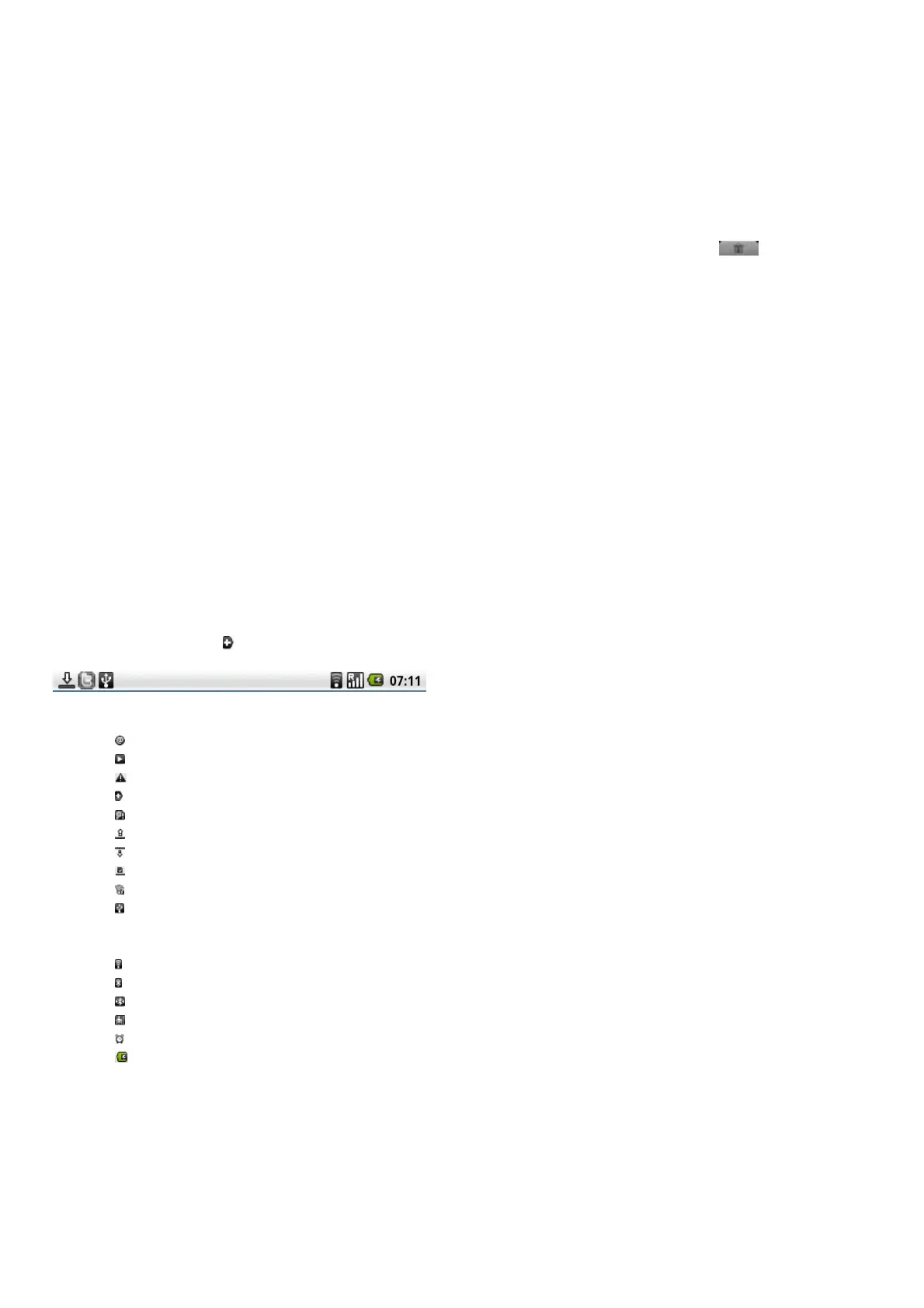
On top of the device screen is the status bar. The left side of the status bar displays notification icons while the right side of the status bar displays the device status.
Tip
When the status bar is full, touch
to display hidden icons/notifications.
z Notification icons
New email message
Music is playing
Problem
More (not displayed) notifications
Storage card is full
Uploading data
Downloading data
Content downloaded
Wifi is on and wireless networks are available
Device connected to computer via USB cable
z Status icons
Wifi connected
Bluetooth is on
Connected to another Bluetooth device
Airplane mode
Alarm
Battery status
z Notifications panel
Notification icons report the arrival of new messages, alarms set and ongoing settings. You can open the Notifications panel to open the message and see the
wireless service provider name.



 To Next Page