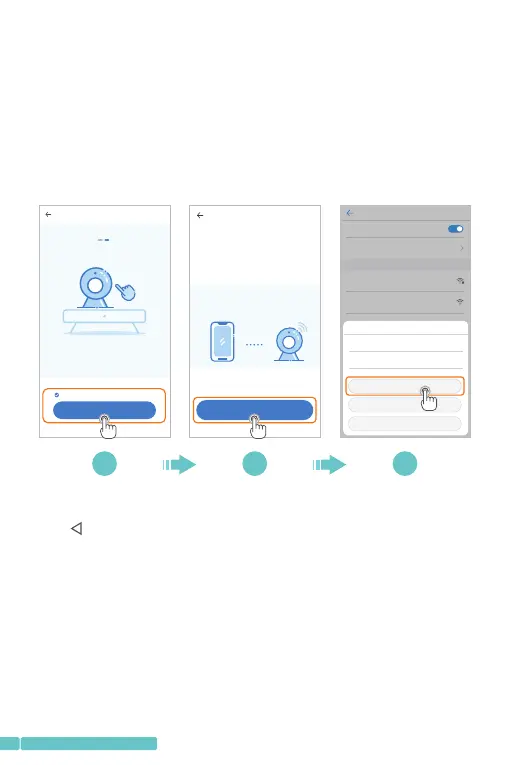
Step2:
TickIfyouhavefinishedtheabovesteps,clickNext,then
tapNexttoentertheNetworkconfigurationinterface;
Step3:
TapGotoSettingtoenterthenetworksettinginterfaceofthe
mobiledevice,thenconnecttothePIXPLUS_AP_XXXXWi-Fi;
Step4:
TaptogetbacktoPixplustoenterNetworkconfiguration
interface,thentapNexttocontinue;
4 5 6
Device configuration
2. Keep pressing "SET" or "RESET" key, for at
least 5 seconds
If you have finished the above steps, click Next
Next
Network configuration
1/3
The device will start Wi-Fi with " "PIXPLUS_AP_XXXX
field. Click the button in the lower part to the setting
interface for connecting to this Wi-Fi
How to connect the device>
Go to Setting
WLAN
WLAN
WLAN
Off
AVAILABLE NETWORKS
HeimVision
Enhanced Internet experience
Connected
PIXPLUS_AP_146b9c7cbe76
Saved
PIXPLUS_AP_146b9c7cbe76
Signal strength
Encryption Type
Excellent
None
CONNECT
FORGET
CANCEL
06
support@heimvision.com


 To Next Page