EasyManua.ls Logo

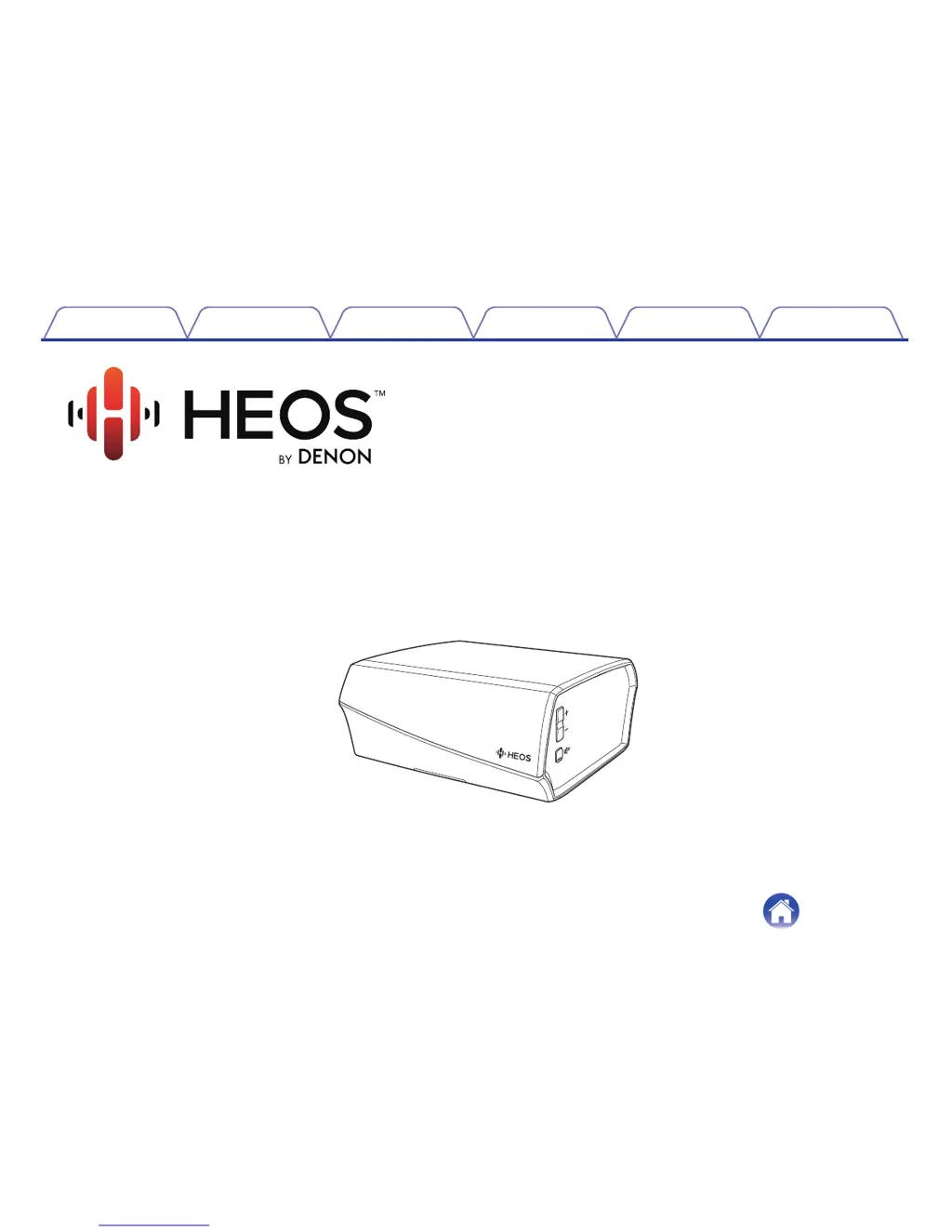
HEOS Link - User Manual

HEOS Link
73 pages
Print Icon
To Next Page IconTo Next Page
Loading...
.
Wireless Pre-Amplifier
Owner’s Manual
HEOS Link
.
Contents
Setup Use Troubleshooting Status LED Appendix
1

Questions and Answers

  • A
    Ann HerreraAug 13, 2025
    What to do if I get a 'Device was not found' message on my HEOS Link Media Player?
    • C
      Caleb YoungAug 13, 2025
      If you receive a 'Device was not found' message, here are some things to try: * Move your HEOS device closer to your wireless router. * Ensure that your HEOS devices and controller device are on the same network. * Verify that the controller device is on the same network as your HEOS devices. * Make sure you don’t have any other electronic devices interfering with your wireless network signals. * If your HEOS devices are located far away from your router, consider adding a Wireless Range Extender like the HEOS Extend. * If your wireless router is incompatible with HEOS device, please use the optional HEOS Extend Wireless Range Extender and hard-wire it to your router.
  • T
    todd41Aug 16, 2025
    Why does my HEOS Media Player music cut out or delay sometimes?
    • B
      bobby90Aug 16, 2025
      If your music is cutting out or experiencing delays, it could be due to several reasons. First, ensure your internet connection is working correctly. Next, check that your HEOS devices are within range of your wireless network. Lastly, make sure your HEOS devices aren't near other electronic devices that could be interfering with the wireless connectivity.
  • R
    rebecca29Aug 20, 2025
    What to do if I don't hear anything from my HEOS Link?
    • L
      leachanthonyAug 20, 2025
      If you are not getting any sound from your HEOS Link, check the connection between the HEOS Link and the AV receiver or amplifier. Also, make sure the correct input source is selected on the AV receiver or amplifier. Ensure that both the HEOS Link and the AV receiver or amplifier are set to an audible volume. Finally, verify that the external device connected to the HEOS Link is properly connected and playing audio.
  • S
    shanecarrollAug 25, 2025
    How to reset HEOS Link Media Player?
    • G
      Gregory FloresAug 25, 2025
      Resetting your HEOS device will clear the wireless network information, EQ settings, and device name, but it will keep the current software version. After resetting, you will need to use the Settings - Add Device option to reconnect the HEOS device to your home network before you can use it again. To reset, gently insert a small paperclip into the Reset button hole on the back of the device and hold it until the front LED begins to flash amber.
  • I
    igoldenAug 28, 2025
    What to do if my HEOS Device won’t connect to my network using the audio cable?
    • R
      Robert GregoryAug 28, 2025
      If your HEOS device is not connecting to your network, first ensure that your mobile device is connected to your wireless network before setting up your device. Alternatively, you can connect your device to your network router using the included Ethernet cable. Once connected via Ethernet, the HEOS by Denon App should recognize the device, and you can manually move it to your wireless network using Settings/My Devices/Device_Name/Advanced/Network Settings.
  • S
    Sue RitterAug 31, 2025
    How to restore HEOS Link Media Player to factory defaults?
    • J
      james08Sep 1, 2025
      Restoring your HEOS device to its factory defaults will erase all settings and revert to the original software installed at the factory. To do this, unplug the power cable from the power outlet. Then, insert a small paperclip into the Reset button hole on the back of the HEOS device, reconnect the power cable, and hold the paperclip in until the front LED begins to flash amber.
  • M
    markbarkerSep 4, 2025
    Why is there a delay when using the External Input with my TV on my HEOS Link?
    • N
      nrhodesSep 4, 2025
      If you're experiencing a delay when using the External Input with your TV, especially when connecting your cable or satellite box to enjoy TV audio through multiple HEOS devices, this is a known issue. You may notice the audio doesn't quite match up with the video. To avoid this delay, the best solution is to listen only to the HEOS device that is directly connected to the set-top box.
  • J
    john01Sep 8, 2025
    What to do if I can't control an external device via IR and Trigger on my HEOS Media Player?
    • B
      Brian WillisSep 8, 2025
      If you are having trouble controlling an external device via IR and Trigger, check the control cable connection between your HEOS Link and the AV receiver or amplifier.

Summary

Connecting External Devices

Connecting to Amplifier or AV Receiver

Explains how to connect the HEOS Link to an amplifier or AV receiver using various outputs.

Connecting Audio Playback Device

Connecting USB Storage Device

Powering Your HEOS Link

Getting the HEOS App

Setting Up Your First HEOS Link

Adding More HEOS Devices

Adding Wireless HEOS Devices

Details the process of adding wireless HEOS devices via the HEOS app.

Using Your HEOS Link

Selecting a Room

Guides on selecting which HEOS Link (room) to control within the HEOS app.

Listening to Radio

Playing Music from Mobile Device

Playing Music from Networked PC or NAS

Playing Music from External Audio Device

Streaming External Audio to HEOS Devices

Playing Music from USB Device

HEOS Account Management

Playing from Streaming Music Services

Adding a Music Service

Instructions for adding supported online music services to the HEOS system.

Managing Inputs

Listening to Same Music in Multiple Rooms

Grouping Rooms for Synchronized Playback

Explains how to group HEOS devices in different rooms for synchronized audio.

Ungrouping Rooms

Grouping All Rooms (Party Mode)

Ungrouping All Rooms

Using the Now Playing Queue

Rearranging the Now Playing Queue

Deleting Songs from Play Queue

Saving Playlists

Making Adjustments

Adjusting the Equalizer

Firmware Upgrade

External Device Control

IP Control for Denon AVRs

Details IP control setup for compatible Denon AV receivers connected to the network.

IR Control

Trigger Control

Trigger Out Function

Updating Your HEOS System

Power Management

Power Modes

Details the different power saving modes: Network Standby, Deep Standby, and Off.

Basic Troubleshooting

HEOS Device Network Connection Issues

Solutions for problems where the HEOS device fails to connect to the network via cable.

Device Not Found Message

Troubleshooting steps for when the HEOS app cannot find the device.

External Device Control Issues

No Audio Output

Music Cuts Out or Delays

External Input TV Audio Delay

Connecting to WPS Network

Resetting HEOS Device

Restoring HEOS Device to Factory Defaults

Contact Denon Support

Status LED Table

Supported File Types and Codecs

Specifications

HEOS Link Specifications

General IconGeneral
Wired ConnectivityEthernet
Voice ControlAmazon Alexa, Google Assistant
Subwoofer OutputYes
TypeNetwork Audio Player
Power Consumption10W
Audio OutputsDigital Optical
Wireless ConnectivityWi-Fi
ControlHEOS App
Streaming ServicesSpotify, Amazon Music, Tidal, Deezer, TuneIn, Pandora, Napster
Weight1.3 kg
Supported Audio FormatsMP3, AAC, WMA, FLAC, WAV, ALAC
Multi-room AudioYes
Dimensions155 x 74 x 150 mm
USB InputYes (for playback of stored audio files)

Related product manuals