After entering the screen saver, the screen can be lit at any
position on the screen again.
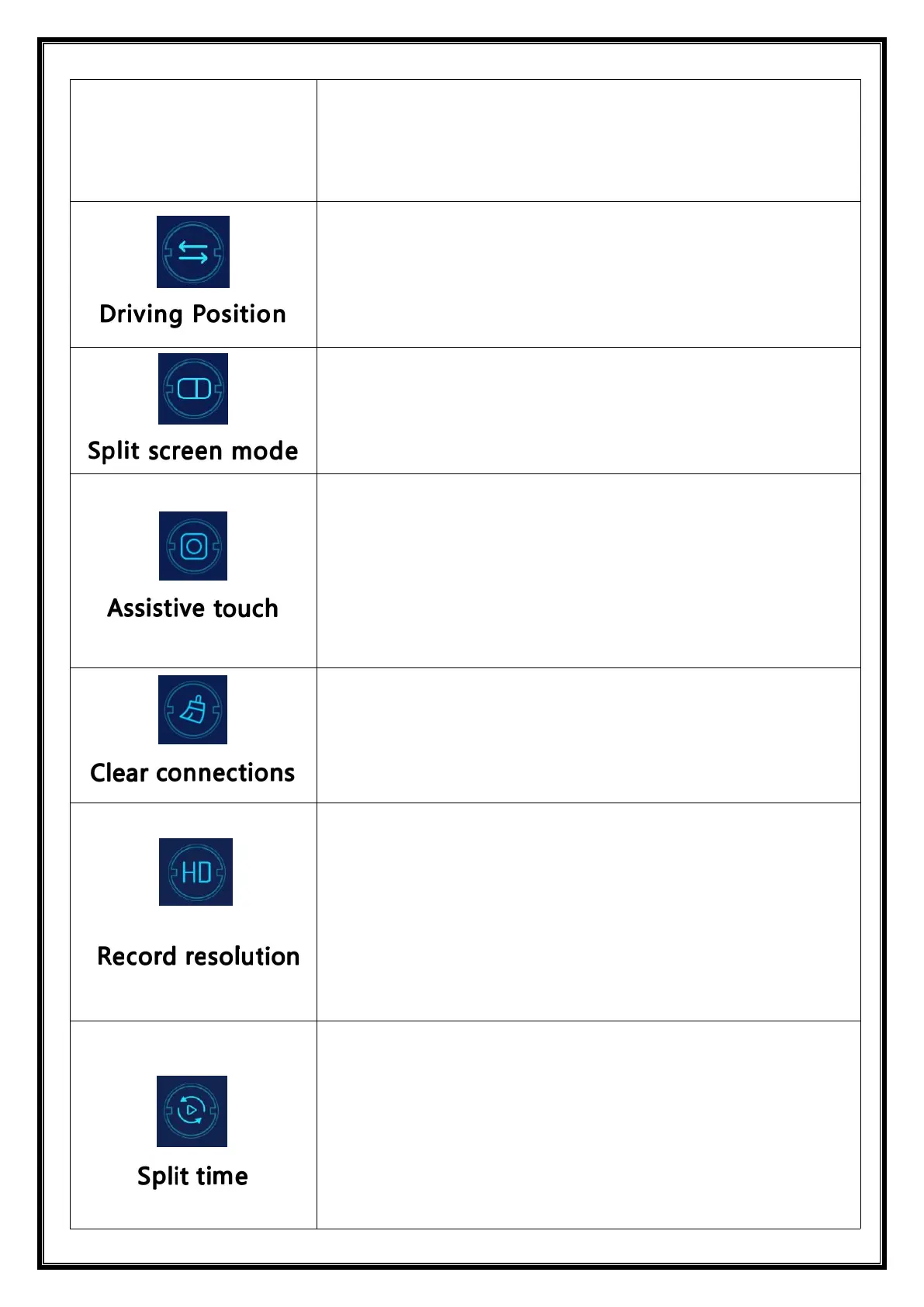
Click [Driving Position] to enter the setting:
You can select left rudder or right rudder. In the shortcut menu
bar of Apple CarPlay, select left rudder on the left, and select
right rudder on the right.
Full-screen or half-screen mode can be set.
After you set the half-screen mode, the camera screen will be
displayed when you enter the CarPlay or Android Auto screen.
[Assistive touch] This is the hover window button in your
phone's screen casting mode, you can choose to close or
open it. This feature is only supported by CarPlay and
Android Auto mode to hide.
If the customer has changed mobile phones, click to clear
the connection records of all previous mobile phones.
Click to enter the [Record resolution] settings:
1.720P
2.1080P
3.2.5K
(different models, options will be somewhat different, subject to
the actual object)
Click [Split time] to enter the setting of the video segmentation
time:
Video segmentation time is optional: 1 minutes / 3 minutes / 5
minutes.
The system defaults to 3 minutes.


 To Next Page