Need help?
Do you have a question about the Hitachi IJ UX2 and is the answer not in the manual?
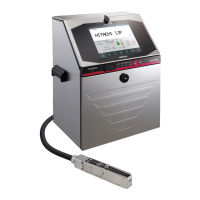
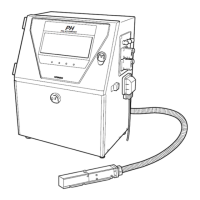
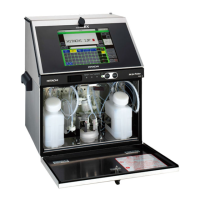
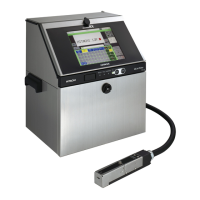
This manual provides comprehensive information regarding the communication functionalities of the Hitachi UX2 Printer, covering serial and Ethernet communication methods, connection preparations, testing procedures, environmental settings, and communication monitoring.
The Hitachi UX2 Printer supports various communication methods to facilitate the transmission of print data, registration numbers, and printer settings from external devices.
Serial communication enables the transmission of printings and their registration numbers, as well as the input of these into the IJ printer from an external device. This is achieved by connecting the external device to the IJ printer via an RS-232C serial communication line. A USB serial converter connected to the USB port of the IJ printer is used to enable RS-232C serial communication.
Ethernet communication, specifically Tunnel communication, supports the same functionalities as RS-232C serial communication. It utilizes the same communication mode as previous models, allowing users who have existing RS-232C serial communication programs for the IJ Printer to leverage their assets for host device communication. Detailed information can be found in the Communication User's Manual (Serial Communication).
Modbus communication allows for changing IJ printer settings, including print contents and specifications, by transmitting data between an external device and the IJ printer within a LAN environment. Modbus is an industrial multi-vendor network based on Ethernet, with its communication specification adopted as an open standard across various industrial equipment. It's important to note that this method does not support voluntary outputs from the IJ printer, such as status or print content outputs. Developing a communication program on the external device side is necessary for Modbus communication.
OPC-UA communication facilitates the modification of IJ printer settings, including print contents and specifications, through data transmission between an external device and the IJ printer over a LAN. OPC-UA is another industrial multi-vendor network utilizing Ethernet, and its communication specification is an open standard for industrial equipment. Similar to Modbus, it does not support voluntary outputs from the IJ printer (e.g., status or print content outputs). A communication program must be developed on the external device side for OPC-UA communication.
EtherNet/IP communication enables an external device to communicate with the IJ Printer via Ethernet within a network environment. EtherNet/IP is an industrial multi-vendor network using Ethernet, and its communication specification is adopted as an open standard in various industrial equipment. It offers two primary communication functions:
The serial communication setup involves the IJ Printer connected to a USB Serial Converter, which then connects to an External Unit via an RS-232C Cable.
The Ethernet communication setup involves the IJ Printer connected to an External Unit via an Ethernet connection.
| Item | Specifications |
|---|---|
| Ethernet standards | IEEE802.3, 10BASE-T, 100BASE-T |
| Protocol | TCP/IP |
| Connection cable | Category 5 UTP or STP cable |
Note: The time from when a signal is transmitted from an external unit to when the IJ Printer receives the signal cannot be strictly defined in the same way as with serial communications.
To establish serial communication, connect the external communication device and the IJ printer using an RS-232C serial communication line. A USB serial communication conversion cable is required for this connection. The USB serial communication conversion cable connects to the designated port on the IJ printer.
Notes on replacement:
When connecting the IJ Printer to an external unit, a LAN connection cable must be used.
Connecting to inter-office LAN:
Connecting from outside the office:
Connect the LAN cable to the designated port on the IJ printer.
Notes on replacement:
This section outlines the procedure to directly connect the IJ Printer to a PC and verify the connection.
ping 192.168.0.1 (replace with the IJ Printer's IP address if different). This command is not case sensitive.bytes=32 time<1ms TTL=64.This section details the various settings available for configuring the serial and LAN communication environments.
| Function | Setting Item | Description | Default |
|---|---|---|---|
| State at power-up | Comm. port is OFF | Offline mode when the power is turned on. | Comm. Port is OFF |
| Comm. port is ON | Online mode when the power is turned on. | ||
| OFF fixed | Always offline mode; cannot change to online mode. | ||
| Communication and signal error | Warning | An external communication error and external signal error are considered "Warning." | Warning |
| Fault | An external communication error and external signal error are considered "Fault." The printer does not print even if the product target detector is turned ON. | ||
| Baud rate | Sets the baud rate for communication. Eleven settings: 150, 300, 600, 1,200, 2,400, 4,800, 9,600, 19,200, 38,400, 57,600, or 115,200 bps. | 4800bps | |
| Data format | Data length | Sets data length (7 or 8 bits), parity bit (none, odd, or even), and stop bits (1 or 2 bits). | Data length: 8 bits, Parity bit: none, Stop bits: 1 bit |
| Number of comm. bytes | Sets the number of character code bytes for communication (1 or 2 bytes). | 1 byte | |
| BCC code handling | Setup can be performed so that no communication error occurs even if BCC code attached data is received. | Disable | |
| Communication mode | Overwrite-protected | No new data will be received until previously received data is printed. | Overwrite-protected |
| Overwrite-enabled | New data is received even if previously received data has not been printed. The newly received data overwrites the old data. | ||
| Print message Transfer ACK | t=fixed | Time from receiving print description to sending ACK is nearly fixed regardless of transmission volume. | t=async. |
| t=async | System is ready to print immediately after returning ACK. | ||
| Print spec. transfer Char. height | 2 digits | Uses 2-digit data for character height setting ([00] to [99]) transmission. | 2 digits |
| 3 digits | Uses 3-digit data for transmission. |
| Function | Setting Item | Description | Default |
|---|---|---|---|
| LAN Function | No use | LAN function cannot be used. | No use |
| Tunnel communication | Tunnel communication function can be used. | ||
| Tunnel communication (Output) | Only communication of Special communication function A can be used as Tunnel communication function. | ||
| Modbus communication | Modbus communication function can be used. | ||
| OPC-UA communication | OPC-UA communication function can be used. | ||
| EtherNet/IP communication | EtherNet/IP communication function can be used. | ||
| IP address | Sets IJ Printer's IP address. 192.168.251.0 to 192.168.255.255 cannot be set. | 192.168.0.1 | |
| Subnet mask | Sets IJ Printer's Subnet address. | 255.255.255.0 | |
| Default gateway | Sets IJ Printer's Default gateway. 192.168.251.0 to 192.168.255.255 cannot be set. | 0.0.0.0 | |
| Port No | Sets IJ Printer's Port No. | 1024 | |
| Tunnel communication: 1024 to 59999 can be set. | |||
| Modbus communication: 502 and 1024 to 59999 can be set. | |||
| OPC-UA Communication: Fixed to 4840. | |||
| Ethernet/IP Communication: Fixed to 44818. | |||
| MAC address | Displays IJ Printer's MAC address. A 12-digit number (e.g., 01-23-45-67-89-AB) registered to identify the device. Cannot be changed. | Device-specific and cannot be changed |
The communication monitor displays the contents of serial communications between the external device and the IJ printer.
Key features:
Notes on communication monitor:
| Item | Description |
|---|---|
| Trans. | Indicates direction: R (Receive) for External device → IJ printer, S (Send) for IJ printer → External device. |
| Communication description | Sent/received data displayed in hexadecimal notation. Sixteen bytes of data are displayed per line. |
| Proc. status | Indicates the current status (monitoring or interrupted). |
| Item | Description |
|---|---|
| Start | Starts the communication monitor function and erases monitored information. |
| Abort | Aborts the execution of the communication monitor function. |
| Prev./Next | Used to switch to another screen when the amount of information to be displayed is too large to fit on a single screen. |
| Back | Returns to the setting menu. |

 To Next Page
 General