EasyManua.ls Logo

Hitachi RX2 - User Manual

Hitachi RX2
210 pages
Print Icon
To Next Page IconTo Next Page
Loading...
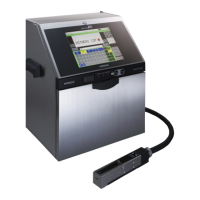
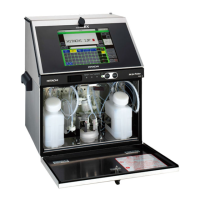
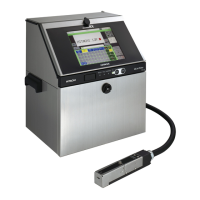
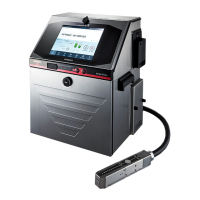
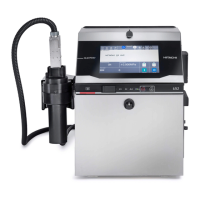
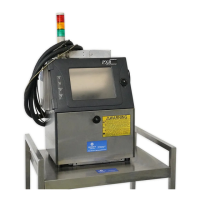
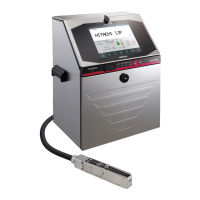
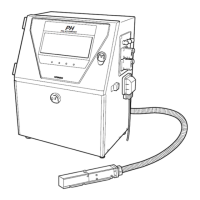
HITACHI Printer
Instruction Manual
INK JET PRINTER FOR INDUSTRIAL MARKING
Model RX2
Thank you for purchasing the Hitachi IJ Printer Model RX2.
This printer employs a noncontact, ink-jet method to print onto a print target.
This instruction manual describes the basic operating procedures, maintenance procedures, and other detailed
handling procedures of the Hitachi IJ Printer Model RX2.
If the printer is improperly handled or maintained, it may not operate smoothly and may become defective or
cause an accident. It is therefore essential that you read this manual to gain a complete understanding of the
printer and use it correctly.
After thoroughly reading the manual, properly store it for future reference.
IF you changed the language of the screen by mistake, see Chapter 7.8 "Selecting Languages".

Table of Contents

Questions and Answers

  • B
    Brandon FordJul 27, 2025
    What to do if Hitachi Printer power does not turn ON?
    • E
      Emily RamirezJul 27, 2025
      If your Hitachi Printer doesn't turn on when you press the Start switch: 1. Ensure that the main power switch is turned on. 2. Turn the main power switch off and then on again. Make sure the power outlet is working, and the power plug is securely connected. 3. Make sure the Status indicator lamp is off when you press the Start switch. 4. Press and hold the Start switch for about 2 seconds.
  • J
    joshuaburtonAug 4, 2025
    Why Hitachi Printer does not become ready for printing?
    • P
      paul96Aug 4, 2025
      If your Hitachi Printer does not become ready for printing when you press Start up: * Stop the ink ejection sequence by pressing the Shut down. Then, consult the Technical Manual “6.4 How to correct ink stream bending and nozzle clogging” to fix the problem. * Refer to “1.3 Print head cleaning” and perform the cleaning operation.
  • S
    Seth BrooksAug 11, 2025
    How to fix incorrect calendar time printed by Hitachi Printer?
    • B
      bjohnsonAug 12, 2025
      If the calendar time is not being printed correctly by your Hitachi Printer, select the "same as current time" option. See “6.2 Set the Date and Time”.
  • J
    Jonathan HortonAug 18, 2025
    Why does Hitachi Printer screen have a residual image?
    • G
      Gabrielle HartmanAug 18, 2025
      If you notice a residual image of characters or other elements remaining on the screen of your Hitachi Printer, this is due to the characteristics of the liquid crystal panel. When the same pattern is displayed for an extended period, it can leave a residual image. However, this image will disappear over time.

Summary

Safety Precautions

Safety Precautions (Continued)

Mercury Warning

Contains mercury, recycle or dispose according to environmental laws.

1. Usage Precautions

Ink and Makeup Replenishment

Explains automatic ink/makeup replenishment system and low level alarms.

Ink Periodic Replacement

Describes periodic ink replacement due to deterioration from air exposure.

1.3 Print Head Cleaning

1.4 Shutdown (No-Cleaning Stop)

2. Component Names and Functions

2.1 External Views

Identifies external parts of the printer, including front and rear views.

2.3 Print Head

Details the components and structure of the printer's print head.

3. Basic Operation

3.1 Start Operation

Guides through the process of starting the printer and initial checks before operation.

3.1.2 Error Handling During Startup

Procedures to follow when errors occur during printer startup.

3.2 Shutdown Operation

3.3 Basic Operation

3.3.2 Printer Status Indicators

Describes the various operational states of the printer displayed on the screen.

3.3.3 Changing Settings

Explains the basic methods and examples for changing printer settings.

4. Creation and Printing of Messages

4.1 Print Description Screen Overview

Explains the initial print description screen, its layout, and available functions.

4.2 Editing Messages and Print Formats

Covers editing current messages and understanding different print format types.

4.6 Saving Created Messages

Details the process of saving created messages and their storage capacity.

4.7.4 Setting Dot Matrix, Spacing, and Other Parameters

Explains how to set dot matrix, inter-character space, bold font, and line spacing in fixed layout.

4.13 Count Function

Explains how to use the count function for sequential printing.

4.13.1 Printing Count Characters

Details setting count values, ranges, increments, and skips for count characters.

4.14 Print Specifications

Covers settings for character height, width, orientation, and ink drop usage.

4.14.1 Character Height, Width, and Orientation

Guides on setting character height, width, and print orientation.

4.14.4 Fine Adjusting Print Specifications

Guides on fine-tuning print parameters like character height, width, and print start delay.

5. Maintenance

5.2 Monitor Operational Status

Explains how to view operational status like ink time, print count, and temperature.

6. Environment Setup

6.1 Setting the User Environment

Covers settings related to repeat print modes and character orientation.

7. Auxiliary Functions

7.1.1 Managing Stored Messages

Explains how to manage existing stored messages, including selection methods.

7.3 Creating User Patterns

Covers creating and saving custom dot matrix patterns.

7.3.1 Creating and Saving User Patterns

Guides on creating dot matrix patterns with fixed or free sizes.

7.5 Backing Up Data to USB Memory

Instructions for backing up print data, standard characters, and user patterns to USB.

8. Ink and Makeup Replenishment

Handling Ink and Makeup Precautions

Provides critical safety warnings and cautions for handling ink and makeup.

8.1 Replenishing Ink

Step-by-step guide for refilling the ink reservoir.

8.2 Replenishing Makeup

Step-by-step guide for refilling the makeup reservoir.

9. When Warning or Fault Was Generated

9.1 Displaying Warnings and Faults

Explains how warning and fault messages are displayed on the screen and indicated by lamps.

9.2 On-Screen Message Descriptions

Lists and explains various fault messages that cause ink stoppage.

9.2.2 Warning Messages

Lists and explains various warning messages and their remedies.

9.4 Remedial Actions for Printing Failures

Provides solutions for common printing issues like chipped prints and character variations.

10. Troubleshooting Guide

11. Emergency Procedures

Hitachi RX2 Specifications

General IconGeneral
BrandHitachi
ModelRX2
CategoryPrinter
LanguageEnglish

Related product manuals