EasyManua.ls Logo

Hitachi IJ UX - User Manual

Hitachi IJ UX
262 pages
Print Icon
To Next Page IconTo Next Page
Loading...
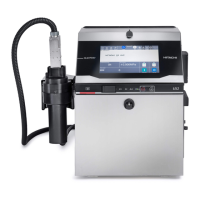
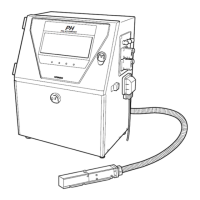
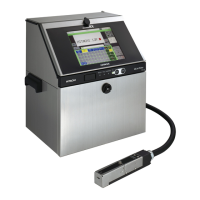
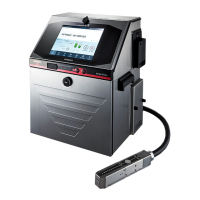
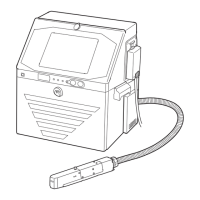
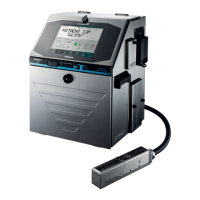
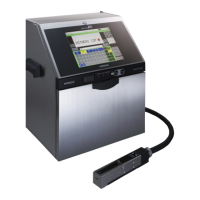
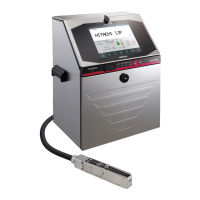
HITACHI Printer
Instruction Manual
INK JET PRINTER FOR INDUSTRIAL MARKING
Model UX
Thank you for purchasing the Hitachi IJ Printer Model UX.
This printer employs a noncontact, ink-jet method to print onto a print target.
This instruction manual describes the basic operating procedures, maintenance procedures, and other detailed
handling procedures of the Hitachi IJ Printer Model UX.
If the printer is improperly handled or maintained, it may not operate smoothly and may become defective or
cause an accident. It is therefore essential that you read this manual to gain a complete understanding of the
printer and use it correctly.
After thoroughly reading the manual, properly store it for future reference.
IF you changed the language of the screen by mistake, see Chapter 7.8 "Selecting Languages".

Table of Contents

Other manuals for Hitachi IJ UX

Questions and Answers

  • A
    Ashley AlexanderAug 1, 2025
    How to fix a Hitachi IJ UX that won't turn on?
    • J
      Jesse VegaAug 1, 2025
      If your Hitachi Printer isn't powering on when you press the On switch: * First, ensure the main power switch is turned ON. * If it still doesn't turn on, turn the main power switch OFF, check that the power outlet is working, and then plug the power cord into the outlet. * If the Status indicator lamp is off when you press the On switch, turn off the main power, wait 10 seconds, and turn it back on. Then, press the On switch again. * Make sure you press and hold the Start switch for about 2 seconds.
  • M
    marvin18Aug 6, 2025
    What to do if my Hitachi IJ UX won't start printing?
    • T
      toddmarshallAug 6, 2025
      If your Hitachi Printer doesn't become ready when you press Start up: * Stop the ink ejection sequence by pressing the Shut down button. Then, address any issues like ink stream bending or nozzle clogging. * Also, the print head might be dirty. Clean the print head.
  • A
    agarrisonAug 11, 2025
    Why does my Hitachi Printer screen have a ghost image?
    • W
      wadetimothyAug 12, 2025
      If you notice a residual image of characters or other elements on your Hitachi Printer's screen, it's likely due to the characteristics of the liquid crystal panel. When the same pattern is displayed for an extended period, a residual image may appear. Rest assured, this image will fade away over time.
  • J
    Jennifer WardAug 16, 2025
    What to do if Hitachi IJ UX Printer RFID cannot be read?
    • B
      Bryan RamosAug 16, 2025
      If your Hitachi Printer is unable to read RFID, the tag may be broken. In this case, you should manually input the ID.
  • C
    Cassidy MaxwellAug 21, 2025
    How to fix incorrect date/time on my Hitachi Printer?
    • M
      Misty SmithAug 21, 2025
      To correct the calendar time printed by your Hitachi Printer, select the "same as current time" option.
  • M
    Michael BrownAug 27, 2025
    What to do if Hitachi IJ UX Printer cartridge cannot be changed?
    • A
      Amanda SilvaAug 27, 2025
      If you're having trouble changing the cartridge on your Hitachi Printer because it's locked, push the lever into the equipment.

Summary

Safety Precautions

Usage Precautions

General precautions for printer use, including reading the manual and ensuring correct operation.

Installation Environment Safety

Safety guidelines for the printer's installation environment, focusing on ventilation, flame prevention, and noise immunity.

Ink and Makeup Handling Safety

Safety measures for handling flammable ink and makeup, including spill response and proper waste disposal.

Main Body Handling Safety

Precautions for safely handling the printer's main body, print head, and piping tubes to avoid injury or damage.

Related Regulations and FCC Notice

Information on compliance with relevant regulations, including waste disposal and FCC standards for electronic devices.

Basic Operation

Starting the Printer

Step-by-step guide on powering on the printer, checking the print head, and initiating the startup sequence.

Shutting Down the Printer

Instructions for properly powering off the printer, including automatic and manual shutdown procedures.

Printer Status Indicators

Explains the various operational states (Stop, Standby, Ready, Starting) and their display on the screen.

Creation and Printing of Messages

Editing Messages

Guide on editing current messages, covering different print format types and background colors for edit screens.

Setting Print Format (Fixed Layout)

Detailed steps for setting print items, number of lines, adding/deleting items, and adjusting parameters in fixed layout.

Using the Calendar Function

Explains how to use calendar characters, total days, month formats, week numbers, and day of week printing.

Using the Count Function

Details on setting up count characters, multiplication printing, skip characters, and zero-suppression.

Maintenance Procedures

Monitor Operational Status

Details on how to view operational status, including ink levels, print counts, and temperatures.

Print Without Sensor Signal

Instructions for performing test prints and starting printing via button operation without a sensor signal.

Environment Setup

Set User Environment

Configures user environment values, including print values and character orientation settings.

Set Date and Time

Procedures for setting the current time, calendar time, and clock system (24-hour or 12-hour).

Auxiliary Functions

Manage Messages

Covers operations for managing saved messages, including name change, deletion, and group management.

Create User Pattern

Steps for creating and saving custom patterns using dot matrix or free size options.

Backing Up Data to USB Memory

Instructions for backing up and copying data (print descriptions, user patterns) to and from USB memory.

Ink and Makeup Replenishment

Replenishing the Ink

Detailed guide on how to replace the ink cartridge, including safety precautions and IC tag reading.

Replenishing the Makeup

Step-by-step instructions for refilling the makeup cartridge, with safety warnings and IC tag reading.

Troubleshooting and Error Handling

Displaying Warning and Fault Messages

Explains how warning and fault messages are displayed, including their descriptions, causes, and solutions.

Remedial Actions for Printing Failure

Lists common printing failures, probable causes, and recommended solutions for troubleshooting.

Troubleshooting Guide

Emergency Procedures

Specifications

Appendix

Hitachi IJ UX Specifications

General IconGeneral
Maximum Print Speed600 cps
Font Matrix24 x 24 dots
Operating Temperature5°C to 35°C
Power SupplyAC 220-240V, 50/60Hz
Print Speed (Black)600 cps

Related product manuals