10. Built-in devices 155
To switch on/o
To switch on
- Press the adjusting knob / pushbutton.
To switch o
- Press the adjusting knob / pushbutton for longer than 4 seconds.
- iNet-ready: After 2 seconds, “APP” appears on the display;
after a further 2 seconds, “OFF” appears on the display.
Previously set values / operating parameters will be reacti-
vated after the control panel has been switched on.
Due to an internal lag feed in the heating or air-conditioning
system, it may take a few minutes for the Truma CP plus
control panel to switch o.
APP mode in connection with an iNet Box
Function
In APP mode, the connected devices as well as the Truma CP
plus control panel switch to stand-by.
- no heating function
- no hot water generated
- air-conditioning system does not work
- the timer on the Truma CP plus control panel does not work
The CP plus control panel continues to receive commands via
the Truma APP or the air-conditioning system's infra-red remote
control. The connected devices can still be operated.
Turning on the APP mode
• Press the adjusting knob/pushbutton approx. 2 seconds until
“APP” appears on the display.
• Let go of the adjusting knob/pushbutton.
• The previously saved values will be saved.
Turning o the APP mode
The APP mode is turned o
- when new values are transferred via the Truma APP or the air-
conditioning system's infra-red remote control;
- when the Truma CP plus control panel is alerted by pressing the
adjusting knob/pushbutton. The previously saved values will
then be imported for renewed operation.
To operate
Press the adjusting knob / push-
button
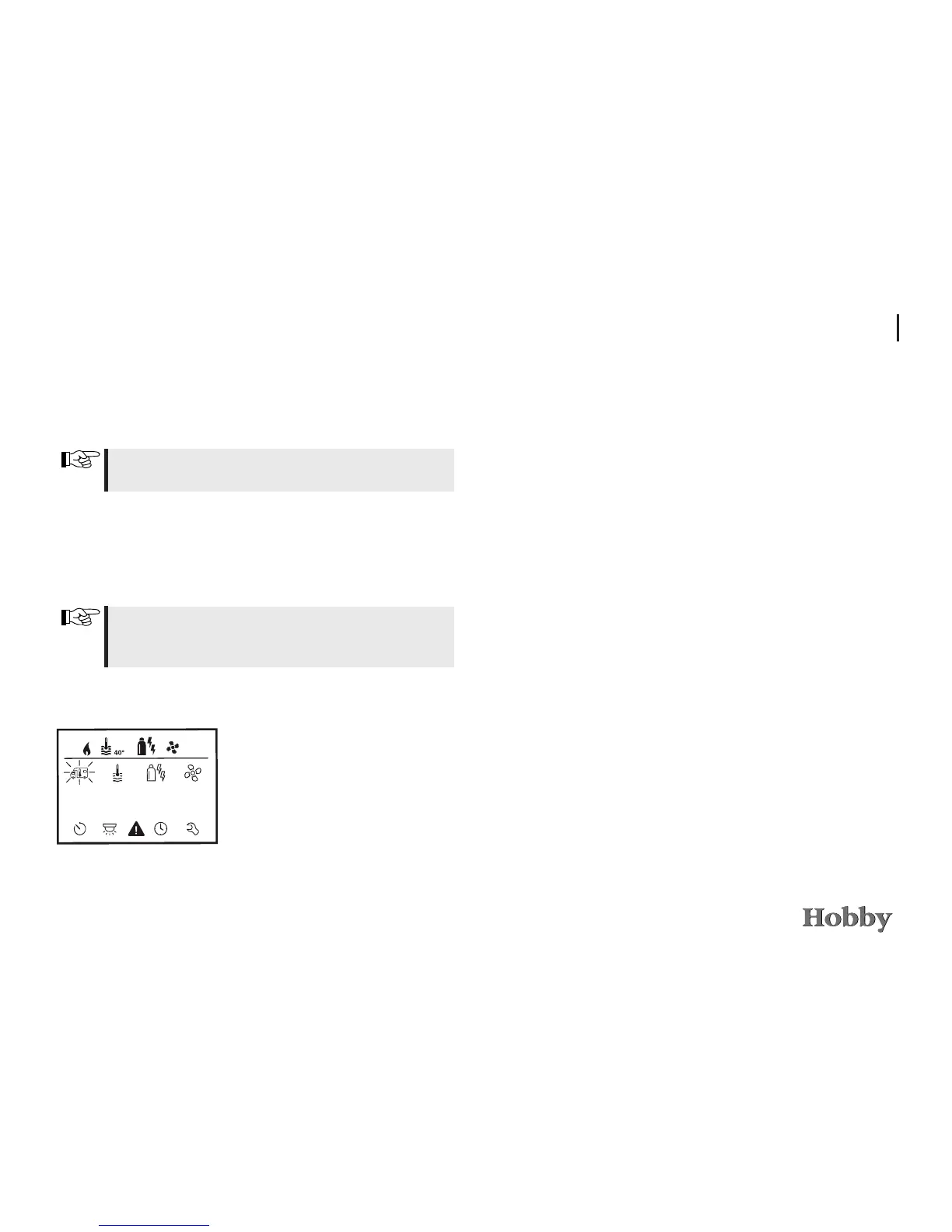
The display shows the setting mode.
The rst icon blinks.
Selecting the setting mode



 To Next Page