18 of 24
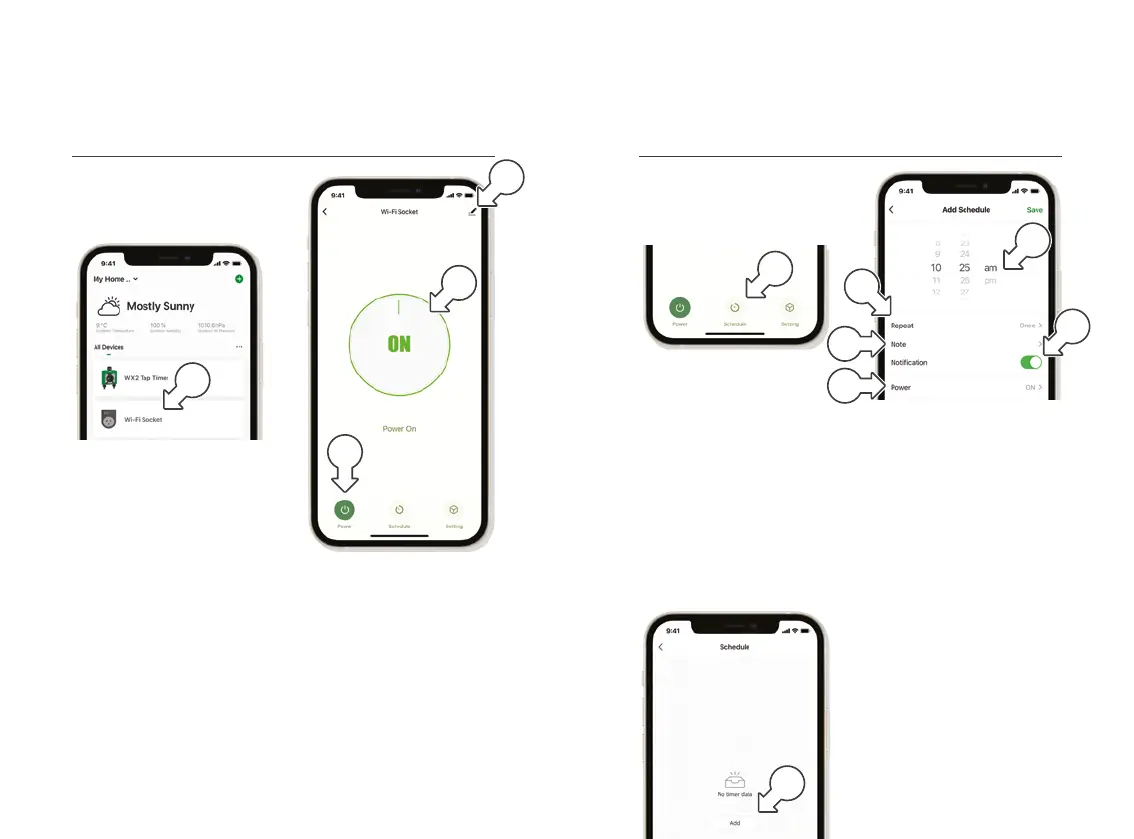
Wi-Fi Socket Scheduling
1. In the Wi-Fi SOCKET
controls, tap SCHEDULE[a]
scheduling options
® This reveals the
Wi-Fi Socket SCHEDULE
2. Tap ADD [b] to set
a schedule for the
Wi-Fi Socket
3. Use the POWER menu
[c] to switch between
ON or OFF schedules
4. Use the clock wheels [d] to
schedule the time of day
5. Tap REPEAT [e] to schedule
days of the week
6. Tap NOTE [f] to customise
the description
7. Toggle the NOTIFICATION
switch [g] to receive
alerts when the
schedule is triggered
8. Tap SAVE [h] to set
your schedule, or [i]
to exit without saving
® Socket does not have
to be scheduled for the
WX2 Tap Timer to work
Wi-Fi Socket Manual Controls
1. Tap the Wi-Fi SOCKET[a]
on the HOME screen
devices list
® This displays Wi-Fi Socket
controls and settings
2. For additional information
about your Wi-Fi Socket,
tap the pencil icon [b]
3. Toggle the socket power
on and off by tapping
the ON[c] or POWER[d]
buttons in Holman Home
® The Wi-Fi Socket can
also be toggled manually
using the HUB BUTTON
a
Operation (continued) Operation (continued)
b
c
d
a
d
g
b
c
f
e


 To Next Page