Connecting to Drone’s Wi-Fi
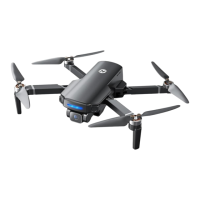
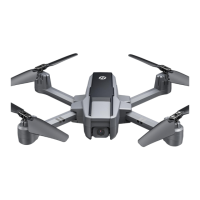
Connect your phone to the Wi-Fi network generated by the drone. You
can check the drone’s status in the HolyStone-FPV app.
① Make sure to turn off Bluetooth, Mobile Data, and VPN. Enter your
phone’s Wi-Fi settings and click Wi-Fi to search for the Wi-Fi of the
drone. (Make sure the pairing has finished before going to the Wi-Fi
settings on your phone)
② Select the Wi-Fi network: HolyStoneGPS-******.
③ Wait for a couple of seconds for your phone to connect to the
drone’s Wi-Fi.
④ Open the HolyStone-FPV app.
> The connection between your phone and the drone is established
automatically.
Because the Wi-Fi network created by the drone cannot access
the Internet, your phone may inform you in various ways, like
saying the connection isn't secure, or there is no internet connec-
tion, etc. Please ignore these messages. Or, in the case of getting
Pop-ups, choose the option that allows you to stay with the current
Wi-Fi.
HolyStoneGPS-******
FLIGHT


 To Next Page