13
5.2.4 Connect by Bluetooth
®
when the reader is already paired
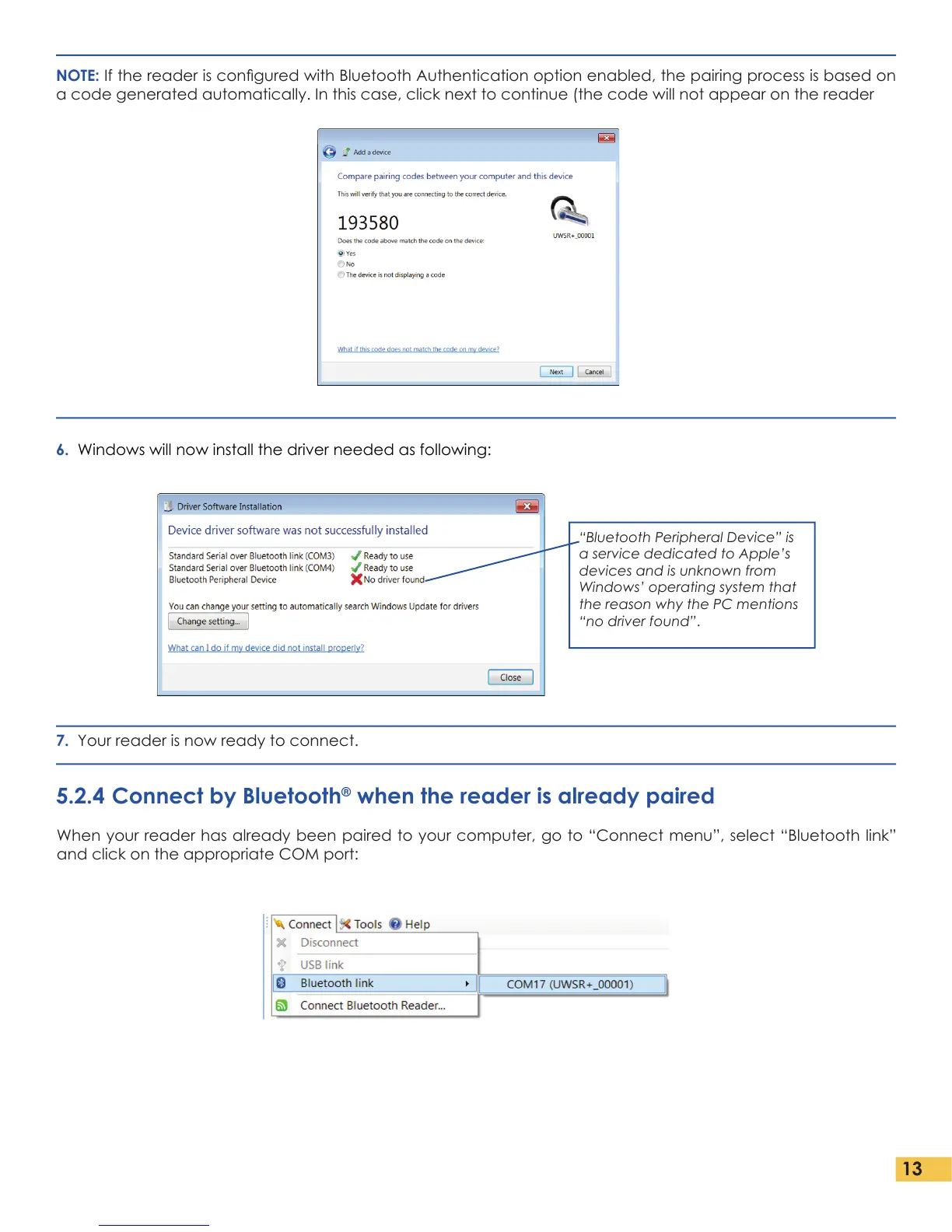
NOTE: If the reader is congured with Bluetooth Authentication option enabled, the pairing process is based on
a code generated automatically. In this case, click next to continue (the code will not appear on the reader
6. Windows will now install the driver needed as following:
When your reader has already been paired to your computer, go to “Connect menu”, select “Bluetooth link”
and click on the appropriate COM port:
7. Your reader is now ready to connect.
“Bluetooth Peripheral Device” is
a service dedicated to Apple’s
devices and is unknown from
Windows’ operating system that
the reason why the PC mentions
“no driver found”.


 To Next Page