6
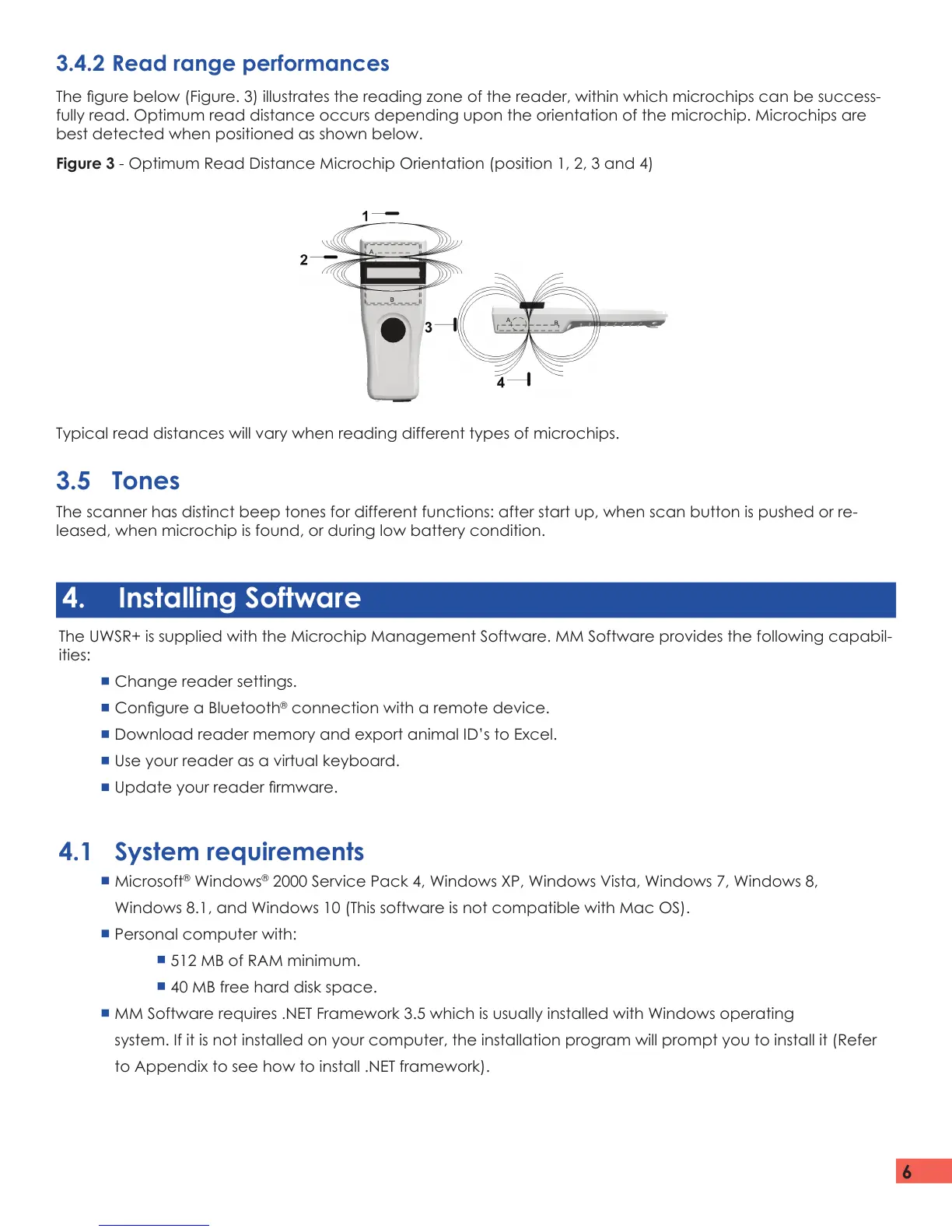
Typical read distances will vary when reading different types of microchips.
3.5 Tones
The scanner has distinct beep tones for different functions: after start up, when scan button is pushed or re-
leased, when microchip is found, or during low battery condition.
4. Installing Software
The UWSR+ is supplied with the Microchip Management Software. MM Software provides the following capabil-
ities:
Change reader settings.
Congure a Bluetooth
®
connection with a remote device.
Download reader memory and export animal ID’s to Excel.
Use your reader as a virtual keyboard.
Update your reader rmware.
4.1 System requirements
Microsoft
®
Windows
®
2000 Service Pack 4, Windows XP, Windows Vista, Windows 7, Windows 8,
Windows 8.1, and Windows 10 (This software is not compatible with Mac OS).
Personal computer with:
512 MB of RAM minimum.
40 MB free hard disk space.
MM Software requires .NET Framework 3.5 which is usually installed with Windows operating
system. If it is not installed on your computer, the installation program will prompt you to install it (Refer
to Appendix to see how to install .NET framework).
3.4.2 Read range performances
The gure below (Figure. 3) illustrates the reading zone of the reader, within which microchips can be success-
fully read. Optimum read distance occurs depending upon the orientation of the microchip. Microchips are
best detected when positioned as shown below.
Figure 3 - Optimum Read Distance Microchip Orientation (position 1, 2, 3 and 4)


 To Next Page