12
Overriding a program schedule (continued)
Permanent Hold
1. Touch to deactive the schedule
and activate a permanent hold.
2. Touch
or to adjust temperature.
3. Touch to cancel the Permanent Hold
and resume the regular schedule.
Geofencing
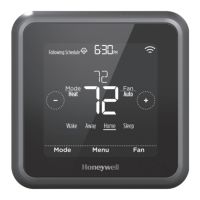
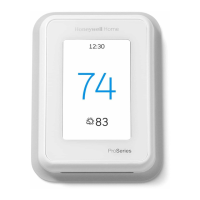
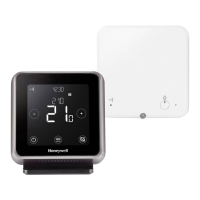
Your new T6/T6R Smart Thermostat supports location-based scheduling
which can intelligently override the time-based schedule. If your schedule
varies or you regularly depart and return at different times, the Thermostat
can automatically adjust to your life. No rigid scheduling. No learning period.
Just comfort when you’re home and savings when you’re away.
When you enable the geofence schedule in the Honeywell Home App, it
intelligently controls your heating based on whether you are home or away.
• Active geofence schedule is indicated by
in the top left corner of the
screen. Home/Away/Sleep status is indicated by
, or .
• To
learn more about configuring the geofence schedule, see
‘Create New Schedule’ menu in your Honeywell Home App.
• To learn more about how smart geofencing can work for you and how
it fits to your busy lifestyle, go to getconnected.honeywellhome.com

 To Next Page
 Loading...