If you encounter an issue with Windows 10, please visit the Windows 10 support page at:
https://support.microsoft.com/en-us/products/windows?os=windows-10
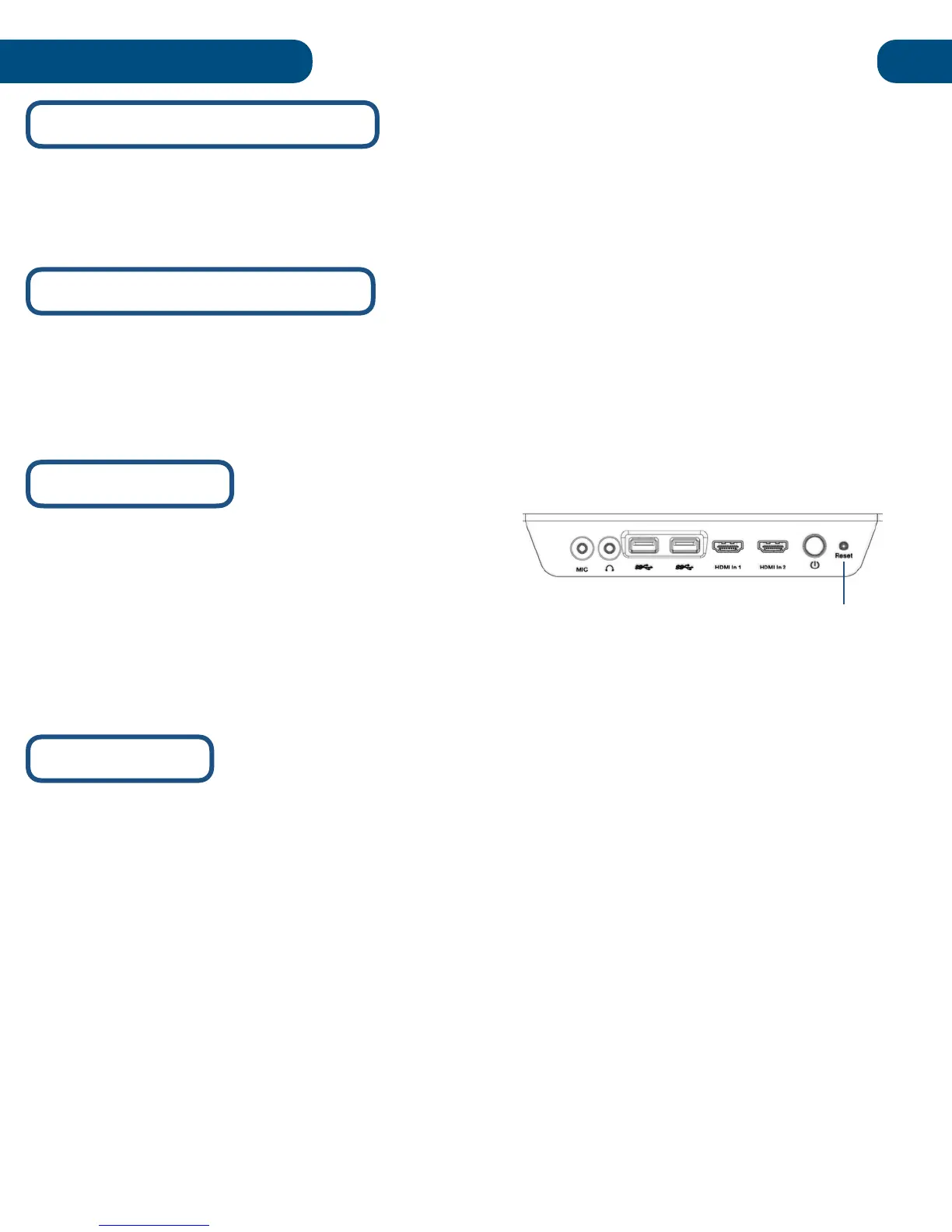
If you encounter an issue with the Pilot’s internal
computer hardware, the motherboard can be manually
reset from the button on the right side of the podium.
We do not recommend resetting the motherboard unless there is a hardware error. If
the Pilot’s computer has a software malfunction, we recommend restarting it from the
Windows software or pressing and holding the power button.
If the internal computer becomes corrupted, or when the device is imaged, the necessary drivers will
need to be reinstalled. The included USB drive contains the necessary drivers. Alternatively, you can
request the drivers from HoverCam support: support@thehovercam.com
If you encounter an issue with the included Solo 8Plus document camera, you can manually reset it by
using a pin to select the manual reset button at the base of the camera. If this does not resolve the
issue, contact HoverCam support: support@thehovercam.com


 To Next Page